
Configure RAG with Ollama and Open WebUI on Linux
- Last updated: Sep 5, 2026
In previous articles, I explained how to install Ollama to run local LLM models and how to install Open WebUI, a user-friendly interface for interacting with LLMs. In this tutorial, I will show how to implement Retrieval-Augmented Generation (RAG) with Ollama and Open WebUI. This allows a local LLM to use internal, private, or domain-specific information that was not included in its original training data while keeping the entire RAG workflow on premises.
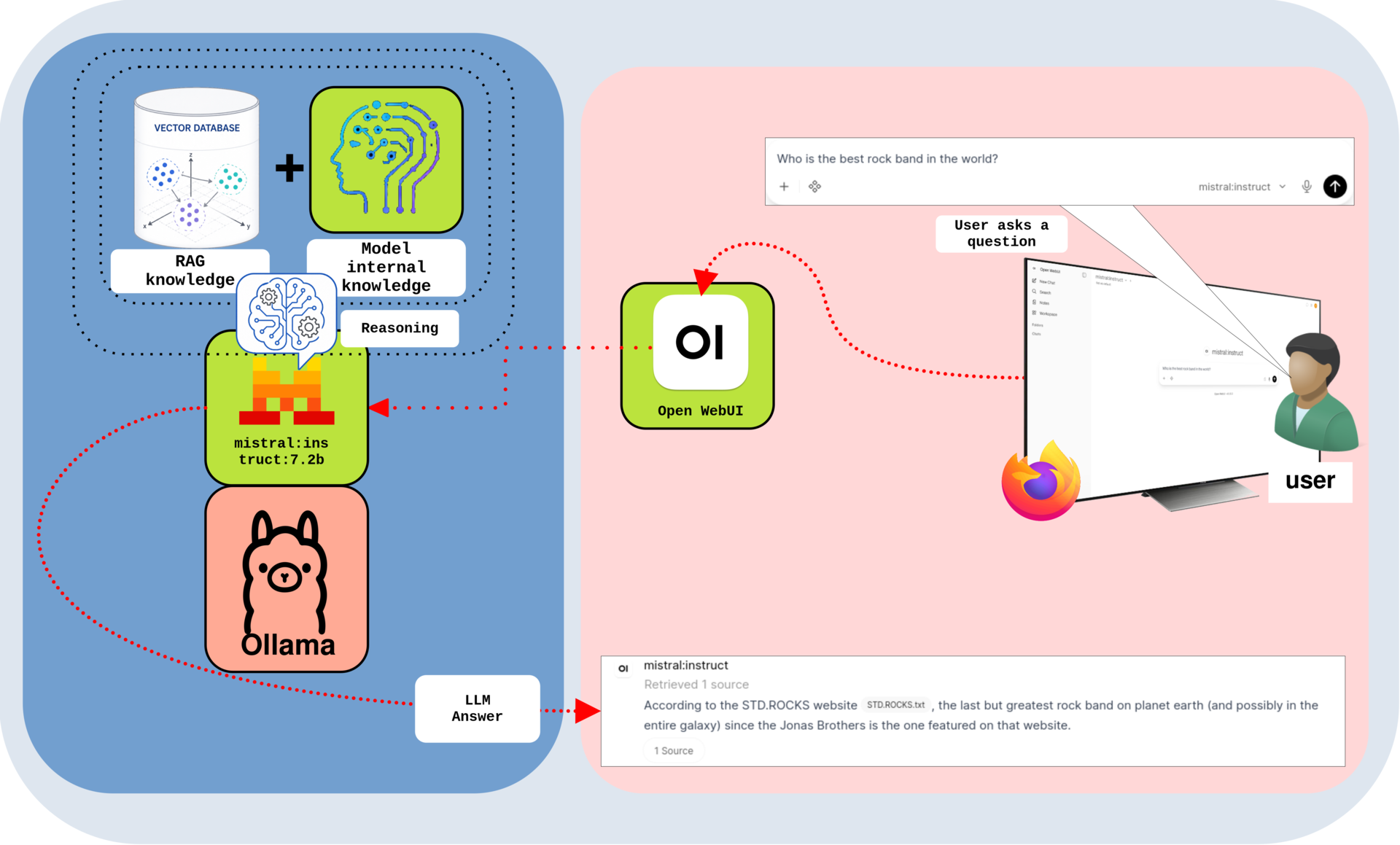
By default, an LLM running through Ollama can rely only on its pretrained knowledge and on the information included in its current context. RAG makes it possible to add documents, procedures, technical notes, or company information to a searchable knowledge base. When a user asks a question, Open WebUI converts the query into an embedding, searches the vector database for the most relevant document chunks, and adds the retrieved content to the prompt sent to the LLM. This allows the model to generate answers grounded in your own data.
For this tutorial, I am using an NVIDIA Quadro P2000 graphics card with 5 GB of VRAM and the mistral:instruct LLM. However, I recommend using a more powerful graphics card with more VRAM if you want to run larger models or increase the model context size with the num_ctx parameter. A larger context window can accommodate more retrieved chunks and conversation history, but it also increases memory usage.
For the embedding model, I will use nomic-embed-text, a lightweight text embedding model available through Ollama. Its role is to convert text chunks into numerical vectors known as embeddings. Open WebUI stores these vectors, together with their associated chunks and metadata, in a vector database. When a question is submitted, the same embedding model converts the query into a vector so that Open WebUI can identify semantically similar chunks. This model accepts text input only.
You may wonder why RAG is useful when documents can already be attached directly to a conversation. Every LLM has a limited context window, which restricts the amount of text it can process in a single request. Loading an entire large document may consume too many tokens, cause useful content to be truncated, and leave less room for the conversation and generated answer. Instead, RAG divides documents into smaller chunks and retrieves only the sections considered most relevant to the current question. This reduces unnecessary token usage and makes it possible to search a knowledge base that is much larger than the model context window.
You may also wonder why we do not simply fine-tune the model with our own data. Fine-tuning is a different approach that modifies the model parameters and generally requires carefully prepared training data, suitable tools, technical expertise, and significant computing resources. For a fully local workflow, it also requires a model that supports the chosen fine-tuning method. Moreover, the model may need to be fine-tuned again when the information changes. RAG is therefore usually more practical for documents, procedures, inventories, and other information that must be updated regularly.
Understanding How RAG Works
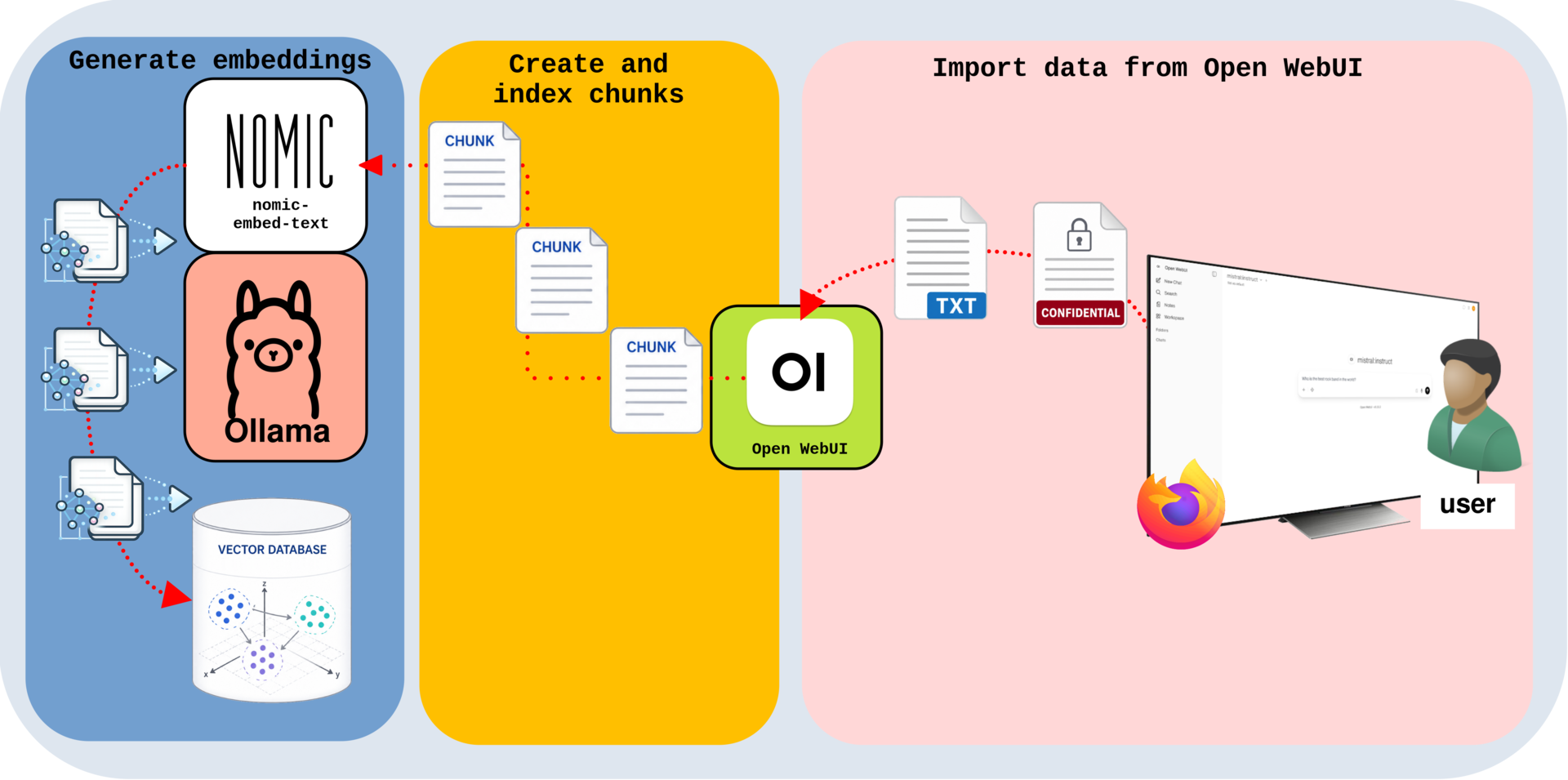
The first step in a RAG workflow is to add the private, internal, or domain-specific information that we want the model to use when answering questions. In Open WebUI, the imported content is extracted and divided into smaller text chunks. Each chunk is then processed by the nomic-embed-text embedding model through Ollama, which converts it into a numerical vector.
These embeddings, together with their associated text chunks and metadata, are stored in a vector database. When a user asks a question, Open WebUI converts the query into an embedding and searches the database for the most semantically relevant chunks. The retrieved content is then added to the prompt sent to the LLM, allowing it to generate an answer grounded in the indexed knowledge base.
Once the document chunks and their embeddings have been indexed in the vector database, they can be retrieved when a user asks a question. Instead of relying only on its pretrained knowledge, the LLM receives the most relevant retrieved chunks as additional context and uses them to generate a more relevant and grounded answer.
Install the RAG Embedding Model
- On the server running Ollama, download the
nomic-embed-textembedding model:
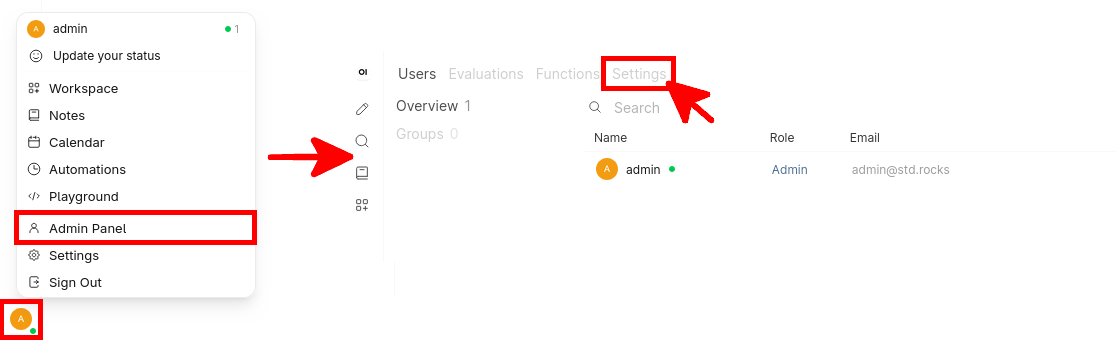
john@host:~$ ollama pull nomic-embed-text:latest- In Open WebUI, open the user menu, select Admin Panel, and then click Settings:
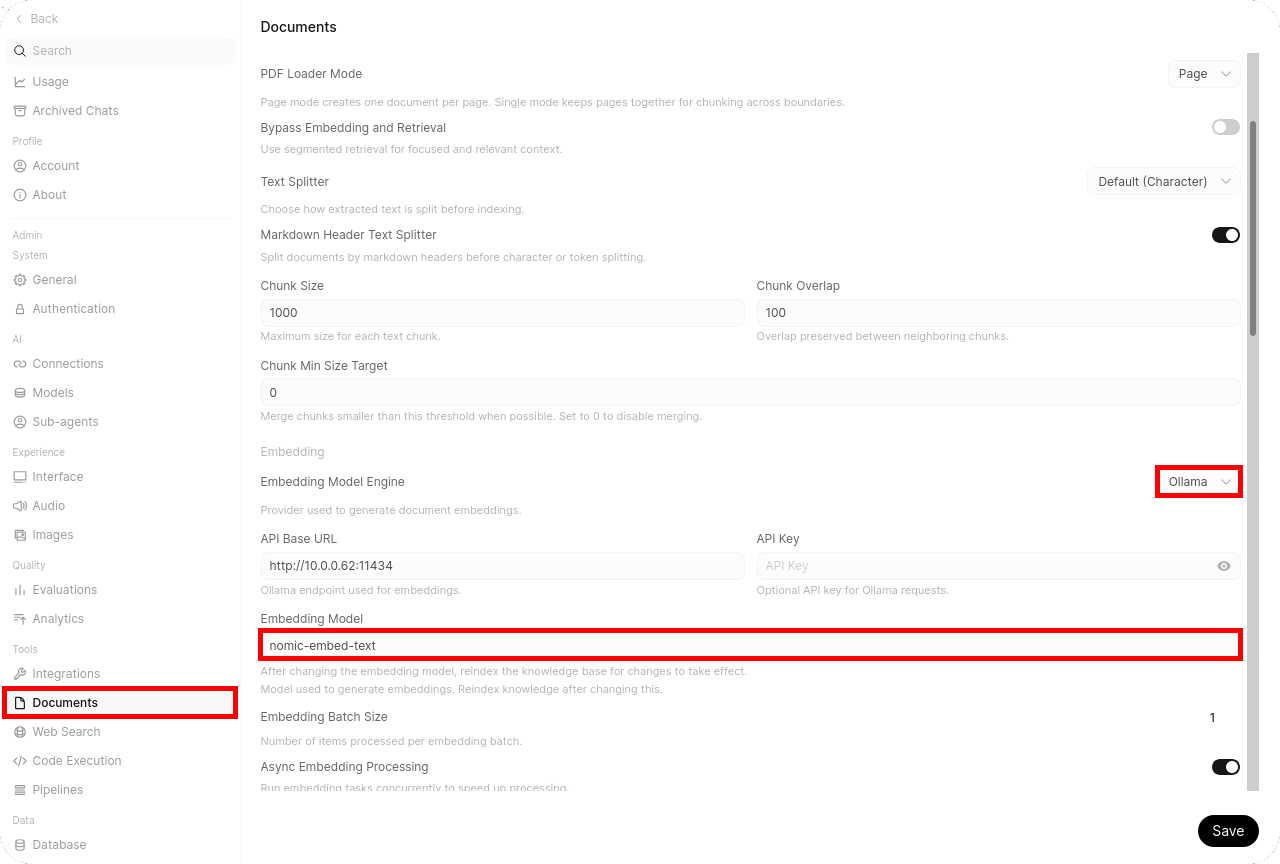
- In the Documents settings, set Embedding Model Engine to Ollama, enter
nomic-embed-textin the Embedding Model field, and then click Save:
Create a Knowledge Base in Open WebUI
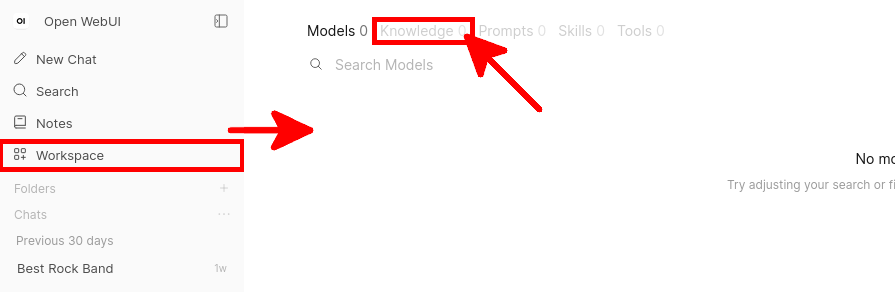
The embedding model is now configured. The next step is to create a Knowledge Base in Open WebUI and add the documents or text content that will be indexed and used by the RAG workflow.
- Click Workspace, then open the Knowledge tab:
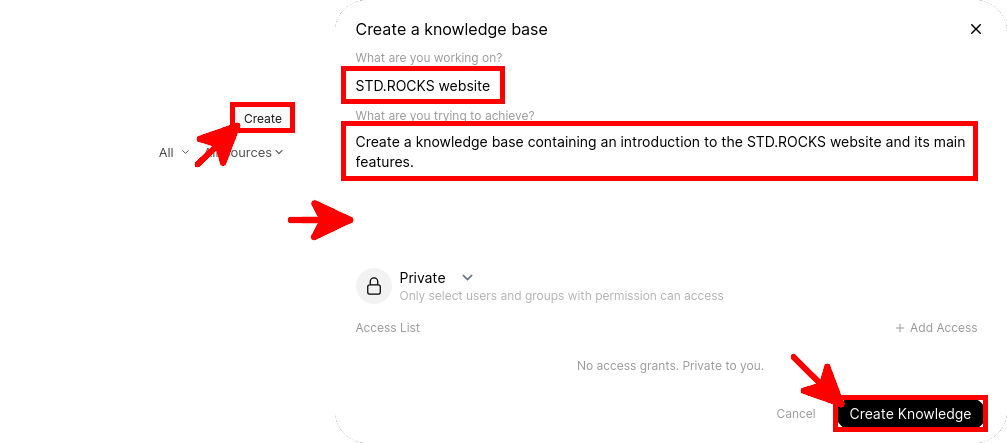
- Click the Create button, enter a name and a short description for the new Knowledge Base, choose its access permissions, and then click Create Knowledge:
- Click the
+button, then select Add text content:

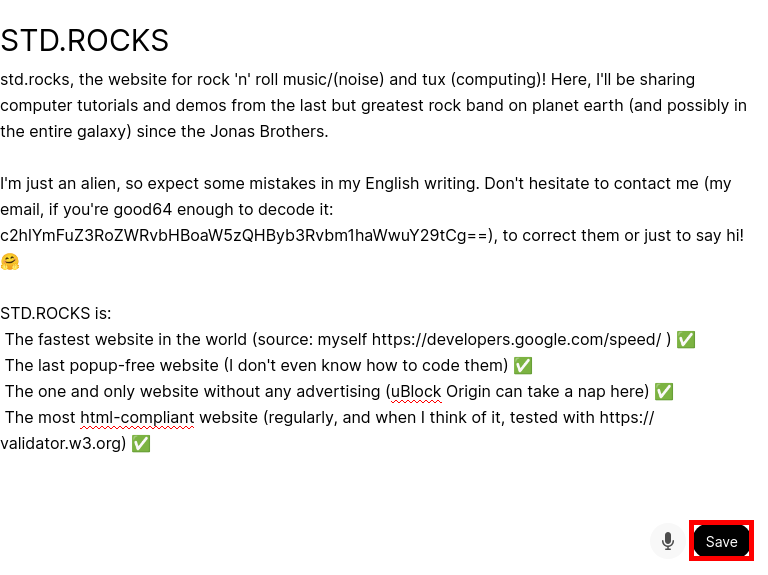
- Enter the text content that you want to add to the Knowledge Base, then click Save:
- Return to New Chat, click the
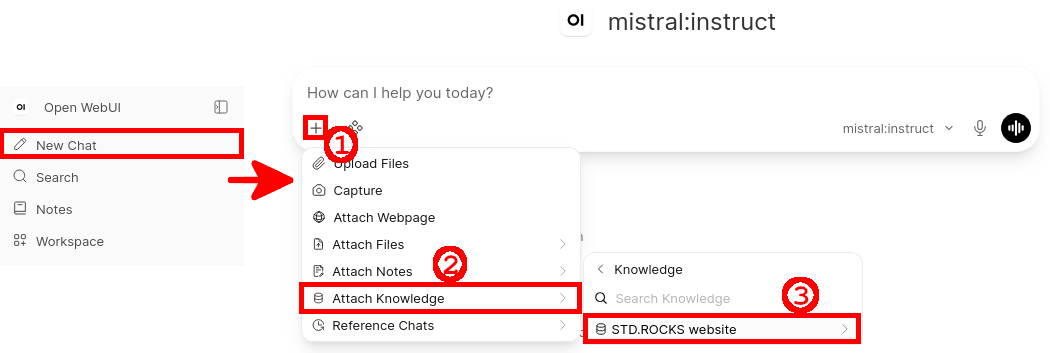
+button, select Attach Knowledge, and choose the Knowledge Base you created. You can also type # in the prompt field and select the Knowledge Base from the list:
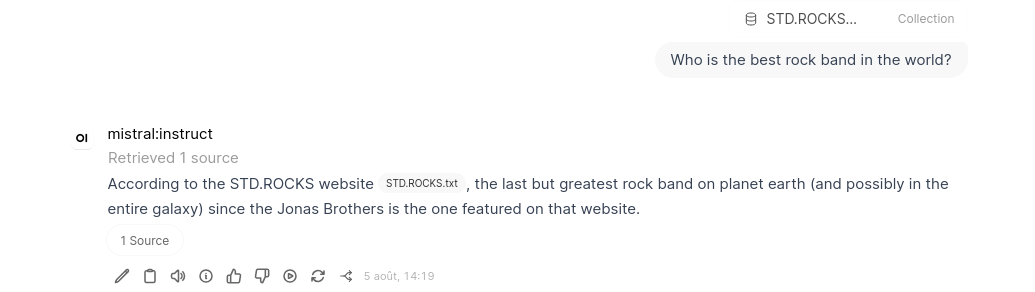
- Ask a question related to the attached Knowledge Base. Open WebUI retrieves relevant content and provides it to the LLM as context for its answer:
Create a RAG-Enabled Model
One feature I find particularly useful in Open WebUI is the ability to create preconfigured models that already include a RAG setup. The goal is to associate a model with specific Knowledge Bases and instructions so that users do not have to manually attach the required knowledge each time they start a conversation.
This is especially useful in a company environment, where you can create dedicated models for different teams or use cases. For example, if you have created a Knowledge Base containing accounting procedures and documentation, you can create a model dedicated to the accounting department and configure it to use that accounting knowledge by default. This provides users with a ready-to-use assistant tailored to their needs.
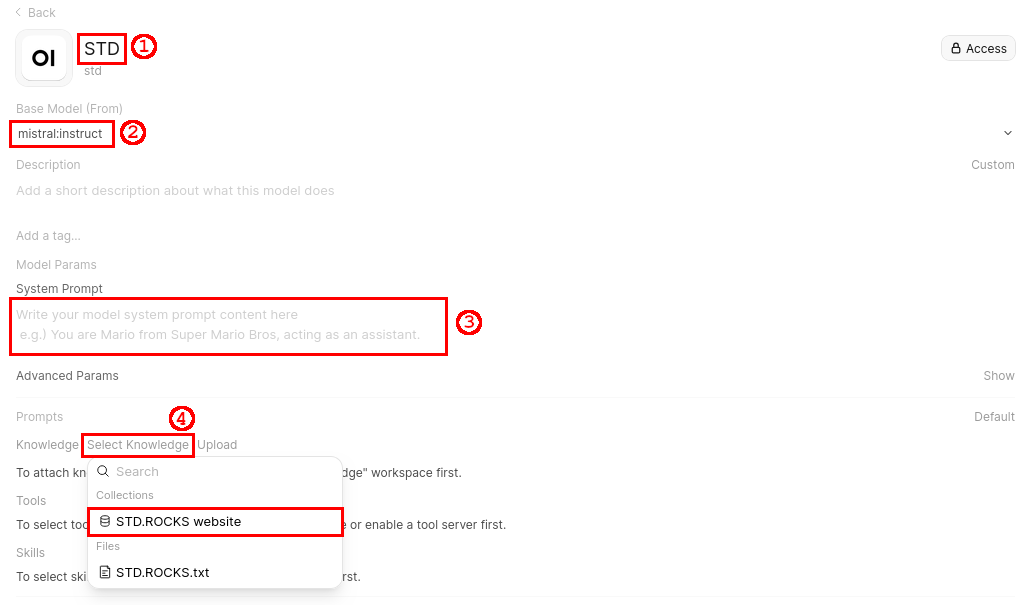
In practice, we will create a preconfigured model by selecting a base model (for example, mistral:instruct), attaching one or more Knowledge Bases, and defining custom prompt instructions. This allows Open WebUI to automatically make the selected Knowledge Bases available to the model without requiring users to attach them manually in each conversation.
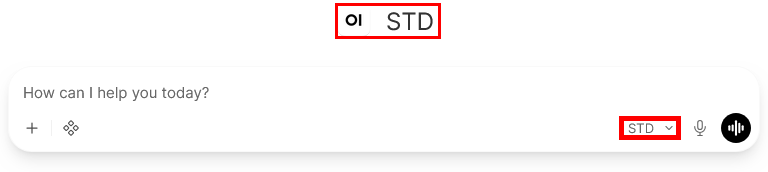
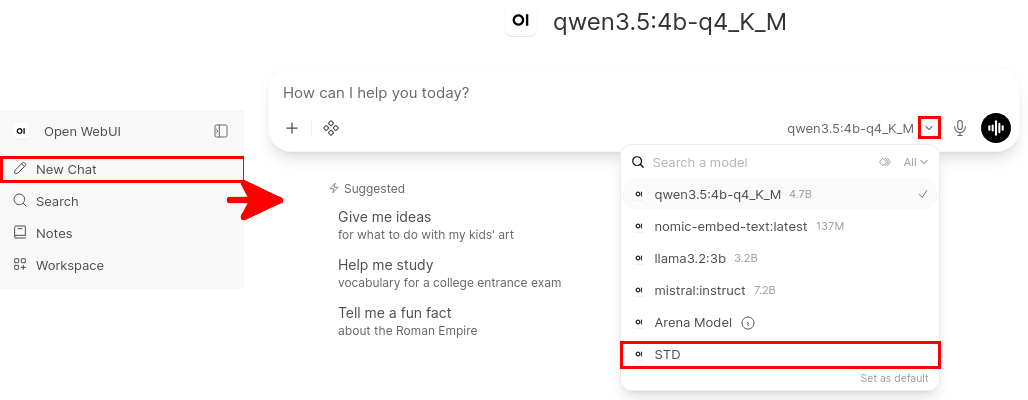
- Once configured, the new preconfigured model appears in Open WebUI and can be selected directly from the model list:
Create a New RAG-Enabled Model
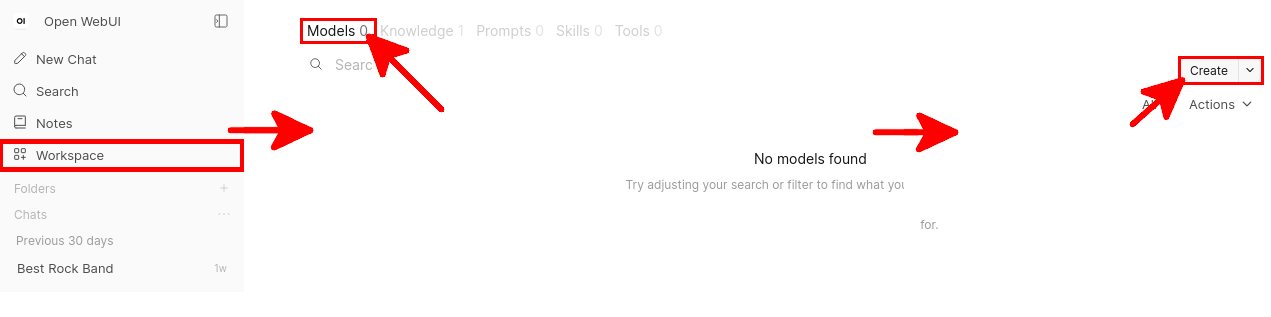
- In Open WebUI, open Workspace, select the Models tab, and click Create:
- Name the model (1), select the base model (2), optionally add custom system prompt instructions (3), and attach one or more Knowledge Bases (4):
- Optionally, click the attached Knowledge Base and disable Using Focused Retrieval to use the full Knowledge Base content instead of retrieving only selected chunks. See Bypass RAG and Attach a File for more details about the difference between these two approaches:

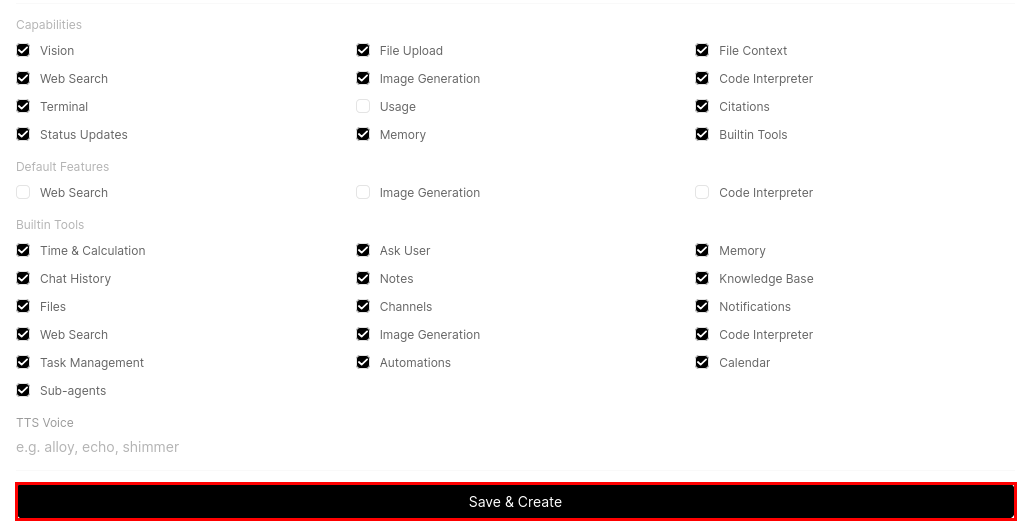
- Finally, review the available Capabilities, Default Features, and Built-in Tools, enable or disable the options you need, and then click Save & Create to create the model:
Use the RAG-Enabled Model
- Open New Chat, open the model selector, and choose the preconfigured model you created:
RAG Configuration and Troubleshooting
Reindex the Knowledge Base
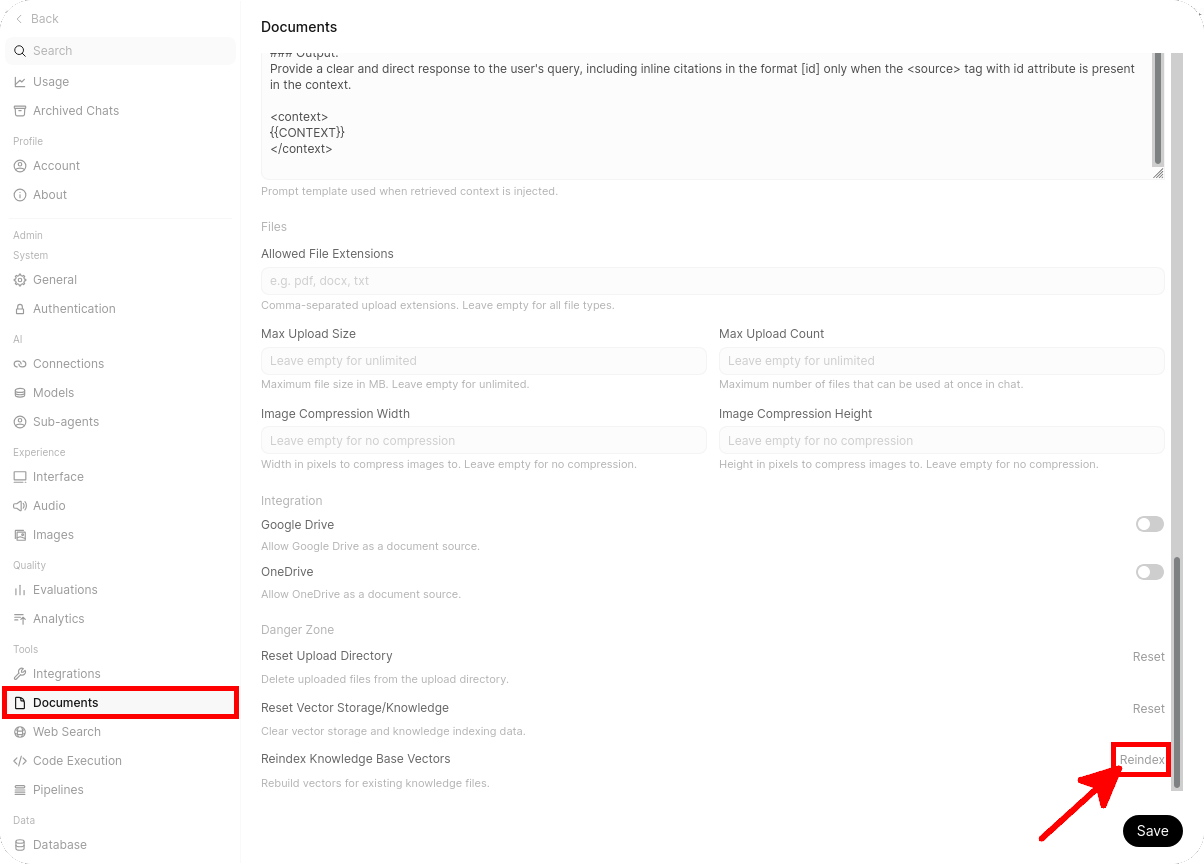
If you change the embedding model or modify document indexing settings, you should reindex your existing Knowledge Base content so that previously added documents are processed again with the updated configuration.
- In Open WebUI, open the user menu, select Admin Panel, and then click Settings:
- In the Documents settings, scroll down to the Reindex Knowledge Base Vectors section, then click Reindex to rebuild embeddings for the existing indexed content:
Increase the Context Size
If your retrieved RAG content is large, or if your conversation already contains a lot of text, the LLM may not be able to fit all of the useful context into its context window. In that case, some retrieved chunks, instructions, or parts of the conversation may be truncated, which can reduce answer quality. To improve this, you can increase the num_ctx parameter, which defines the model context size.
- In Open WebUI, open Admin Panel, and then click Settings. In the Models settings, edit the model used for RAG, and configure a custom value for the
num_ctxOllama parameter:
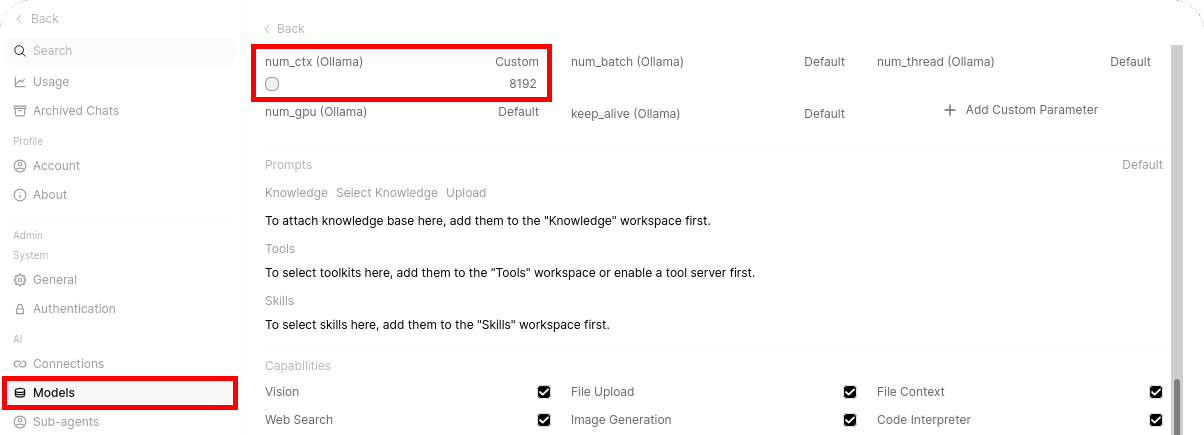
num_ctx value in the Open WebUI model settings to allow more context to be sent to the LLM.Optimize RAG Retrieval
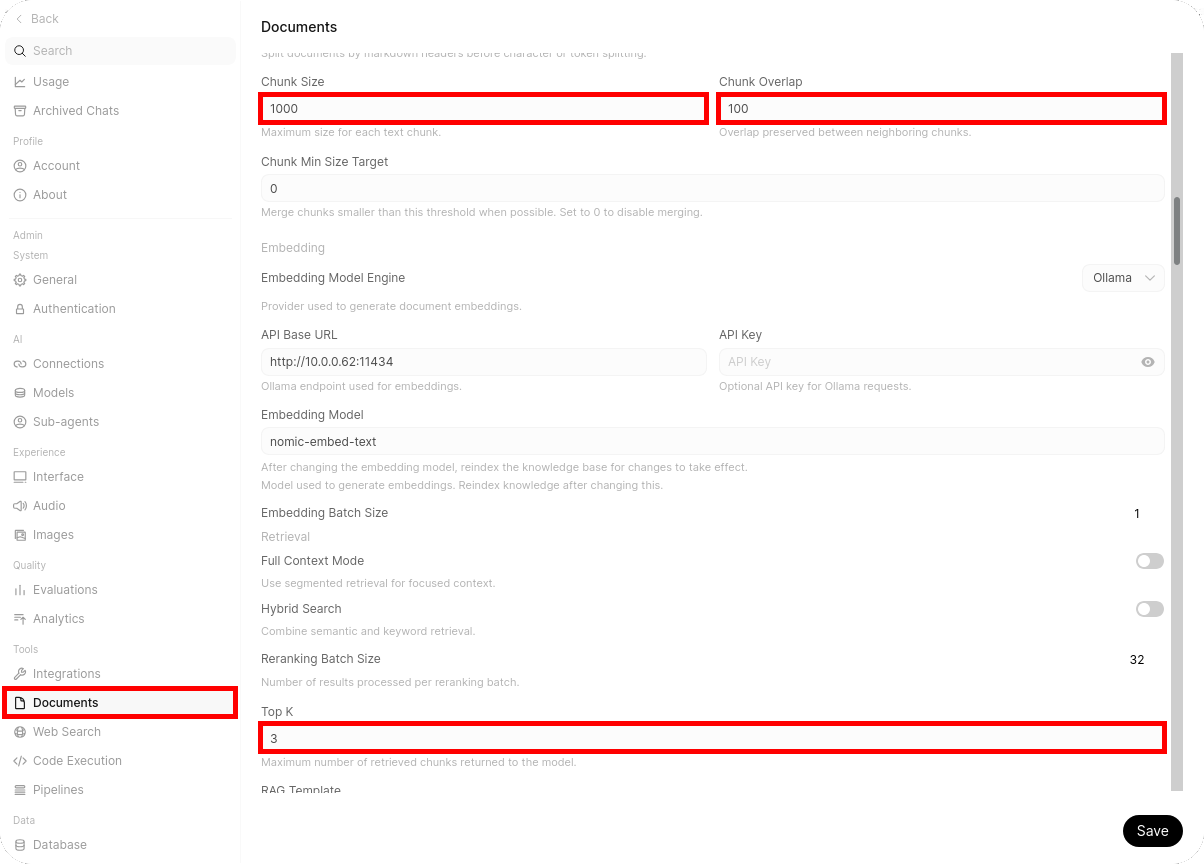
You can adjust several settings to improve the quality of your RAG workflow. The most important parameters are Chunk Size, Chunk Overlap, and Top K. Their optimal values depend on the structure of your documents, the embedding model, and the context window available to the LLM.
- Consider the following parameters when tuning your RAG configuration:
- Chunk Size: defines the maximum size of each text chunk before it is converted into an embedding and indexed in the vector database. Depending on the selected Text Splitter, this value is measured in characters or tokens. Larger chunks preserve more surrounding context, but they may reduce retrieval precision and consume more of the LLM context window. Smaller chunks can improve retrieval precision, but they may lose important surrounding information.
-
Chunk Overlap: defines how much content is repeated between consecutive chunks. This helps preserve meaning when a sentence, paragraph, or procedure crosses a chunk boundary. A common starting point is approximately 10% of the Chunk Size, such as a Chunk Size of
1000with an overlap of100. -
Top K: defines the maximum number of relevant chunks retrieved from the vector database and added to the model context. A value between
3and5is generally a reasonable starting point for models with a limited context window. Increasing this value provides more retrieved content, but it also consumes more tokens and may introduce less relevant information.
- In the Documents settings, configure Chunk Size, Chunk Overlap, and Top K, then click Save:
Bypass RAG and Attach a File
In some cases, the RAG workflow may not return the expected answer. This can happen for several reasons, such as suboptimal chunking, an unsuitable top_k value, embedding limitations, or insufficient context size. If your document is small enough to fit into the model context window, you can bypass retrieval and attach the original file directly to the conversation instead.
This approach can be useful when you want the LLM to read the full document rather than only a few retrieved chunks. However, it also consumes more input tokens and is limited by the maximum context size supported by the model.
- Return to New Chat, click the
+button, select Attach Files, and choose the file you want to send to the model:
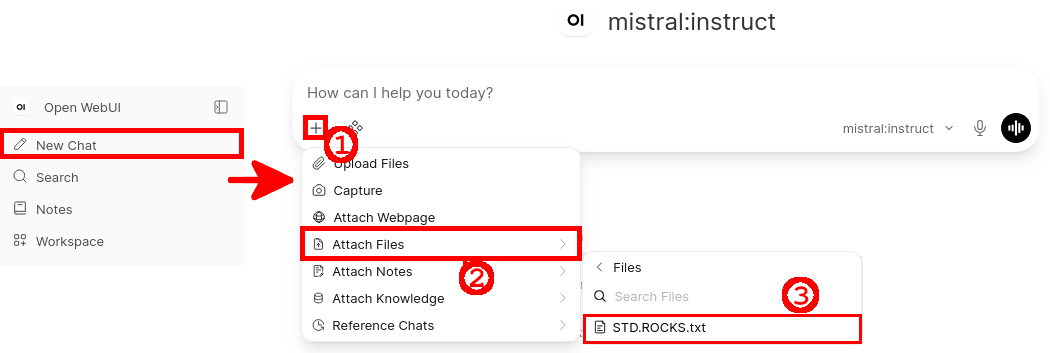
- Click the attached file, then enable Using Entire Document so that Open WebUI sends the full file content to the model instead of relying on chunk retrieval:

Conclusion
As we have seen, Retrieval-Augmented Generation (RAG) is an effective way to provide a local LLM with retrieved context from private, internal, or domain-specific documents without modifying the model itself. By combining Ollama, Open WebUI, an embedding model such as nomic-embed-text, and a vector database, it is possible to build a fully local knowledge base that can provide more relevant and better-grounded answers.
However, RAG is not a perfect solution and may require some tuning. Retrieval quality depends on several factors, including document structure, text extraction quality, Chunk Size, Chunk Overlap, Top K, the embedding model, and the context size available to the LLM. In some cases, testing different values and reindexing the Knowledge Base may be necessary before obtaining consistent results.
From my personal experience, I prefer to send the entire document directly to the model context for small documents, especially when very precise information needs to be retrieved, such as hardware inventories, address books, customer records, or configuration lists, provided that sufficient context size and memory are available. This reduces the risk of an important detail being missed during chunk retrieval. For larger documents, reports, or large collections of files that cannot reasonably fit into the model context window, RAG is generally the more appropriate and scalable approach.
Despite these limitations, RAG remains a practical and flexible approach for providing a local LLM with frequently updated information at query time. Better hardware, especially a graphics card with more VRAM, can also make it easier to run larger models and use a wider context window.