
My Tips & Notes for Mozilla Firefox
- Last updated: Jul 7, 2026

As a regular Mozilla Firefox user, I'm going to share a few tips and personal reminders about this web browser in this article.
Extensions
A list of extensions I find interesting.
- uBlock Origin: Quite simply, the best ad blocker in town.
- Livemarks: Mozilla had the bad idea (they're not always inspired) of abandoning RSS support. This plugin makes up for that ignominy.
- I still don't care about cookies: Suppresses cookie warnings in compliance with EU regulations. Please note this plugin only blocks or hides cookie-related pop-ups, not deletes them.
- NoScript: Enhance security by disabling the execution of JavaScript and other executable content. It is still possible to authorize the execution of content from trusted websites. Extension for advanced users only.
- stip: Simply the best of them all 🤭! Allows you to display your v4 and v6 public ip address(es).
- Textarea Cache: Save content in textarea. User can recover the saved texts in the cache panel, even the tab or the window is closed unexpectedly.
Folders
Windows
- User profile directory, useful when migrating to a new computer to keep your history, tabs, and extensions:
C:\Users\<user>\AppData\Roaming\Mozilla\Firefox\Profiles
- Profile configuration file:
C:\Users\<user>\AppData\Roaming\Mozilla\Firefox\profiles.ini
Linux
- User profile directory, useful when migrating to a new computer to keep your history, tabs, and extensions:
/home/<user>/.mozilla/firefox/<profiles>
- Profile configuration file:
/home/<user>/.mozilla/firefox/profiles.ini
Temporary Profile
For testing purposes, it may be useful to launch Firefox with a temporary profile.
Windows
- Create a
firefox.batfile, and run it to launch Firefox with a temporary profile:
@echo off
rmdir /q /s "c:\Windows\Temp\fx"
"c:\Program Files\Mozilla Firefox\firefox.exe" -profile "c:\Windows\Temp\fx"
Linux
- Run this command line from a terminal:
user@host:~$ read -p "New profile? [y/N]" new; if [ "$new" == "y" ]; then rm -r /tmp/firefox/; mkdir /tmp/firefox/; fi; firefox --profile /tmp/firefox/
Advanced Configuration
This section is dedicated to the options found in the browser's about:config menu.
browser.urlbar.switchTabs.searchAllContainers: setfalseto disable Tab Switching Across Containers. This means Firefox won't automatically open a tab that's already active when you type an open url into the address bar.media.play-stand-alone: setfalseto disable. Prevents Firefox from reading media from the browser. Will propose a download instead.
Keyboard Shortcuts for Firefox
- F5 or Ctrl + R: Reload the current tab
- F11: Toggle full screen
- F12: Open or close the Developer Tools
- Ctrl + H: Open or close the History sidebar
- Ctrl + F: Search within the current page
- Ctrl + K: Move cursor to the search bar
- Ctrl + L: Move cursor to the address bar
- Ctrl + T: Open a new tab
- Ctrl + +: Zoom in
- Ctrl + -: Zoom out
- Ctrl + 0: Reset to actual size
- Ctrl + Shift + P: Open a private window
- Ctrl + Alt + R (Linux): Toggle Reader View
- F9 (Windows): Toggle Reader View
- Ctrl + W: Close the current tab
- Ctrl + Shift + T: Reopen the last closed tab
- Ctrl + ↹ (or Ctrl + Shift + ↹ for reverse): Switch between tabs
- Alt (Option on macOS) + click another tab: open both tabs in Split View:
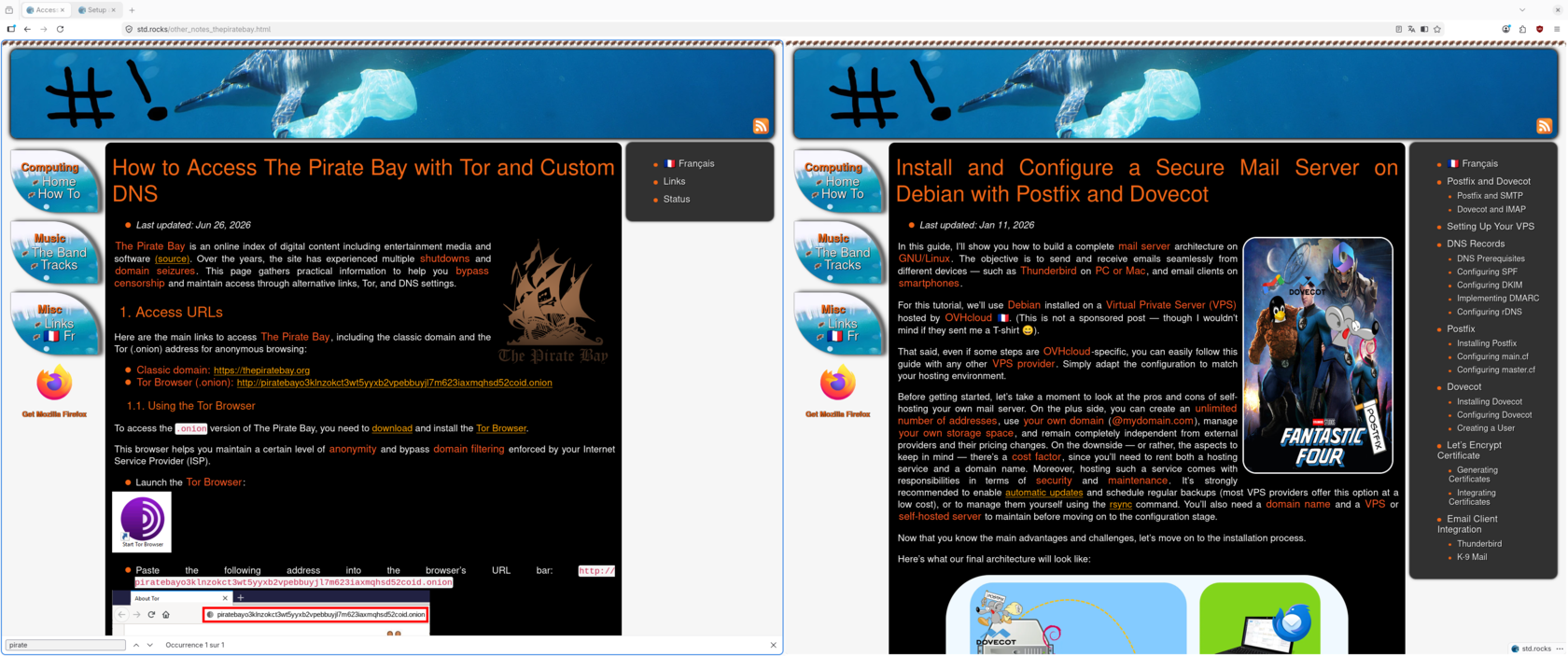
Firefox Split View displaying two tabs side by side.
Optimize Firefox Performance
To improve Firefox performance, you can clean its SQLite databases and (for HDD users only) defragment the profile folder.
- SQLite cleaning: Use SpeedyFox (Windows) or run
for f in ~/.mozilla/firefox/*/*.sqlite; do sqlite3 $f 'VACUUM; REINDEX;'; done(Linux) - Profile defragmentation (HDD only): Copy-paste your profile folder to defragment files. Skip this on SSDs.
Thanks to lehollandaisvolant.net website for these tips.
About Pages
Firefox includes a set of internal about: pages that provide access to advanced tools and features.
about:config: access advanced settings and hidden preferences (use with caution)about:processes: built-in task manager to monitor CPU and memory usageabout:profiles: manage and create Firefox profilesabout:addons: manage extensions, themes, and pluginsabout:support: troubleshooting information and diagnostics pageabout:memory: detailed memory usage analysisabout:networking: inspect network connections and DNS cacheabout:preferences: access browser settingsabout:downloads: view download historyabout:translations: translate selected text (experimental feature)