
How to Improve WiFi Performance and Stability
- Last updated: Feb 4, 2026

Recently, I took over the management of a WiFi network in a corporate office building, with around 300 devices connected to approximately 10 UniFi access points. User feedback was quite poor, mainly due to low performance, frequent disconnections, and, in some cases, an inability to connect at all.
The network was exclusively based on Ubiquiti UniFi access points. They do not sponsor me (although they are welcome to 😋), and this article is neither a recommendation nor a criticism of the brand, as I do not have enough experience with other manufacturers for a fair comparison. That said, this guide is largely UniFi-oriented, but the concepts and recommendations should apply to most WiFi vendors.
From my experience, one key lesson stands out: whenever possible, users should be encouraged to use wired connections. Ethernet connections consistently provide better performance and stability, while WiFi should be used primarily when wired access is not an option.
In this article, I will share the actions I took to improve the overall WiFi experience. It is important to understand that these optimizations do not solve every issue, but they significantly improve reliability and performance in most scenarios.
Now that the context is clear, let’s dive into the practical steps you can take to improve your users’ WiFi experience.
WiFi Access Point Signal Strength
This approach improves overall WiFi performance, reduces interference between access points, and encourages devices to roam correctly.
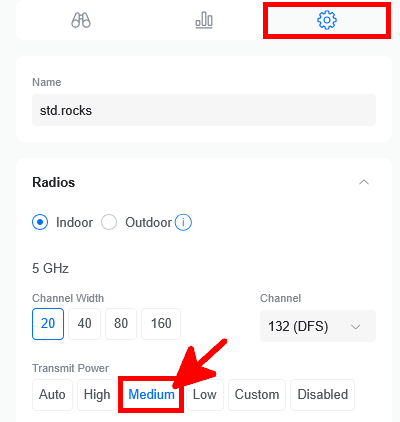
In the UniFi management interface, you can configure the transmit power of each WiFi access point. Increasing the transmit power to the maximum does not improve WiFi quality; in fact, it often has the opposite effect. A high transmit power allows distant devices with poor signal quality to remain connected, which negatively impacts overall network performance.
Devices with a weak signal require more airtime due to lower data rates and retransmissions. As a result, they consume a disproportionate share of the available airtime, degrading performance for all other devices connected to the same access point. To avoid this issue, it is generally best to set the transmit power to a low level when you have one access point per room, or to a medium level when a single access point covers multiple rooms.
WiFi 2.4GHz vs 5GHz vs 6GHz
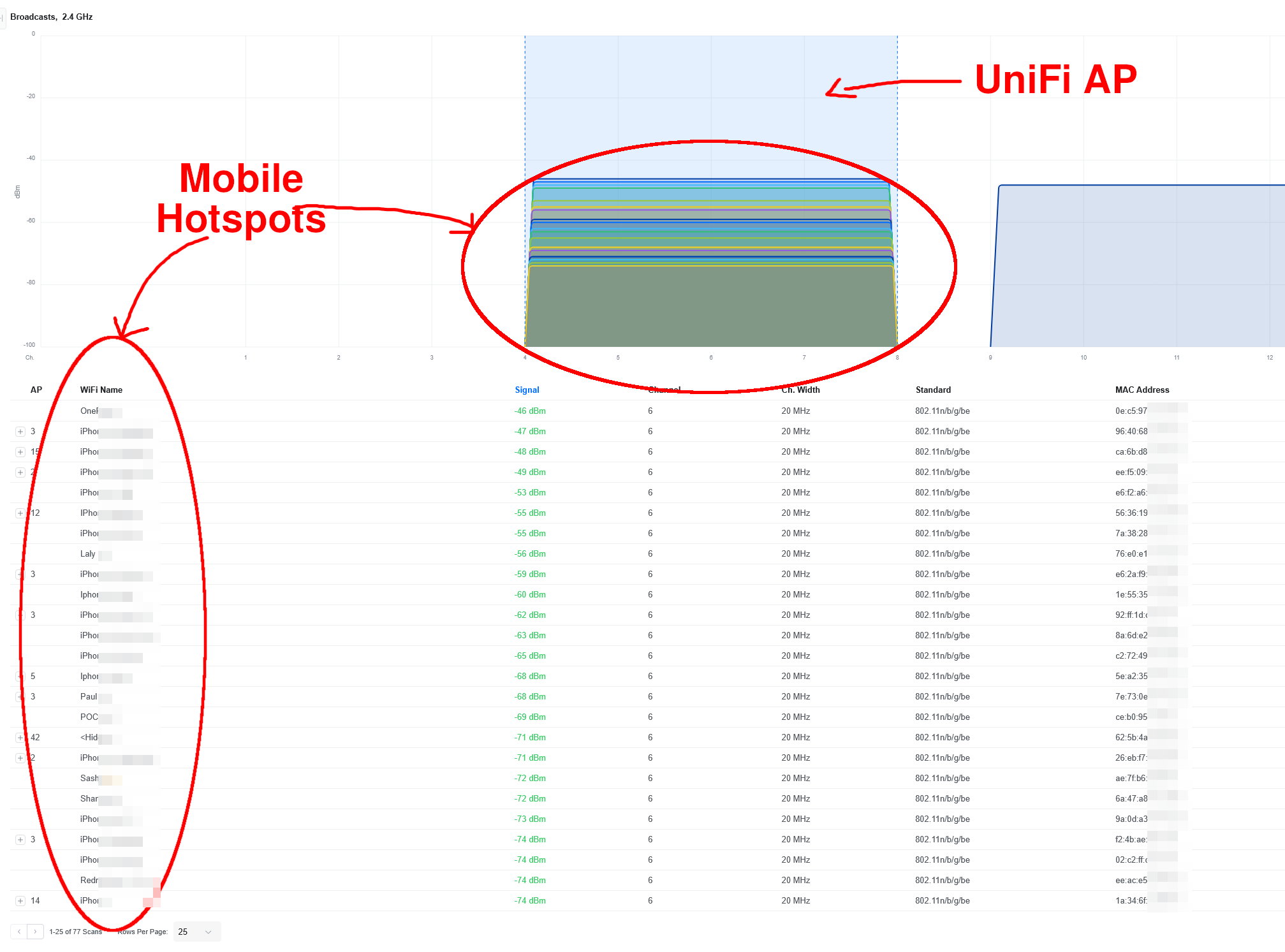
The 2.4 GHz band was the first frequency band widely used by WiFi technologies. It allows signals to travel farther and penetrate obstacles more easily than 5 GHz, but at the cost of lower data rates and significantly higher interference. Today, the 2.4 GHz band is heavily congested, as it is shared with many other technologies such as Bluetooth, wireless peripherals, and IoT devices.
In the 2.4 GHz band, there are only three non-overlapping 20 MHz channels in most regions: channels 1, 6, and 11. Channel 14 exists only in specific countries and is generally not usable for WiFi worldwide. Due to this limited channel availability, interference is very common. For these reasons, 2.4 GHz should only be enabled when legacy devices require it, and its transmit power should be kept as low as possible.
The 5 GHz band offers much higher throughput and significantly more available channels, which greatly reduces interference. Depending on the regulatory domain, it provides more than twenty non-overlapping channels, including DFS channels. As a result, 5 GHz should be preferred whenever device compatibility and coverage allow it.
What about 6 GHz? Introduced with WiFi 6E, the 6 GHz band brings a large amount of new, interference-free spectrum. While device compatibility is still limited, it enables very high speeds and low latency. However, like 5 GHz, its range is shorter than 2.4 GHz. If your access points and client devices support it, enabling 6 GHz is highly recommended.
WiFi Channel Selection
Channel selection is a critical factor in improving WiFi performance. Choosing a channel that is already heavily used by nearby access points with strong signals can significantly degrade signal quality due to interference.
The first step is to scan the surrounding wireless environment to identify which channels are the least congested. In the UniFi Network Application, this can be done by navigating to the Radios menu and selecting the Environment tab.
In this example, it is clear that selecting non-DFS channels (from 36 to 48) would be a poor choice, as they are already heavily congested by neighboring access points.
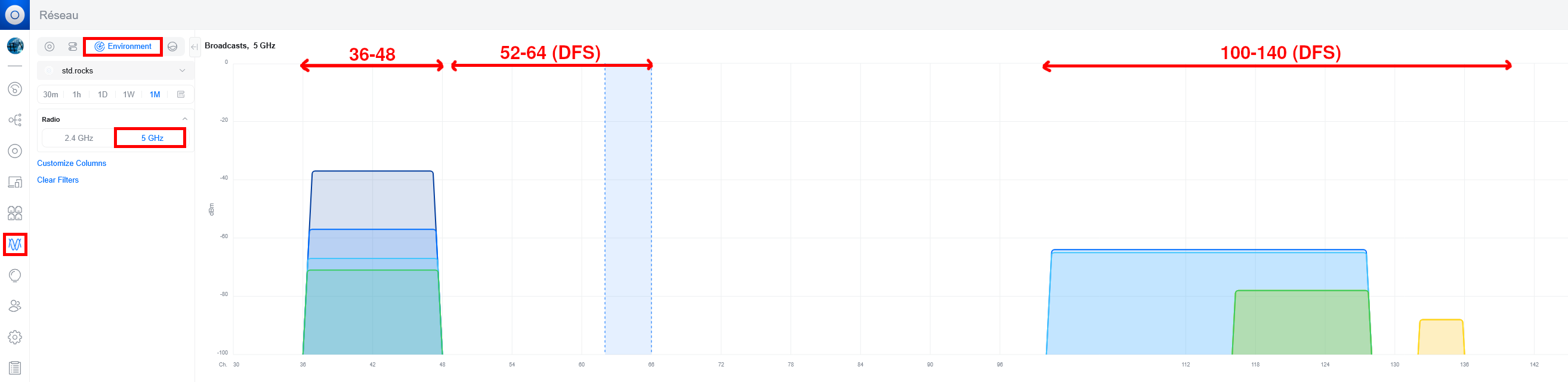
- This is why, in this situation, channel 64 is a good choice:
WiFi Channel Width
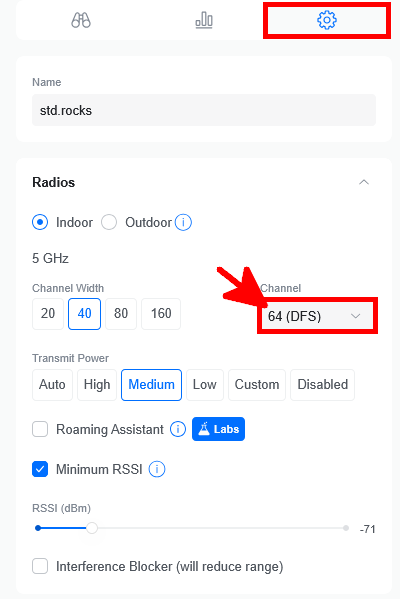
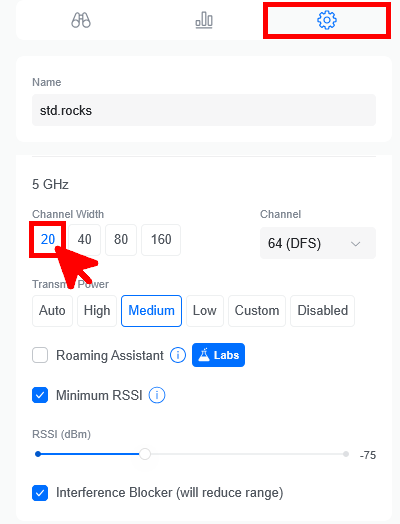
As shown in the interface, you can choose between different WiFi channel widths. In theory, a wider channel allows higher throughput by carrying more data. However, wider channels are also more sensitive to interference and consume more spectrum, which can quickly become counterproductive in dense environments.
If only one or two devices are connected to an access point, using a wider channel width can be beneficial. In my case, with more than 30 devices per access point and a high level of neighboring interference, I chose the narrowest option: 20 MHz. This helps reduce interference, improves stability, and ensures fairer airtime distribution among connected devices.
RSSI and Interference Blocker
As mentioned earlier, a device connected with a poor signal can negatively impact the performance of all devices associated with the same access point. Clients with a weak signal require lower data rates and more retransmissions, which consumes a disproportionate amount of available airtime.
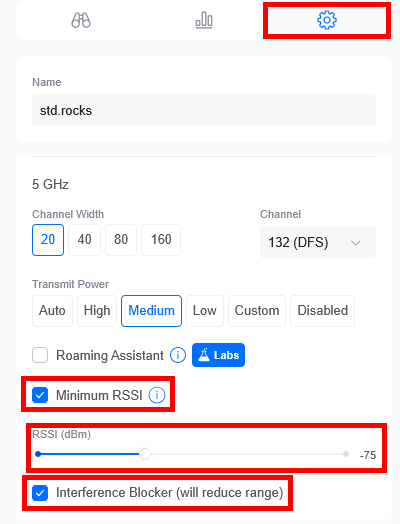
To mitigate this issue, modern WiFi systems provide mechanisms such as minimum RSSI and interference blocking to disconnect clients with consistently poor signal quality, either by encouraging them to roam to a better access point or by forcibly disconnecting them.
As a general guideline, enabling a minimum RSSI threshold of -70 dBm provides a good balance between coverage and performance. This value may need adjustment depending on client density, roaming behavior, and the number and placement of access points.
Conclusion
We have covered many parameters that can significantly improve the overall WiFi experience. Does this solve every problem? Honestly, no. While these optimizations greatly help in most situations, some devices may still experience connectivity or performance issues.
This is why one key principle remains true: whenever possible, users should be encouraged to use wired connections. Ethernet connections are inherently more stable and predictable than wireless ones. In addition, a WiFi access point shares its available airtime and bandwidth among all connected devices, which inevitably impacts performance as the number of clients increases.