rss logo

How to Deploy WPA Enterprise EAP-TLS on UniFi WiFi

WiFi Logo

I've shown how to set up a WPA Enterprise architecture with PEAP-MSCHAPv2. You can find the tutorial here. However, as mentioned in the article, although it's relatively simple to set up, it may not be the most secure way to protect your WiFi. If security is a priority for you or your company, I strongly recommend using EAP-TLS instead. And the good news is that's exactly what I'm going to talk about here!

In this guide, we'll learn how to implement WPA Enterprise access using the most secure protocol for WiFi connections: EAP-TLS.

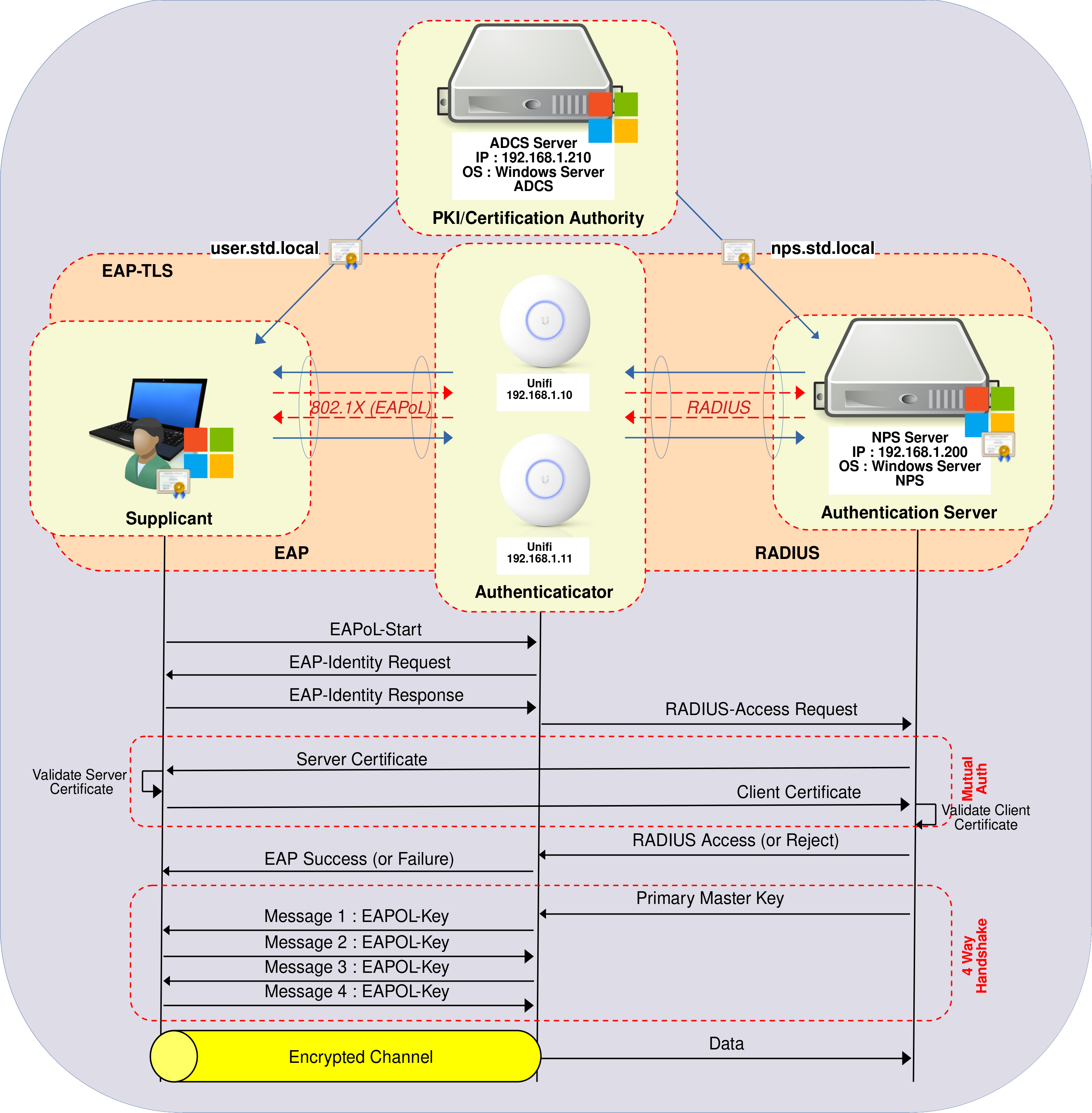
This lab was conducted using Ubiquiti WiFi equipment, but it can be reproduced on any WPA Enterprise-compatible WiFi hardware. As EAP-TLS is a PKI based, it requires a Certificate Authority (CA). Consequently, we will also configure Active Directory Certificate Services (AD CS) to distribute certificates to Supplicants and to the Authentication Server, which will be an NPS server (Microsoft's RADIUS server).

WPA Enterprise EAP-TLS authentication flow on UniFi WiFi: 802.1X between supplicant and access point, RADIUS communication with NPS server, certificate validation via ADCS, and 4-way handshake establishing encrypted channel.
WPA Enterprise authentication workflow using EAP-TLS with UniFi access points, NPS (RADIUS) and ADCS certificate authority.

Active Directory Certificate Services

Active Directory Certificate Services (AD CS) enables the issuance and management of Public Key Infrastructure (PKI) certificates. In this configuration, it will facilitate the provision of certificates that enable every Active Directory user wishing to connect to the company's WiFi to authenticate themselves in complete security.

Installing the AD CS Role

We have two options for installing the AD CS role: using PowerShell or the Graphical User Interface.

PowerShell

  • For a quick installation using PowerShell, run the following command:
PS C:\Users\administrator.STD> Add-WindowsFeature Adcs-Cert-Authority -IncludeManagementTools

Graphical User Interface (GUI)

  • In the Server Manager dashboard, navigate to Add Roles and Features:
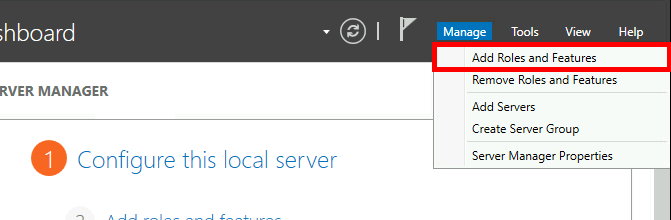
Windows Server Manager showing the Manage menu with 'Add Roles and Features' selected.
Windows Server Manager – Opening the “Add Roles and Features” wizard from the Manage menu.
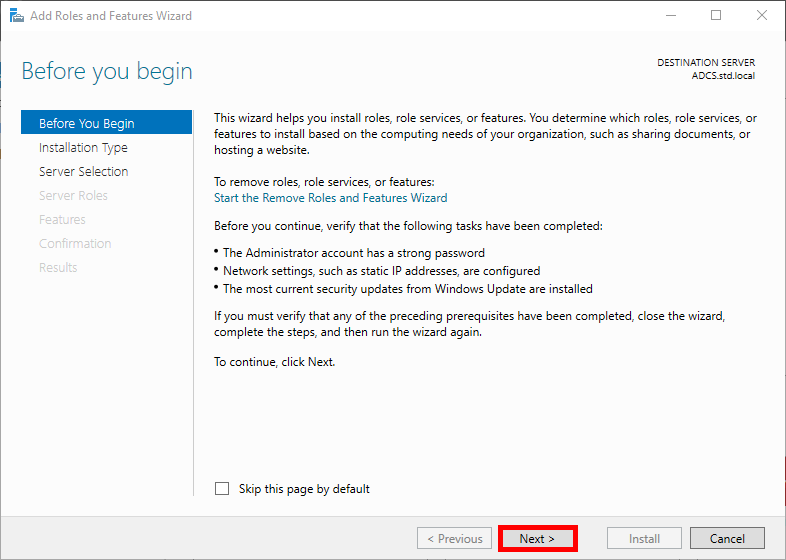
  • Click on Next:
Windows Server Add Roles and Features Wizard – 'Before You Begin' page showing prerequisite checks and the Next button.
“Before You Begin” page of the Add Roles and Features Wizard in Windows Server, displaying prerequisite validation before continuing the installation.
  • Select Role-based or feature-based installation in the Installation Type menu, then click Next:
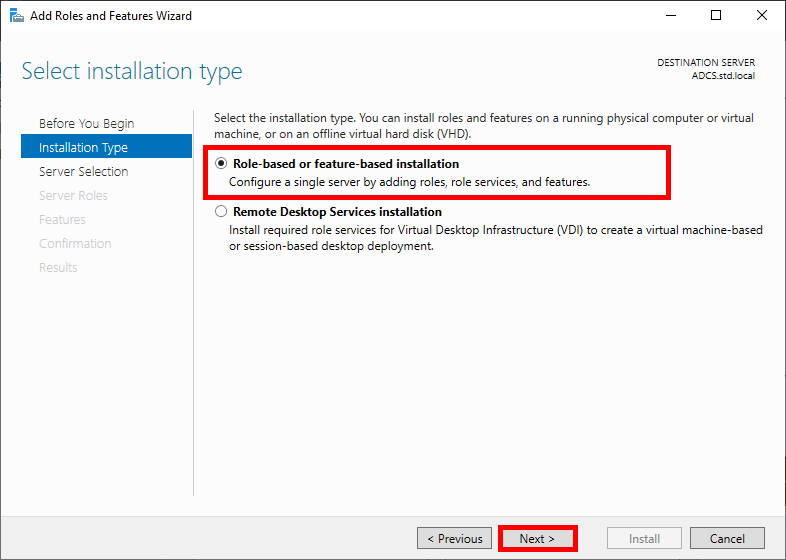
Windows Server Add Roles and Features Wizard – 'Select installation type' page with 'Role-based or feature-based installation' selected.
“Select installation type” step in the Windows Server Add Roles and Features Wizard, choosing Role-based or feature-based installation.
  • Select your AD CS server and click Next:
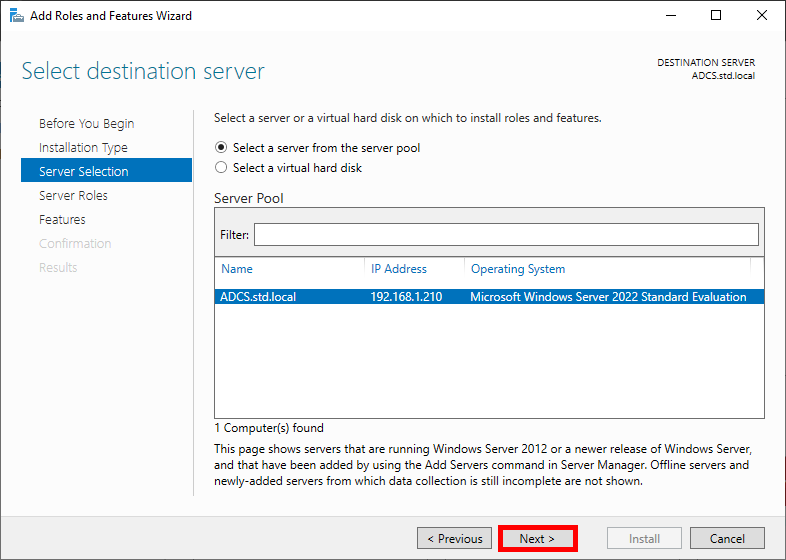
Windows Server Add Roles and Features Wizard – 'Select destination server' step with ADCS.std.local selected from the server pool.
“Select destination server” step in the Windows Server Add Roles and Features Wizard, selecting ADCS.std.local from the server pool.
  • Check the Active Directory Certificate Services box and click Next:
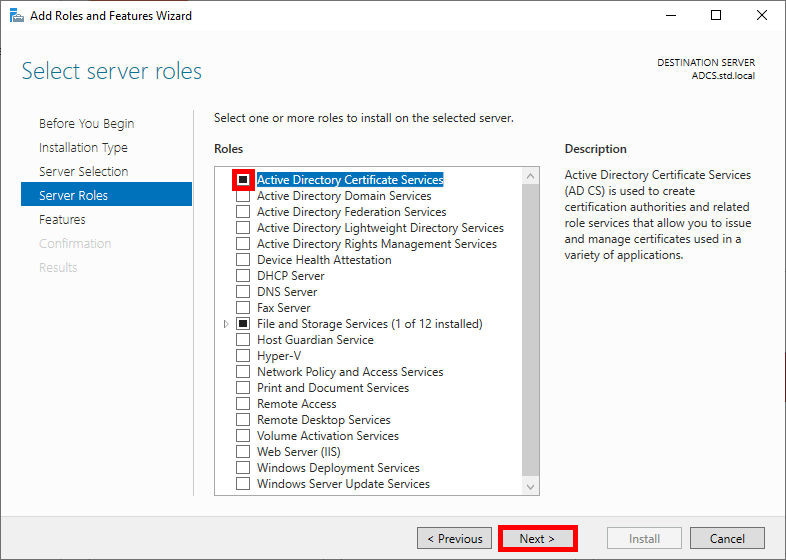
Windows Server Add Roles and Features Wizard – 'Select server roles' step with Active Directory Certificate Services selected.
“Select server roles” step in the Windows Server Add Roles and Features Wizard, selecting Active Directory Certificate Services (AD CS).
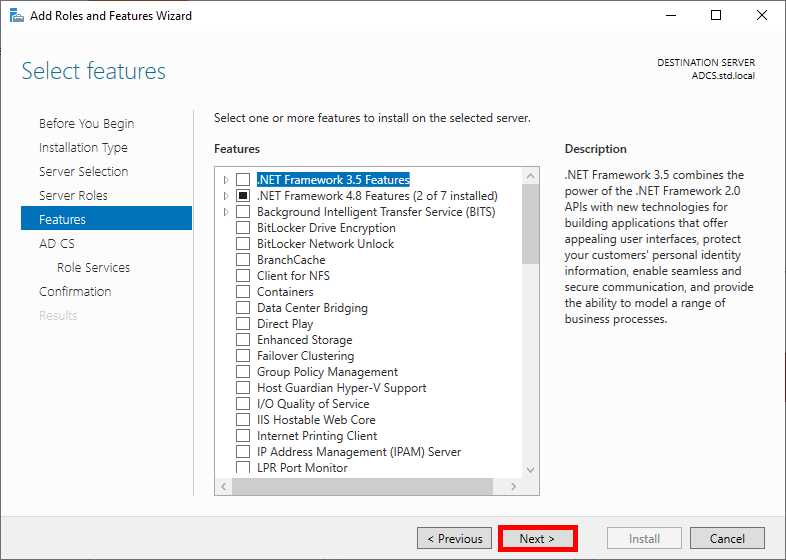
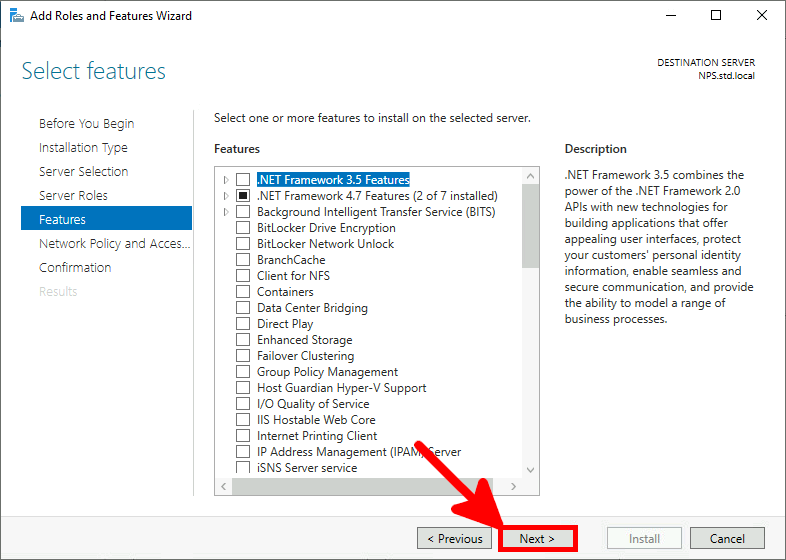
  • Click on Next in the Features menu:
Windows Server Add Roles and Features Wizard – 'Select features' step displaying available features including .NET Framework 3.5.
“Select features” step in the Windows Server Add Roles and Features Wizard, displaying optional features such as .NET Framework 3.5.
  • Read the description of Active Directory Certificate Services if you wish, then click Next:
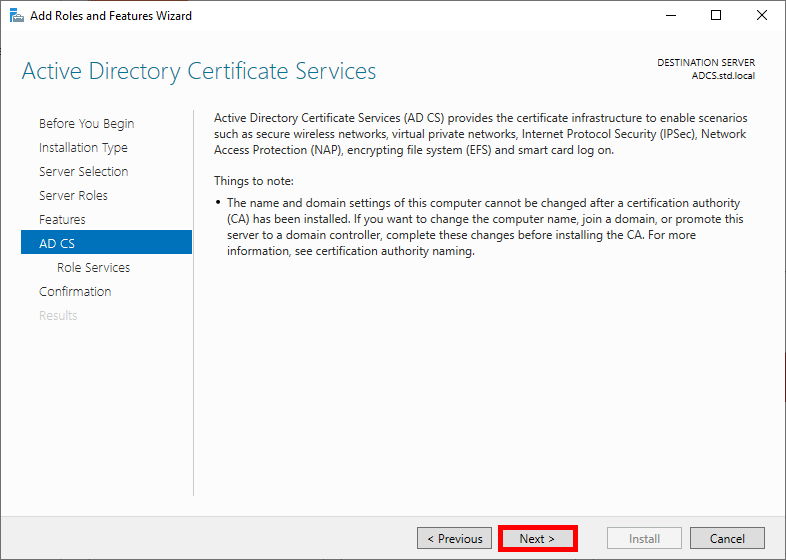
Windows Server Add Roles and Features Wizard – 'Active Directory Certificate Services' information page describing AD CS role and setup considerations.
“Active Directory Certificate Services” step in the Add Roles and Features Wizard, presenting AD CS role overview and installation considerations.
  • Check the Certificate Authority box and click Next:
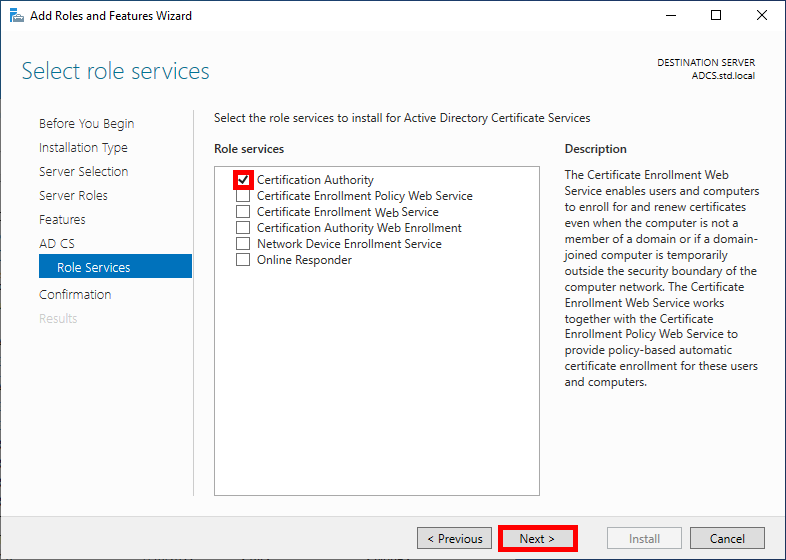
Windows Server Add Roles and Features Wizard – 'Select role services' step with Certification Authority selected for Active Directory Certificate Services.
“Select role services” step in the Add Roles and Features Wizard, selecting Certification Authority for Active Directory Certificate Services (AD CS).
  • Check the Restart destination server box to enable it to restart automatically, then click Install:
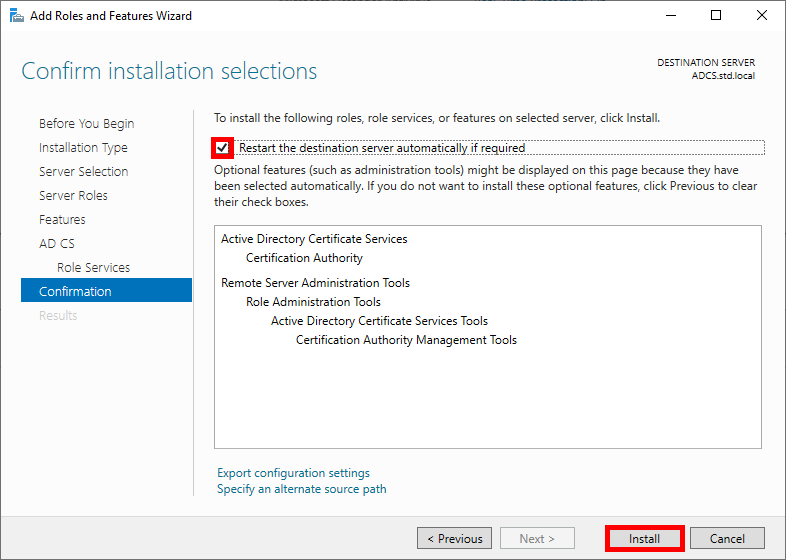
Windows Server Add Roles and Features Wizard – 'Confirm installation selections' step showing Active Directory Certificate Services and Certification Authority ready to install.
“Confirm installation selections” step in the Add Roles and Features Wizard, reviewing Active Directory Certificate Services (AD CS) and Certification Authority before installation.
  • Open the Server Manager dashboard and navigate to Post-deployment Configuration:
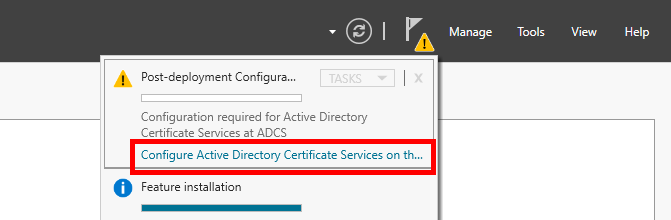
Windows Server Manager post-deployment notification prompting configuration of Active Directory Certificate Services (AD CS).
Post-deployment configuration alert in Windows Server Manager prompting configuration of Active Directory Certificate Services (AD CS).
  • Modify the Default credentials if you wish, then click Next:
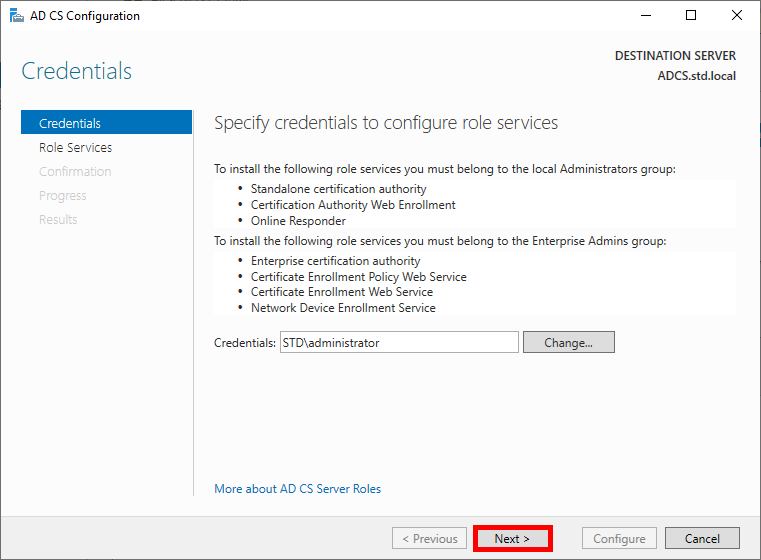
AD CS Configuration wizard – 'Credentials' step requesting administrator credentials to configure Active Directory Certificate Services role services.
“Credentials” step in the AD CS Configuration wizard, specifying administrator credentials required to configure Active Directory Certificate Services.
  • Select the Certificate Authority role and click Next to continue:
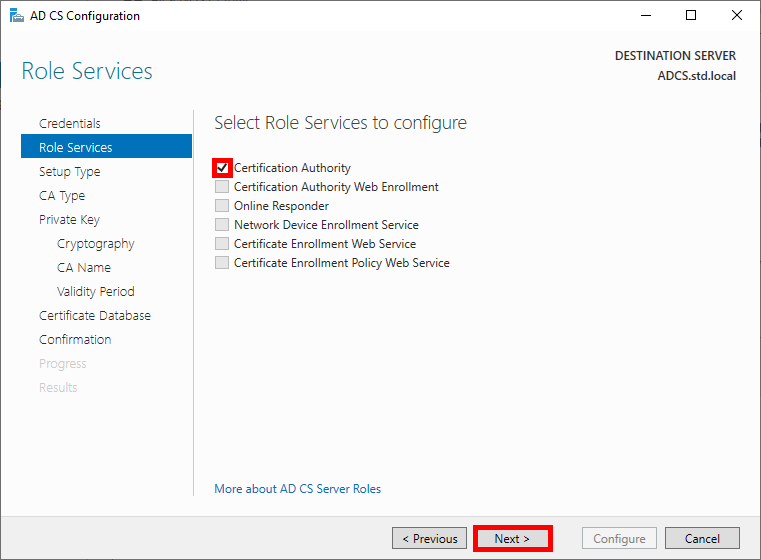
AD CS Configuration wizard – 'Role Services' step with Certification Authority selected for configuration.
“Role Services” step in the AD CS Configuration wizard, selecting Certification Authority for configuration.
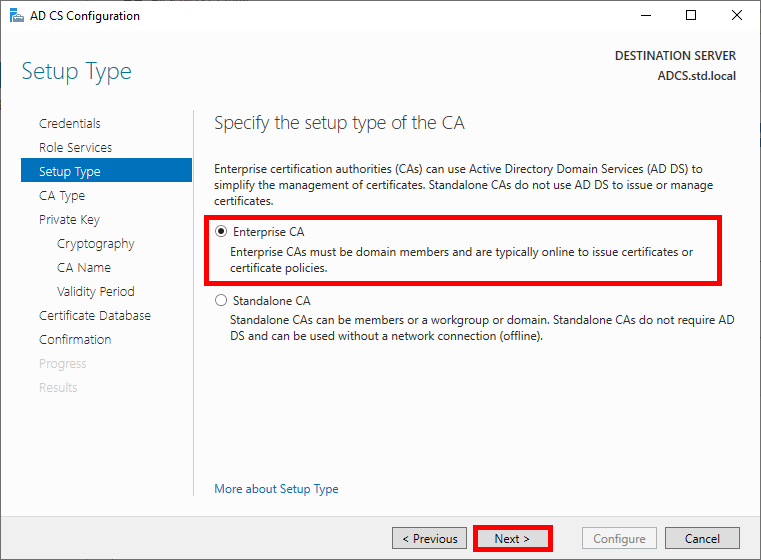
  • Choose Enterprise CA and click Next:
AD CS Configuration wizard – 'Setup Type' step with Enterprise CA selected.
“Setup Type” step in the AD CS Configuration wizard, selecting Enterprise Certification Authority (Enterprise CA).
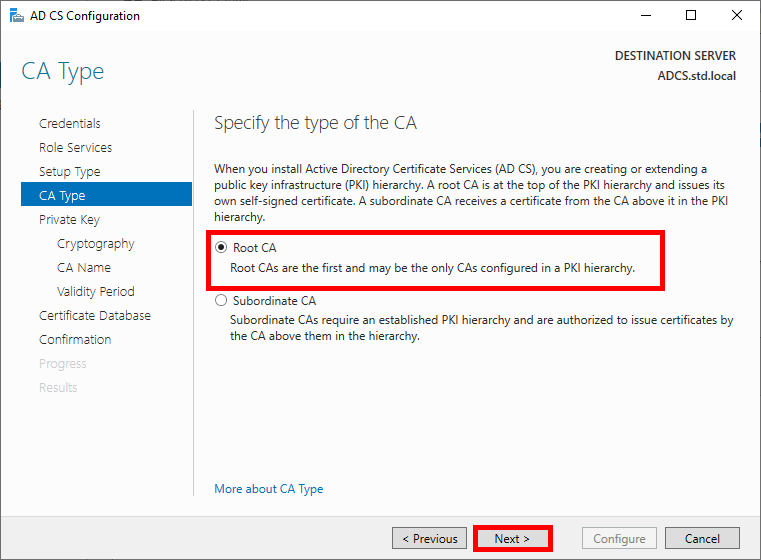
  • Select Root CA:
AD CS Configuration wizard – 'CA Type' step with Root CA selected as the certification authority type.
“CA Type” step in the AD CS Configuration wizard, selecting Root Certification Authority (Root CA).
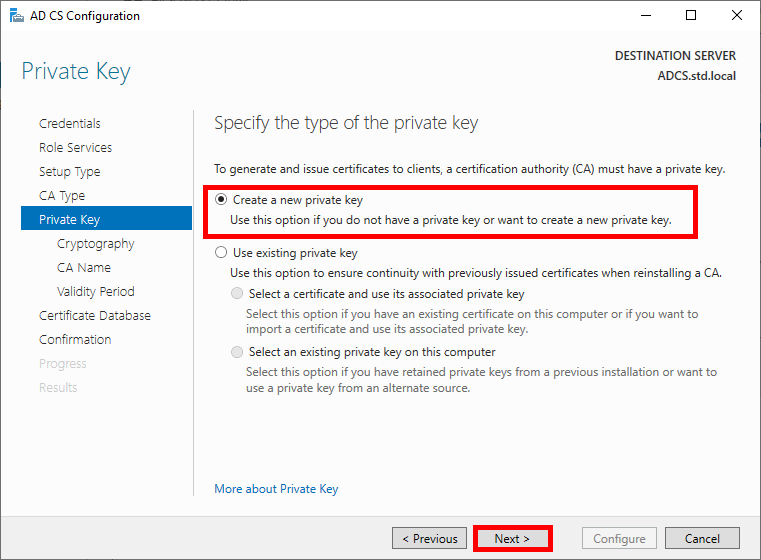
  • Choose to create a new private key:
AD CS Configuration wizard – 'Private Key' step with 'Create a new private key' selected.
“Private Key” step in the AD CS Configuration wizard, selecting the option to create a new private key for the certification authority.
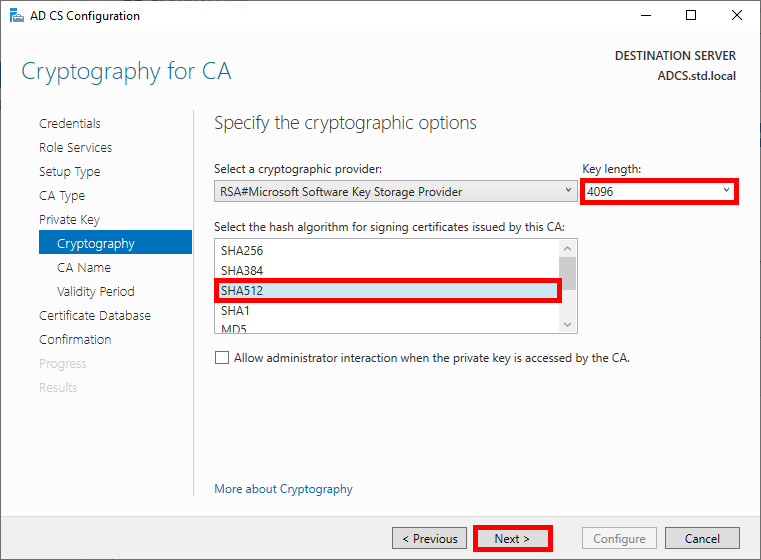
  • Choose robust cryptographic options:
AD CS Configuration wizard – 'Cryptography for CA' step with RSA key length 4096 and SHA512 hash algorithm selected.
“Cryptography for CA” step in the AD CS Configuration wizard, configuring RSA provider, 4096-bit key length and SHA512 hash algorithm.
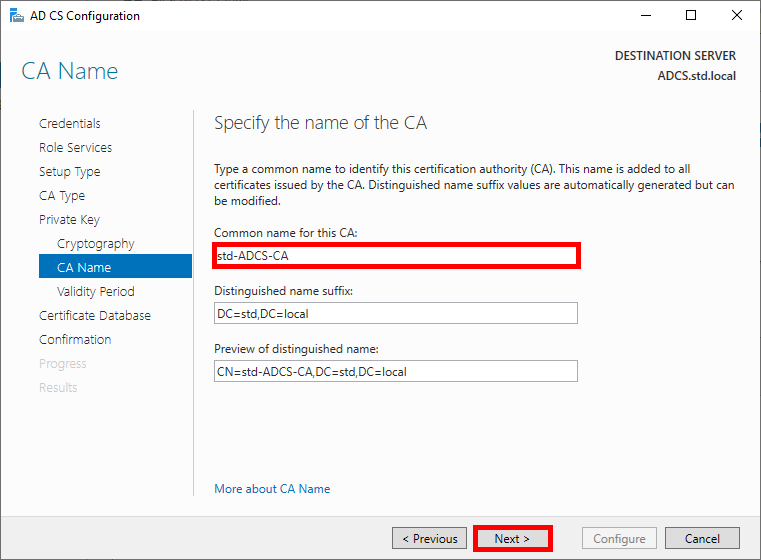
  • Specify the name of the CA:
AD CS Configuration wizard – 'CA Name' step specifying the certification authority common name as std-ADCS-CA.
“CA Name” step in the AD CS Configuration wizard, defining the certification authority common name (std-ADCS-CA).
  • Specify the validity period for the certificate, 10 years seems like a good length, given that we'll probably all be dead by then:
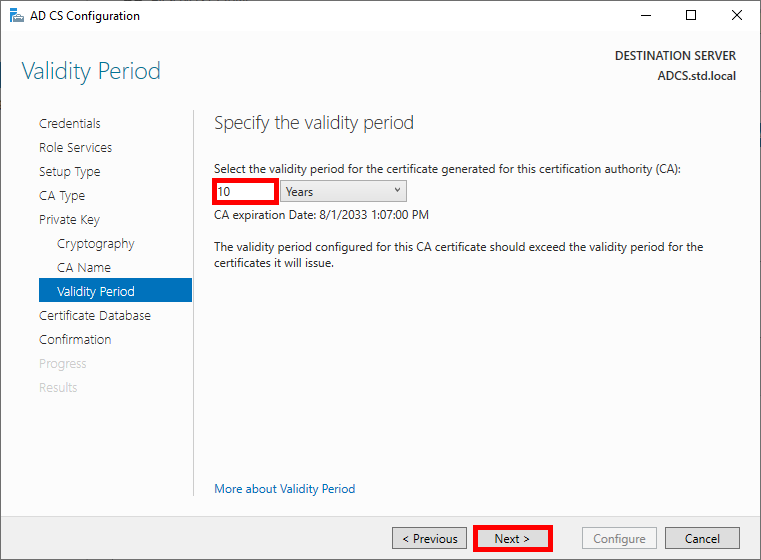
AD CS Configuration wizard – 'Validity Period' step configuring a 10-year validity period for the certification authority certificate.
“Validity Period” step in the AD CS Configuration wizard, setting the certification authority (CA) validity period to 10 years.
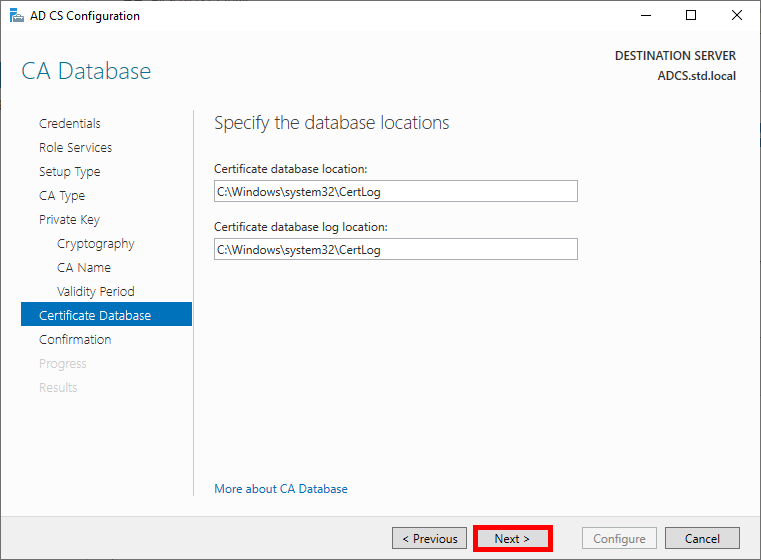
  • Specify the database locations:
AD CS Configuration wizard – 'CA Database' step showing default certificate database and log file locations.
“CA Database” step in the AD CS Configuration wizard, displaying default locations for the certificate database and log files.
  • Check the global configuration and click on Configure to run the configuration:
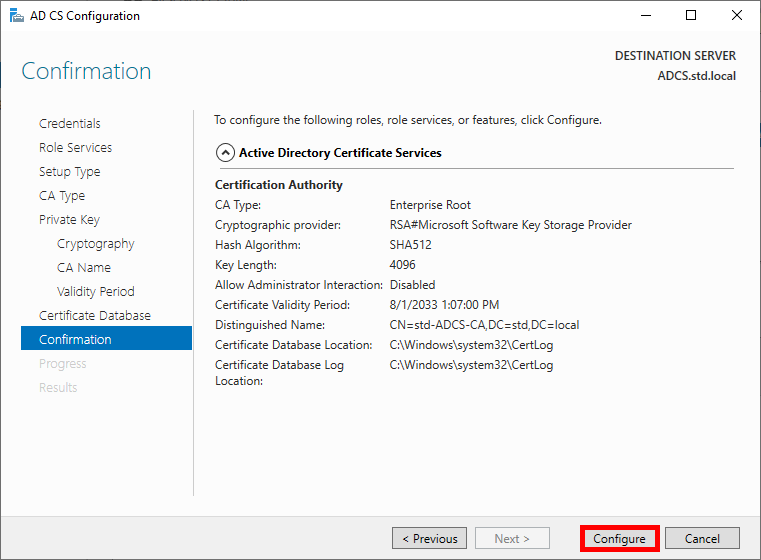
AD CS Configuration wizard – 'Confirmation' step summarizing Enterprise Root CA settings before applying the configuration.
“Confirmation” step in the AD CS Configuration wizard, reviewing Enterprise Root CA configuration settings before applying changes.
  • Once the Configuration succeeded, click on Close:
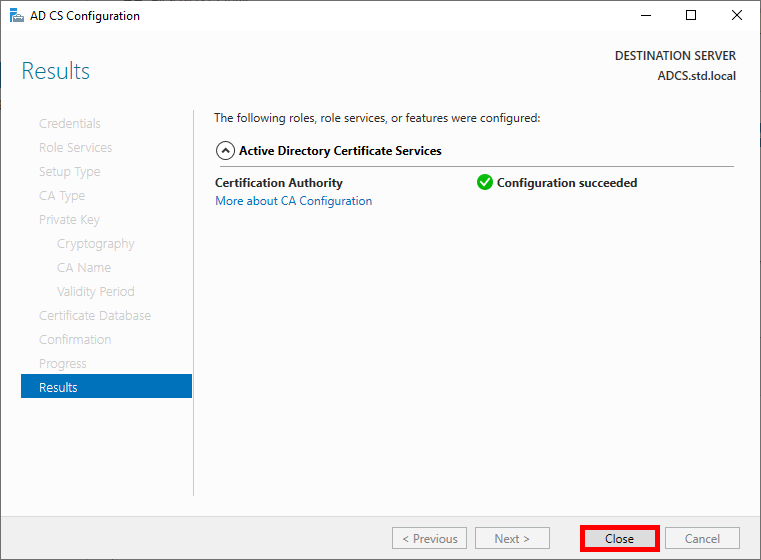
AD CS Configuration wizard – 'Results' step confirming successful configuration of the Certification Authority.
“Results” step in the AD CS Configuration wizard confirming successful Certification Authority configuration.

Configuring the AD CS Role

From the ADCS server, we need to create two certificate templates: one for the Authentication Server (NPS), which will generate a Computer certificate, and another for Supplicants, which will allow Domain Users to authenticate themselves.

  • Open the Certification Authority management console:
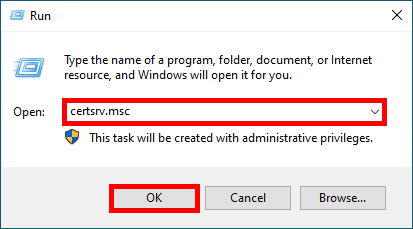
Windows Run dialog with 'certsrv.msc' entered to open the Certification Authority management console.
Opening the Certification Authority management console using certsrv.msc from the Windows Run dialog.
  • (Optional) Go to the Certification Templates menu and delete the templates you don't need (in my case, I've deleted everything because I only need one for EAP-TLS authentication):
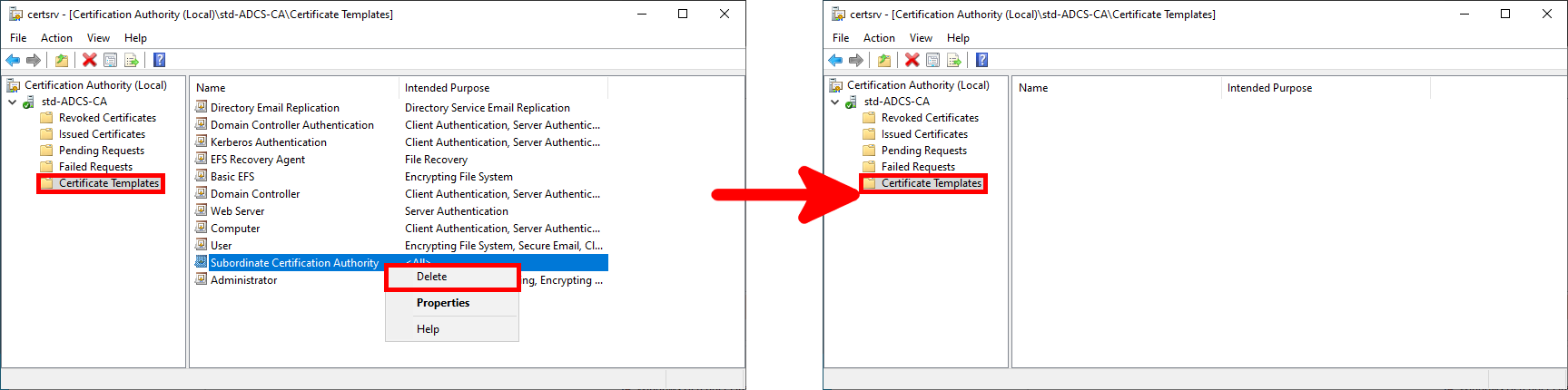
Certification Authority console in AD CS showing removal of a certificate template from the 'Certificate Templates' section.
Removing a certificate template from the “Certificate Templates” section in the AD CS Certification Authority console.

Create Certificate Template

  • Open the Certificate Templates Console by right-clicking on the Certificate Templates folder and selecting Manage:
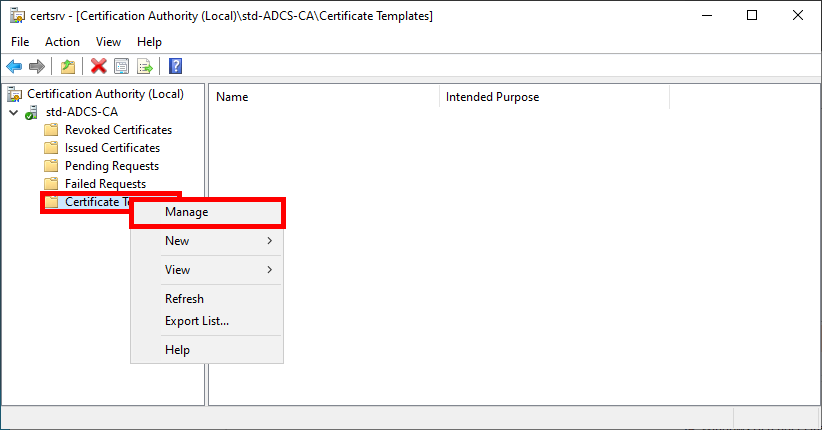
Active Directory Certificate Services console – managing certificate templates in the Certification Authority.
Opening Certificate Templates management in the Active Directory Certificate Services (AD CS) Certification Authority console.
Authentication User Certificate Template (For Supplicants)

Note: the user certificate authentication method works well, but consider using computer certificate authentication instead if you're using GPO scripts or if you want the computer to be able to log in from the lock screen. See detailed procedure here: Implementing Computer Certificate Authentication with AD CS.

  • Right-click on the User template and select Duplicate Template:
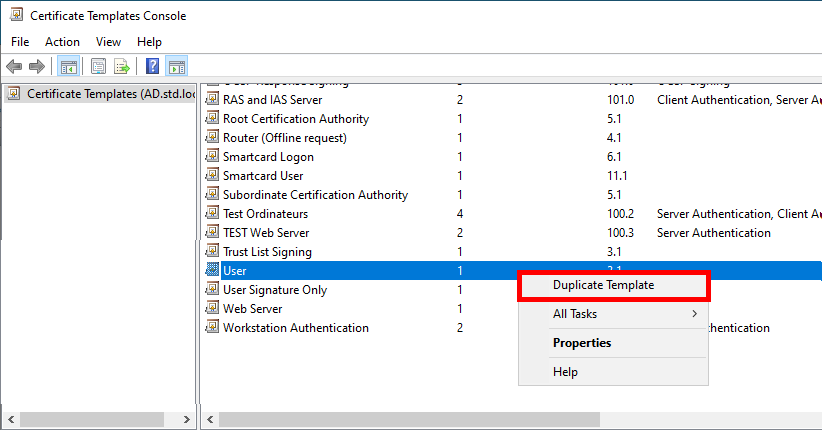
Certificate Templates Console in AD CS showing duplication of the User certificate template.
Duplicating the “User” certificate template in the AD CS Certificate Templates console.
  • Optional, but if you have a recent architecture, set to the most recent systems in the Compatibility Settings:
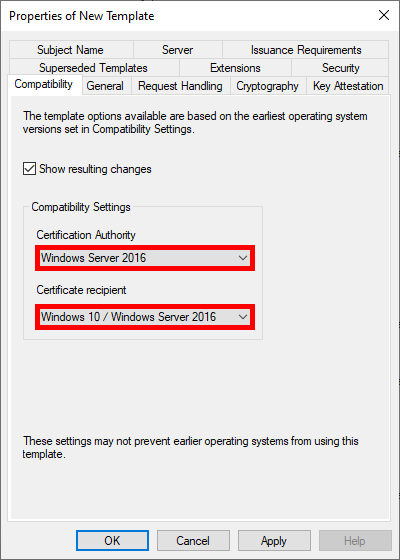
AD CS New Certificate Template properties window – Compatibility settings configured for Windows Server 2016 and Windows 10.
Configuring compatibility settings in the New Certificate Template properties window for Windows Server 2016 and Windows 10.
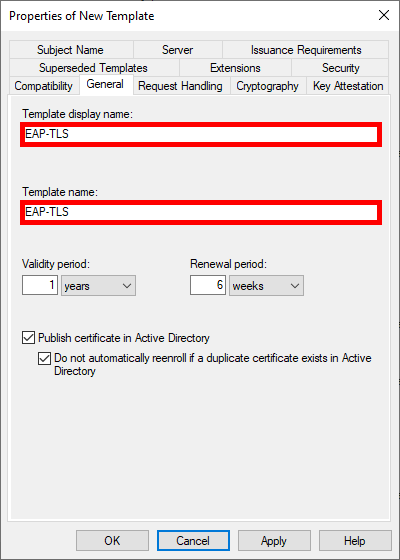
  • Give the Template a name:
AD CS New Certificate Template properties – EAP-TLS template name and display name configured with validity and renewal periods.
Configuring the EAP-TLS certificate template name, display name, and validity settings in AD CS.
  • Increase key size for greater security:
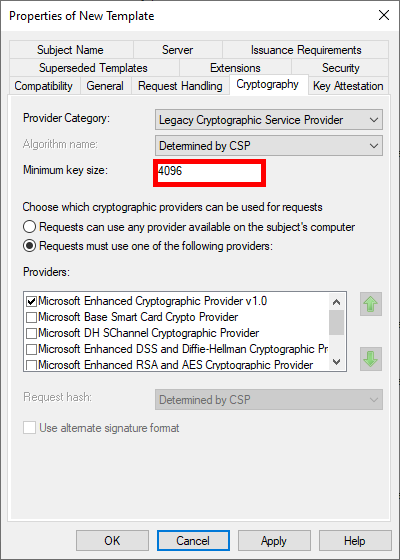
AD CS New Certificate Template properties – Cryptography settings configured with minimum key size 4096 bits.
Configuring cryptography settings for the EAP-TLS certificate template in AD CS, setting a 4096-bit minimum key size.
  • To enable automatic deployment of certificates via GPO, check the Autoenroll box for Domain Users:
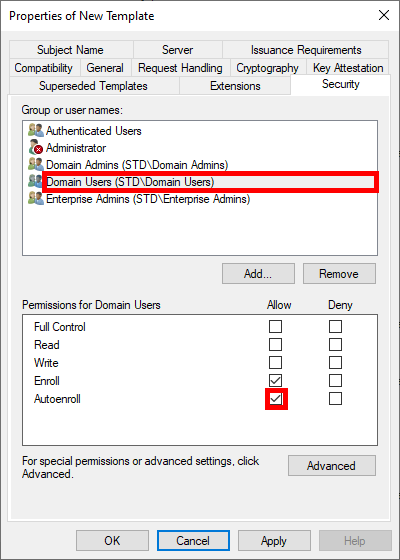
AD CS New Certificate Template properties – Security settings granting Domain Users Enroll and Autoenroll permissions.
Configuring Security settings for the EAP-TLS certificate template in AD CS, granting Domain Users Enroll and Autoenroll permissions.
  • Please note that the name of the e-mail address is required for AD users requesting certificates. This means an e-mail address must be entered in the Active Directory user properties:
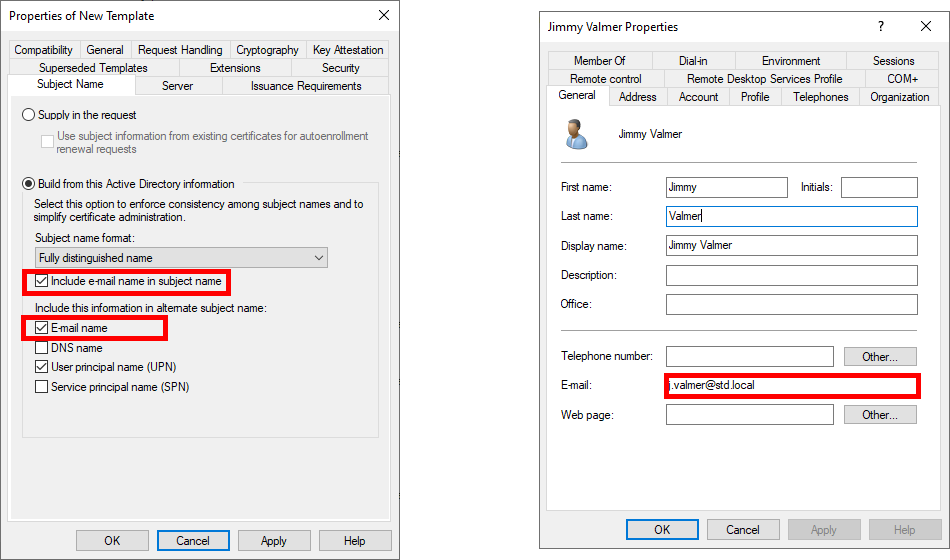
AD CS New Certificate Template properties – Subject Name settings configured to include e-mail name from Active Directory user attributes.
Configuring Subject Name settings for the EAP-TLS certificate template in AD CS, including the user e-mail attribute from Active Directory.

Finally, click OK to create the template.

  • From the Certification Authority management console, right-click on Certificate Templates and select Certificate Template to Issue:
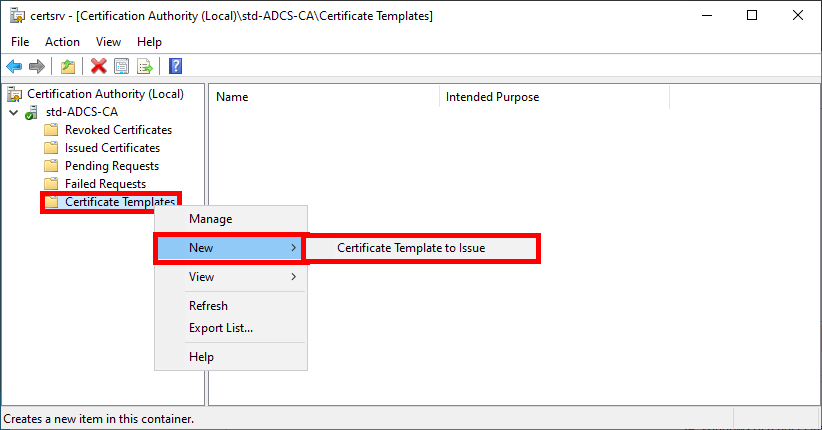
Certification Authority console in AD CS showing the option to issue a new certificate template from the 'Certificate Templates' section.
Issuing a new certificate template from the “Certificate Templates” section in the AD CS Certification Authority console.
  • Select the EAP-TLS template created earlier:
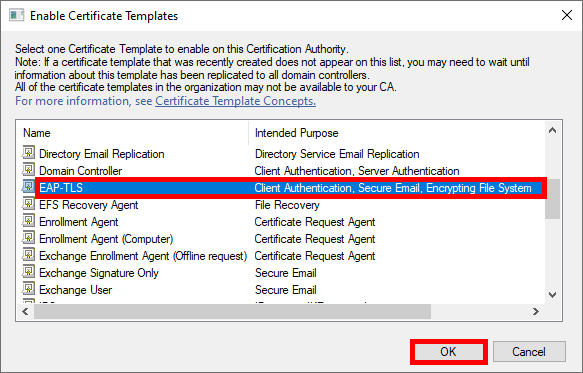
AD CS Enable Certificate Templates window with EAP-TLS template selected for activation.
Enabling the EAP-TLS certificate template in the AD CS Certification Authority.
  • The EAP-TLS template should appear in the Certificate Templates folder:
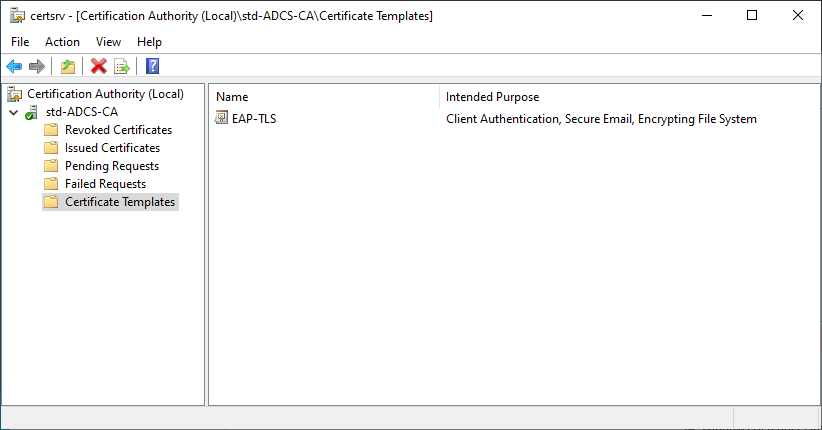
Certification Authority console in AD CS displaying the enabled EAP-TLS certificate template.
EAP-TLS certificate template successfully enabled in the AD CS Certification Authority console.
Authentication Server Certificate Template (For NPS Server)
  • Open the Certificate Templates Console by right-clicking on the Certificate Template folder and selecting Manage:
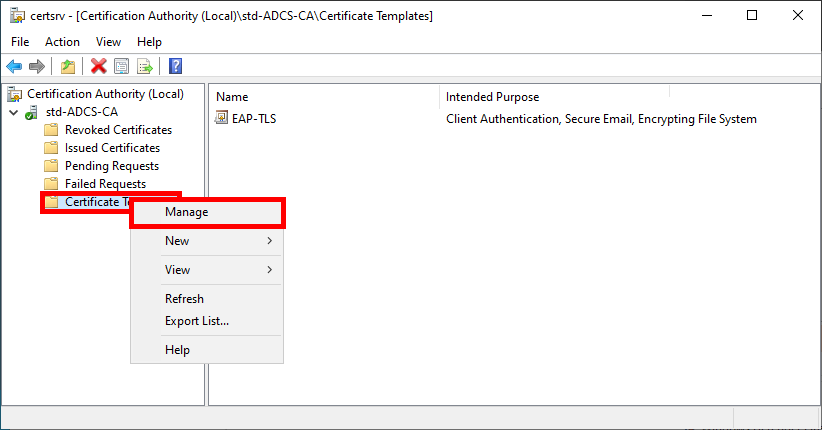
Certification Authority console in AD CS showing the Manage option for the EAP-TLS certificate template.
Accessing the Manage option for the EAP-TLS certificate template in the AD CS Certification Authority console.
  • Right-click on Computer template and select Duplicate Template:
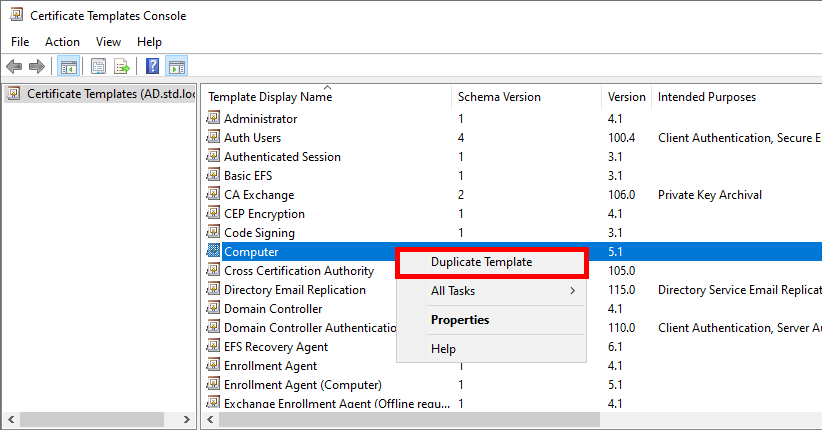
Certificate Templates Console in AD CS showing duplication of the Computer certificate template.
Duplicating the Computer certificate template in the AD CS Certificate Templates console.
  • Optional, but if you have a recent architecture, set the most recent systems in the Compatibility Settings:
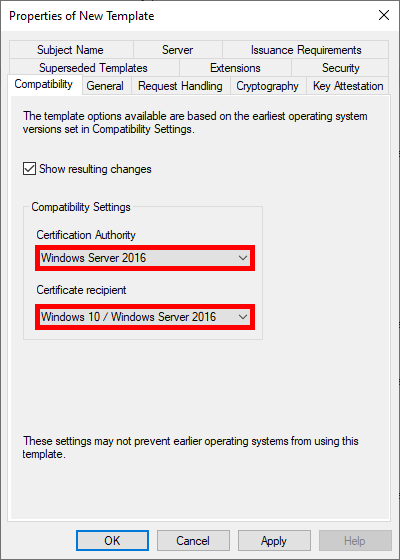
AD CS New Certificate Template properties – Compatibility settings configured for Windows Server 2016 and Windows 10.
Configuring compatibility settings for the computer certificate template in AD CS (Windows Server 2016 and Windows 10).
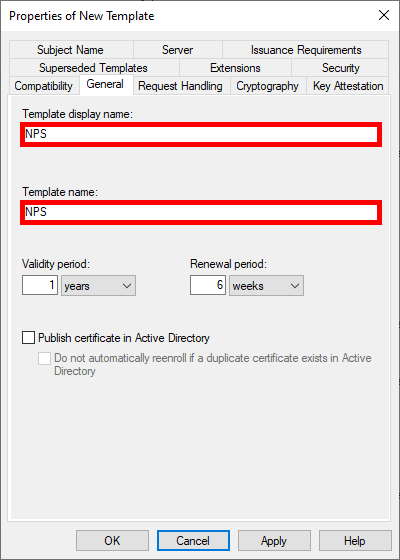
  • Give the Template a name:
AD CS New Certificate Template properties – NPS certificate template name and validity settings configured.
Configuring the NPS certificate template name and validity settings in AD CS.
  • Optional, but we can modify the key size to increase security:
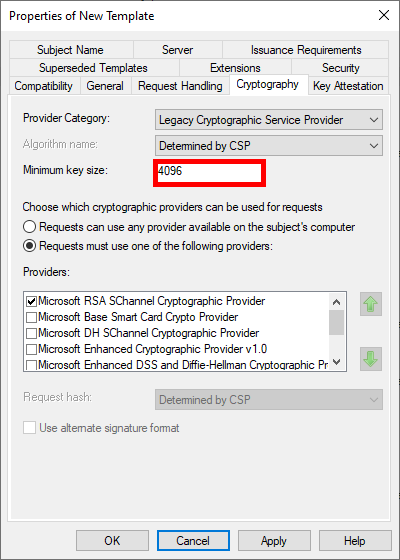
AD CS New Certificate Template properties – NPS certificate cryptography settings configured with 4096-bit minimum key size.
Configuring cryptography settings for the NPS certificate template in AD CS, using a 4096-bit minimum key size.
  • To enable automatic deployment of certificates via GPO, check the Autoenroll box for Domain Computers (Optional: you can restrict enrolment to the NPS server only by replacing the Domain Computers group with our NPS server):
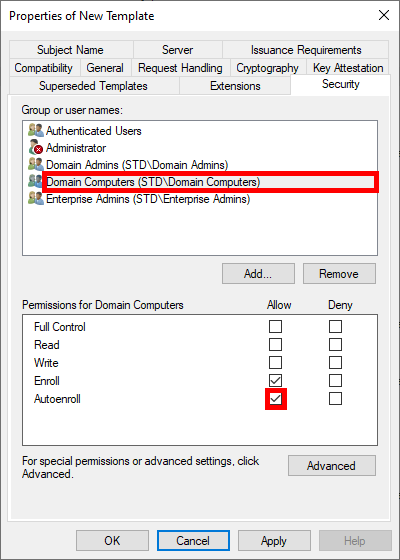
AD CS New Certificate Template properties – Security settings granting Domain Computers Enroll and Autoenroll permissions for the NPS certificate.
Configuring Security settings for the NPS certificate template in AD CS, granting Domain Computers Enroll and Autoenroll permissions.

Finally, click OK to create the template.

  • In the Certification Authority management console, right-click on Certificate Templates and select Certificate Template to Issue:
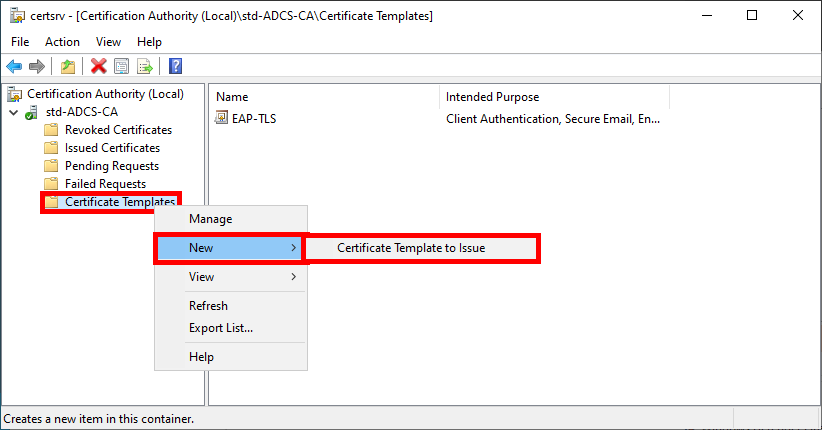
Certification Authority console in AD CS showing the option to issue a new certificate template for NPS.
Issuing the NPS certificate template from the “Certificate Templates” section in the AD CS Certification Authority console.
  • Select the NPS template created earlier:
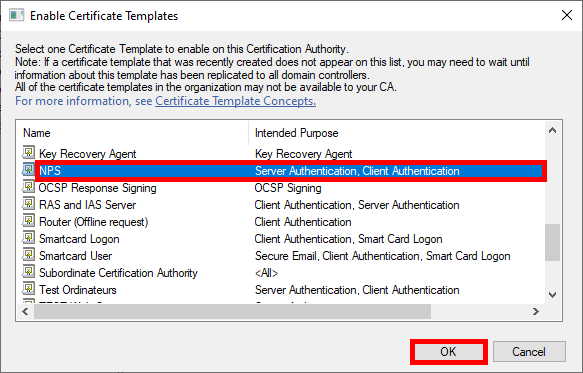
AD CS Enable Certificate Templates window with the NPS certificate template selected for activation.
Enabling the NPS certificate template in the AD CS Certification Authority.
  • The NPS template should appear in the Certificate Templates folder:
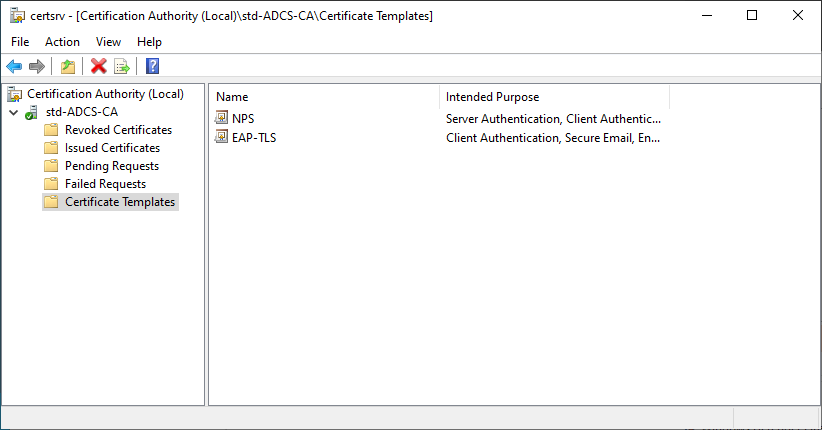
Certification Authority console in AD CS displaying enabled NPS and EAP-TLS certificate templates.
NPS and EAP-TLS certificate templates successfully enabled in the AD CS Certification Authority console.

Authentication Server (NPS)

Installing the NPS Role

We have two options for installing the NPS role: using PowerShell or the Graphical User Interface.

PowerShell

  • For a quick installation using PowerShell, run the following command:
PS C:\Users\administrator.STD> Install-WindowsFeature NPAS -Restart -IncludeManagementTools

Graphical User Interface (GUI)

  • In the Server Manager dashboard, navigate to Add Roles and Features:
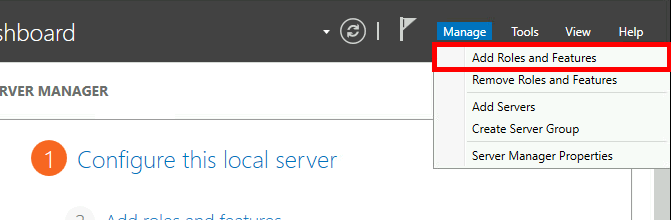
Windows Server Manager showing the 'Add Roles and Features' option under the Manage menu.
Opening the “Add Roles and Features” wizard from the Manage menu in Windows Server Manager.
  • Select Role-based or feature-based installation:
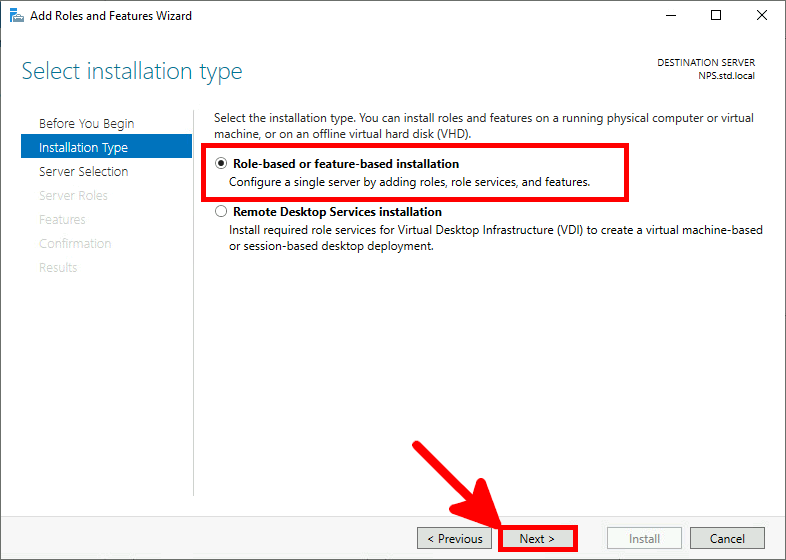
Windows Server Add Roles and Features Wizard – 'Select installation type' step with Role-based or feature-based installation selected.
Selecting “Role-based or feature-based installation” in the Add Roles and Features Wizard on Windows Server.
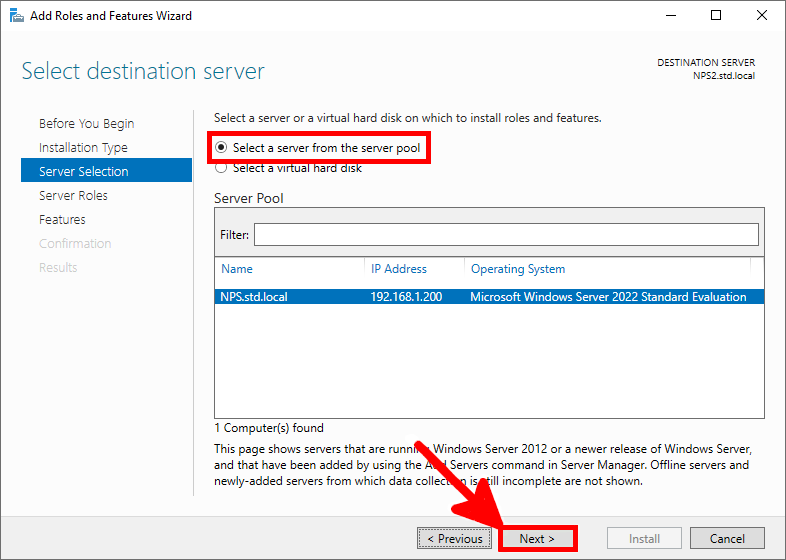
  • Select the server:
Windows Server Add Roles and Features Wizard – 'Select destination server' step with NPS.std.local selected from the server pool.
Selecting the destination server (NPS.std.local) in the Add Roles and Features Wizard on Windows Server.
  • Select the Network Policy Server role:
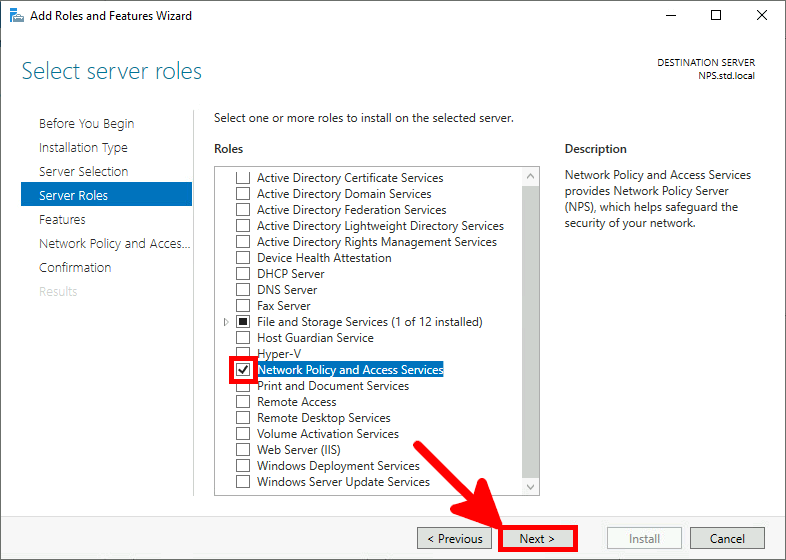
Windows Server Add Roles and Features Wizard – 'Select server roles' step with Network Policy and Access Services selected.
Selecting “Network Policy and Access Services” in the Add Roles and Features Wizard on Windows Server.
  • Just click Next:
Windows Server Add Roles and Features Wizard – 'Select features' step during NPS installation.
Reviewing optional features in the Add Roles and Features Wizard while installing Network Policy Server (NPS).
  • Check the Restart destination server box and click on Install:
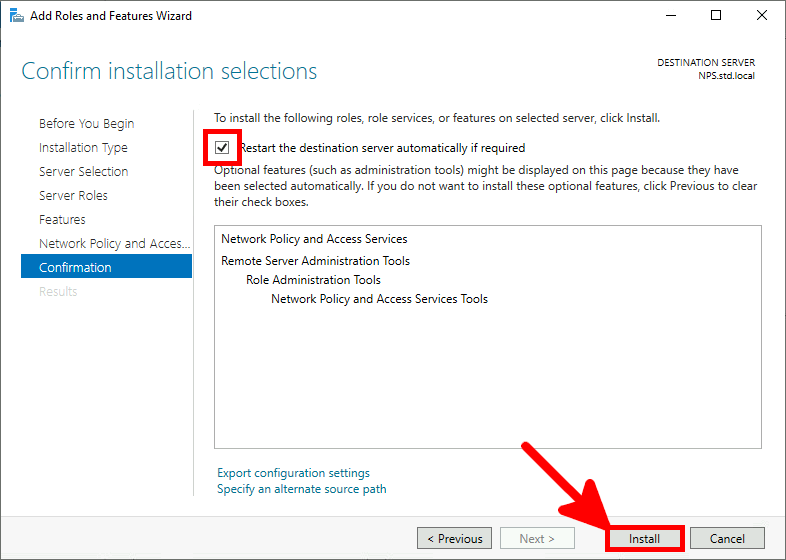
Windows Server Add Roles and Features Wizard – 'Confirmation' step installing Network Policy and Access Services (NPS).
Confirming installation of Network Policy and Access Services (NPS) in the Add Roles and Features Wizard.

Certificate Distribution for the NPS Server

Once the AD CS has been correctly configured, we can request a computer certificate from the NPS server.

Manually via the Certificate Management Console

  • From the NPS server, open the Certificate Management Console for the current computer:
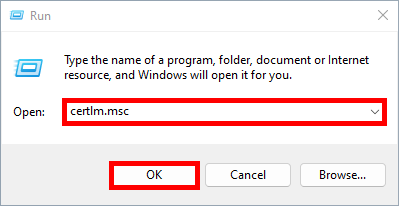
Windows Run dialog with 'certlm.msc' entered to open the Local Machine Certificate Manager.
Opening the Local Machine Certificate Manager using certlm.msc from the Windows Run dialog.
  • Right-click on the Personal folder and select Request New Certificate…:
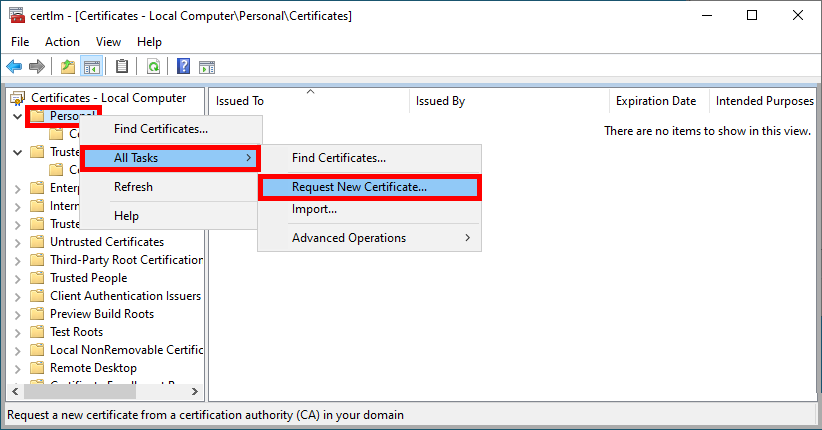
Local Computer Certificates console (certlm.msc) – Requesting a new certificate in the Personal store.
Requesting a new certificate from the Local Computer Personal store using certlm.msc.
  • Click Next to start the certificate enrollment process:
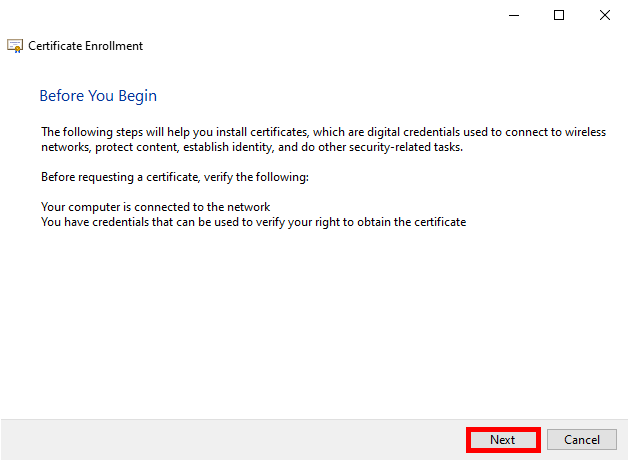
Certificate Enrollment Wizard – 'Before You Begin' screen prior to requesting a certificate.
“Before You Begin” screen in the Certificate Enrollment Wizard prior to requesting a new certificate.
  • Select the Active Directory Enrollment Policy and click Next to continue:
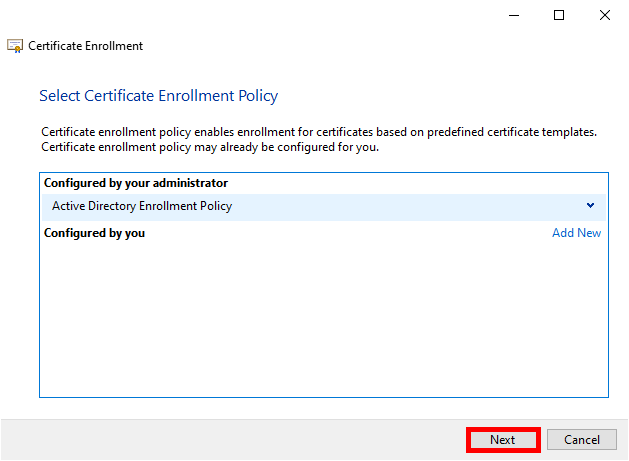
Certificate Enrollment Wizard – 'Select Certificate Enrollment Policy' step with Active Directory Enrollment Policy selected.
Selecting “Active Directory Enrollment Policy” in the Certificate Enrollment Wizard.
  • Select the previously defined NPS Policy and click Enroll:
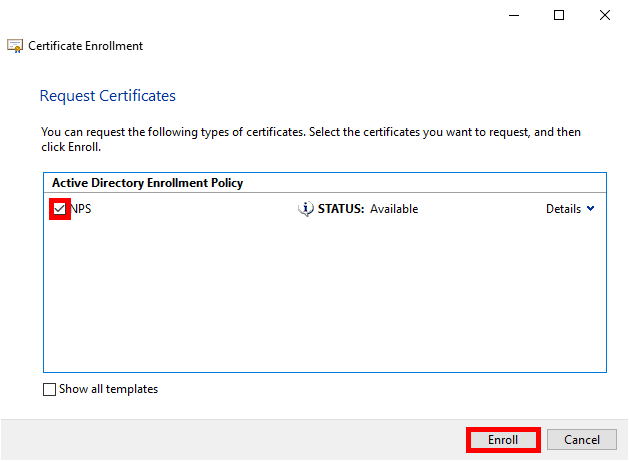
Certificate Enrollment Wizard – 'Request Certificates' step with the NPS certificate template selected for enrollment.
Selecting the NPS certificate template and starting enrollment in the Certificate Enrollment Wizard.
  • Simply click on Finish when the enrollment process is complete:
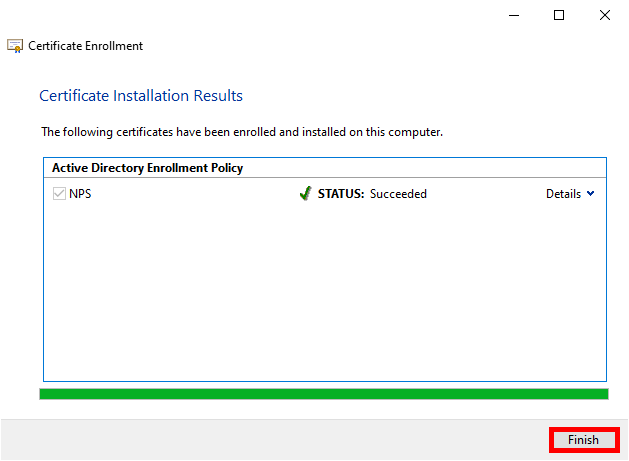
Certificate Enrollment Wizard – 'Certificate Installation Results' showing successful enrollment of the NPS certificate.
Successful installation of the NPS certificate in the Certificate Enrollment Wizard.
  • After clicking on Refresh, you should see your computer's certificate appear:
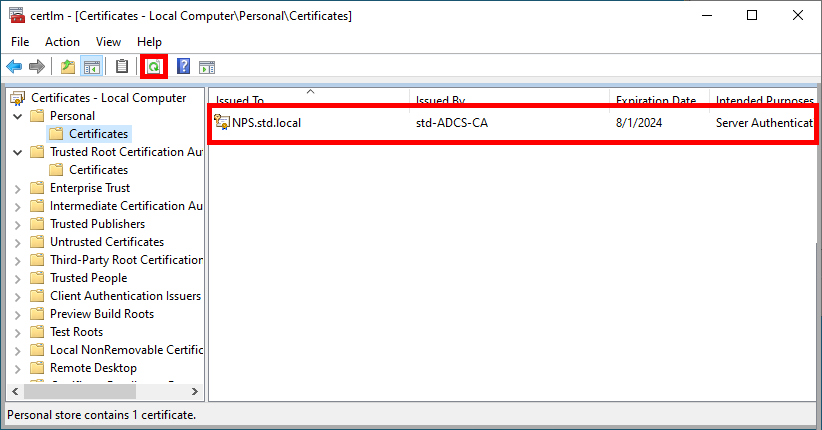
Local Computer Certificates console showing the installed NPS server certificate (Issued To: NPS.std.local) in Personal > Certificates.
Verifying the installed NPS server certificate in the Local Computer Personal certificate store (certlm.msc).

Automatically through Group Policy (GPO)

To automate the certificate renewal process, we can create a GPO.

  • Go to Computer Configuration > Policies > Windows Settings > Security Settings > Public Key Policies and edit the Certificate Services Client - Auto-Enrollment policy:
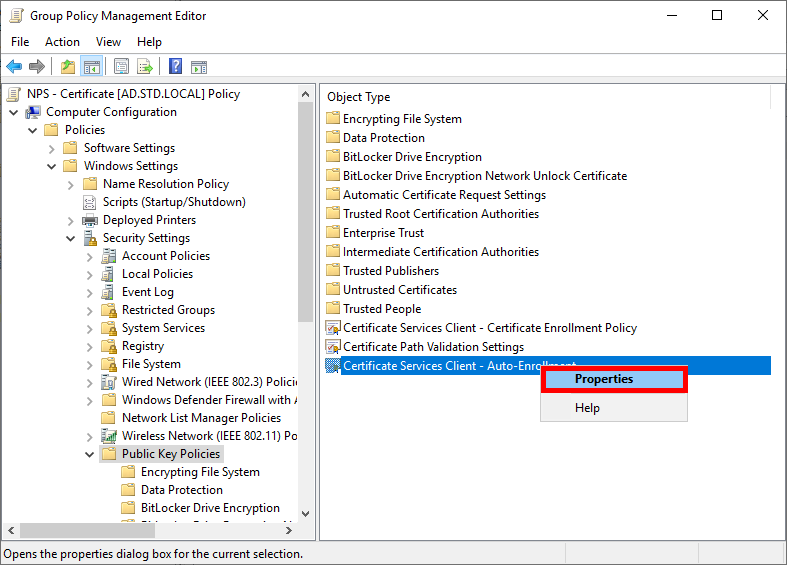
Group Policy Management Editor – configuring 'Certificate Services Client - Auto-Enrollment' under Public Key Policies.
Opening the properties of “Certificate Services Client - Auto-Enrollment” in Group Policy Management Editor.
  • Enable the Configuration Model and check the boxes to enable automatic certificate renewal:
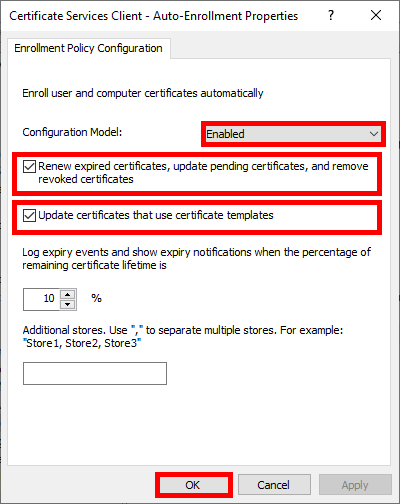
Certificate Services Client – Auto-Enrollment Properties with configuration model enabled and certificate renewal and update options selected.
Enabling certificate auto-enrollment in Group Policy and selecting renewal and update options.
  • Run gpupdate to obtain a certificate:
C:\> gpupdate

Configure NPS

  • Open the Network Policy Server console:
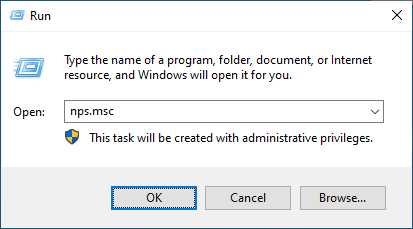
Windows Run dialog with 'nps.msc' entered to open the Network Policy Server console.
Opening the Network Policy Server (NPS) console using nps.msc from the Windows Run dialog.

Declare Access Point as RADIUS Clients

  • Navigate to NPS > RADIUS Clients and Servers > RADIUS Client and click New:
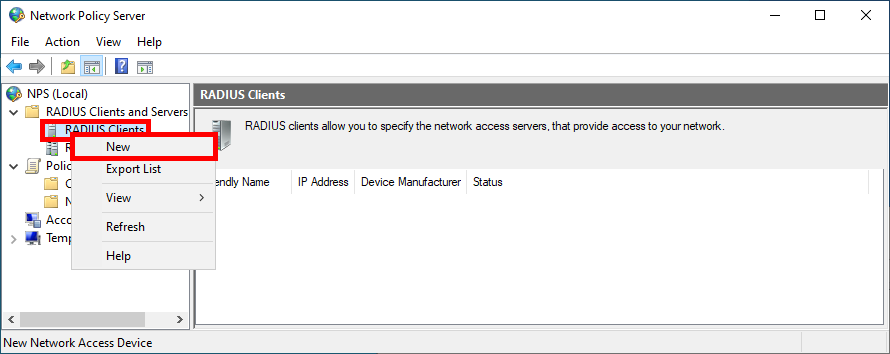
Network Policy Server console – creating a new RADIUS client under RADIUS Clients.
Creating a new RADIUS client in the Network Policy Server (NPS) console.
  • For each Access Point, give it a Name, set the IP address, and create a strong password (use the same one for every Access Point):
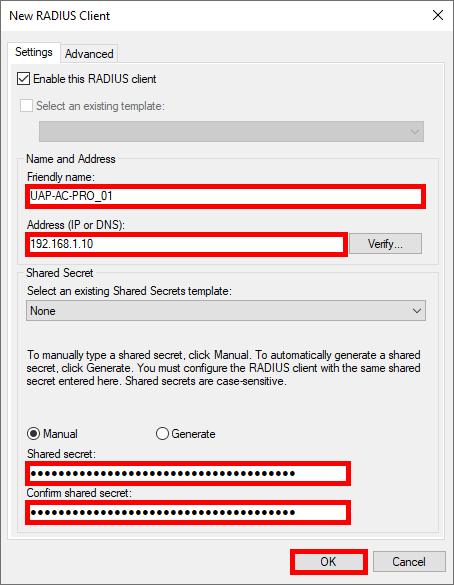
New RADIUS Client settings in NPS configuring a UniFi access point with IP address and shared secret.
Configuring a new RADIUS client in Network Policy Server (NPS) with UniFi access point IP address and shared secret.
  • You should see all previously added Access Point in the RADIUS Clients folder:
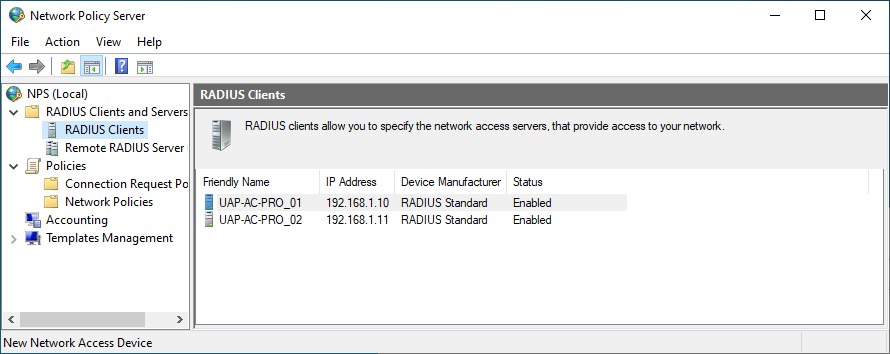
Network Policy Server console showing configured RADIUS clients for UniFi access points with enabled status.
Verifying configured UniFi access points listed as RADIUS clients in Network Policy Server (NPS).

Creating a Network Policy

We now need to create a Network Policy in which we define the group of users who can connect and the protocols used.

  • Click New in the Network Policies folder:
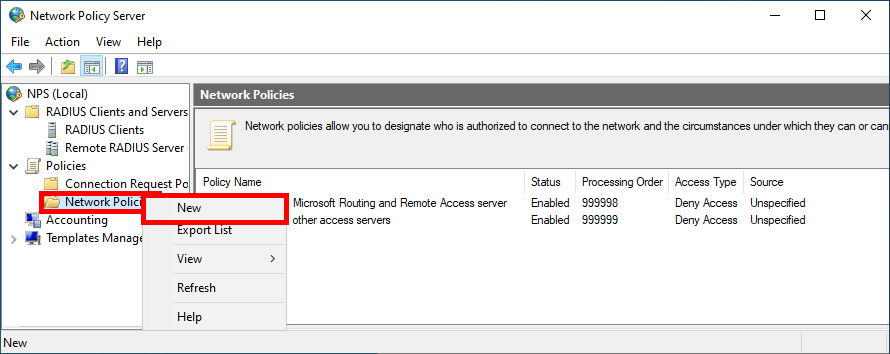
Network Policy Server console – creating a new Network Policy for WPA2/WPA3 Enterprise EAP-TLS authentication.
Creating a new Network Policy in Network Policy Server (NPS) for EAP-TLS authentication.
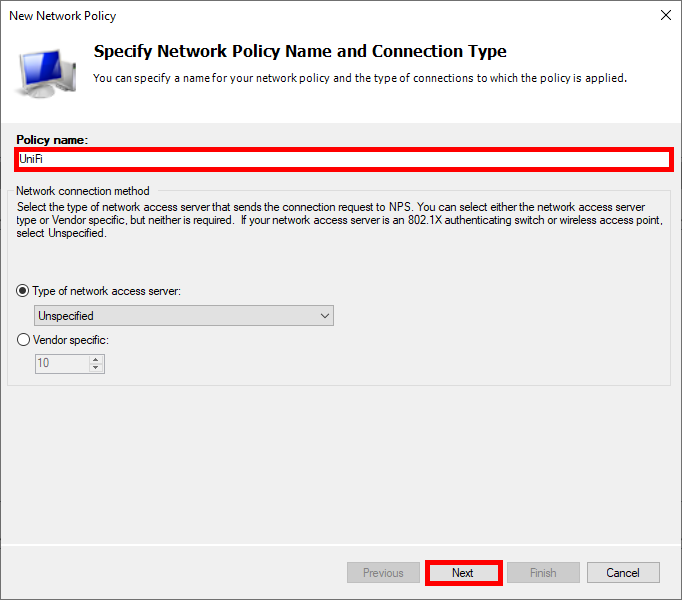
  • Give Policy a name:
New Network Policy wizard in NPS – specifying policy name 'UniFi' for 802.1X authentication.
Defining the Network Policy name (UniFi) in the Network Policy Server wizard.
  • Click on Add to specify the condition:
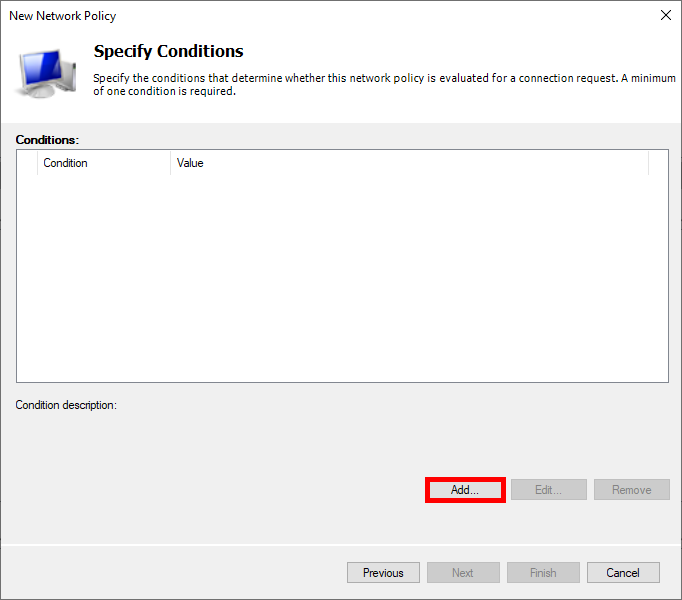
New Network Policy wizard in NPS – adding conditions to define when the policy applies.
Adding conditions in the Network Policy Server wizard to control when the EAP-TLS policy is applied.
  • Select User Groups, then click on Add Groups…:
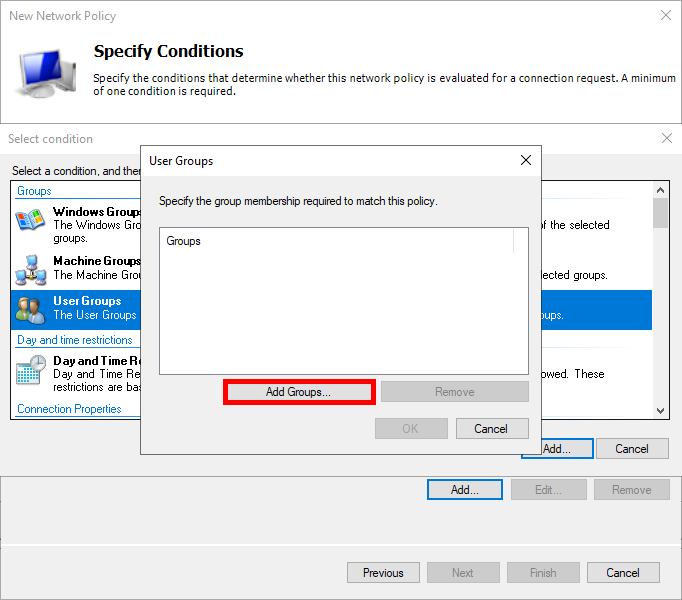
New Network Policy wizard in NPS – adding Active Directory user groups as a condition for EAP-TLS authentication.
Adding Active Directory user groups as a condition in the Network Policy Server (NPS) EAP-TLS policy.
  • Add an Active Directory user group, such as Domain Users:
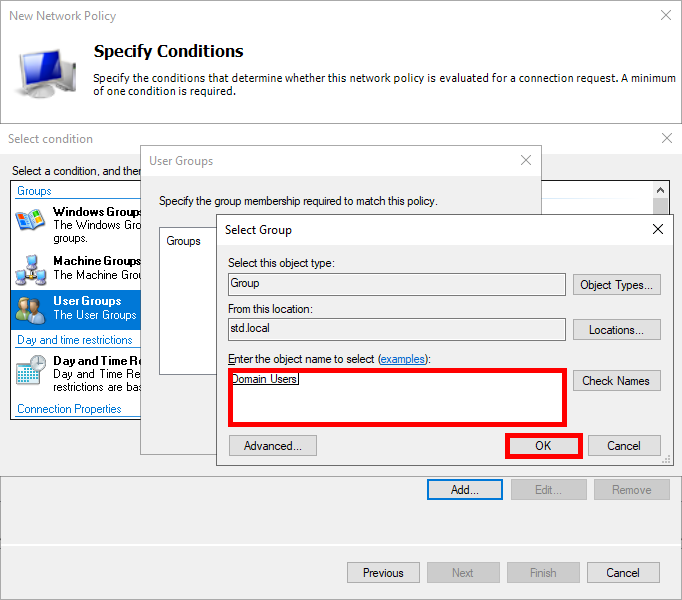
New Network Policy wizard in NPS – selecting the Active Directory 'Domain Users' group as a condition for EAP-TLS authentication.
Selecting the “Domain Users” Active Directory group as a condition in the Network Policy Server (NPS) EAP-TLS policy.
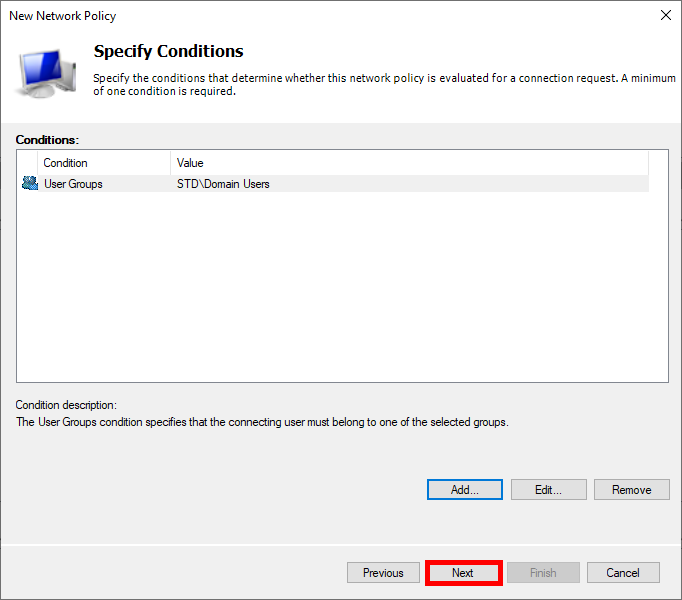
  • Click on Next:
New Network Policy wizard in NPS – User Groups condition set to Domain Users for EAP-TLS authentication.
Verifying the Active Directory user group condition in the Network Policy Server (NPS) EAP-TLS policy.
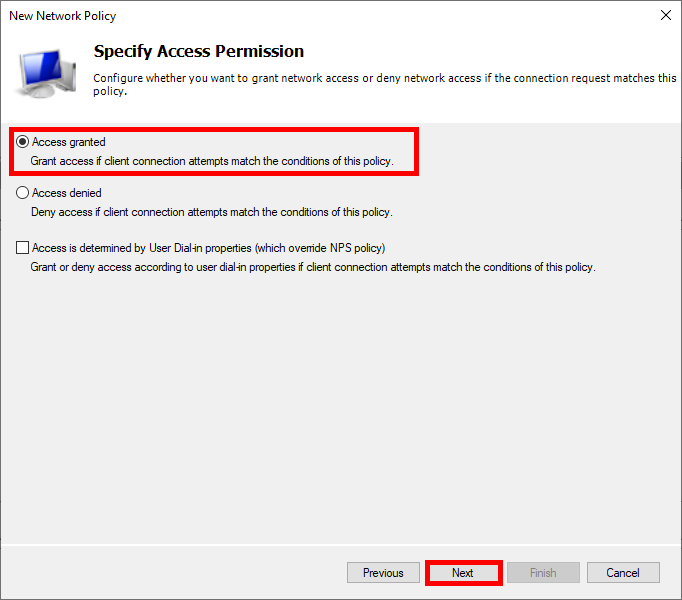
  • Select Access granted:
New Network Policy wizard in NPS – setting Access granted to allow 802.1X EAP-TLS connections.
Granting access in the Network Policy Server (NPS) wizard for the Wi-Fi 802.1X EAP-TLS policy.
  • Choose Microsoft: Smart Card or other certificate as the EAP type and edit the configuration:
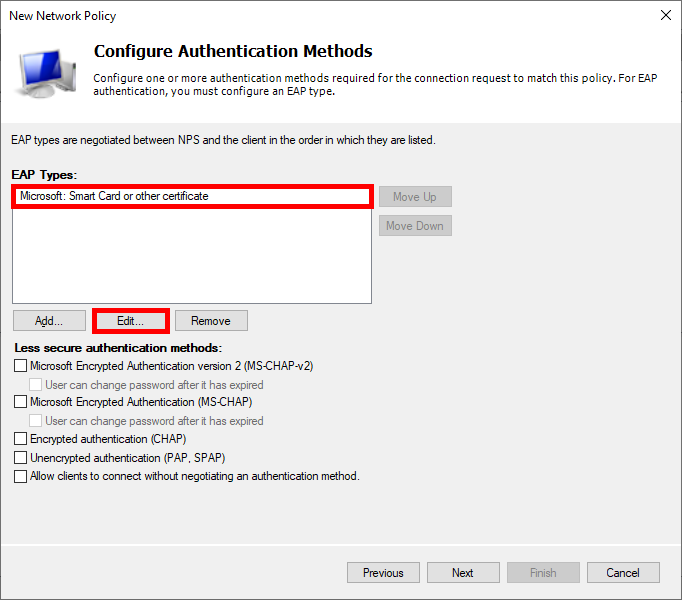
New Network Policy wizard in NPS – configuring EAP-TLS authentication using Smart Card or other certificate.
Configuring EAP-TLS authentication (Smart Card or other certificate) in the Network Policy Server (NPS) policy.
  • Select the certificate previously issued:
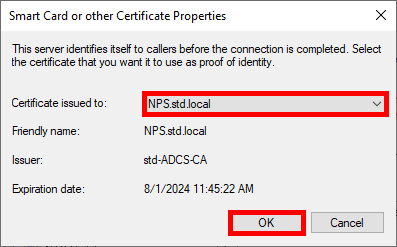
NPS EAP-TLS settings showing the selected server certificate issued to NPS.std.local.
Selecting the NPS server certificate for EAP-TLS authentication (Smart Card or other certificate).
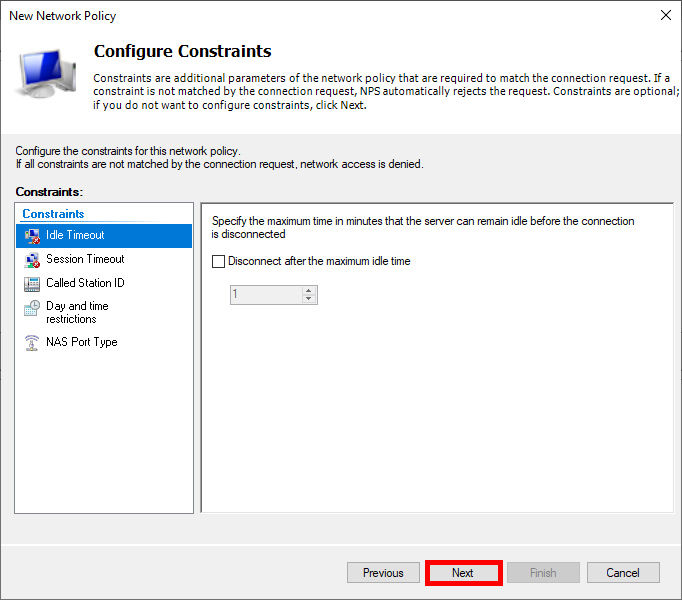
  • Click on Next:
New Network Policy wizard in NPS – configuring policy constraints for 802.1X EAP-TLS authentication.
Configuring policy constraints in Network Policy Server (NPS) for Wi-Fi 802.1X EAP-TLS authentication.
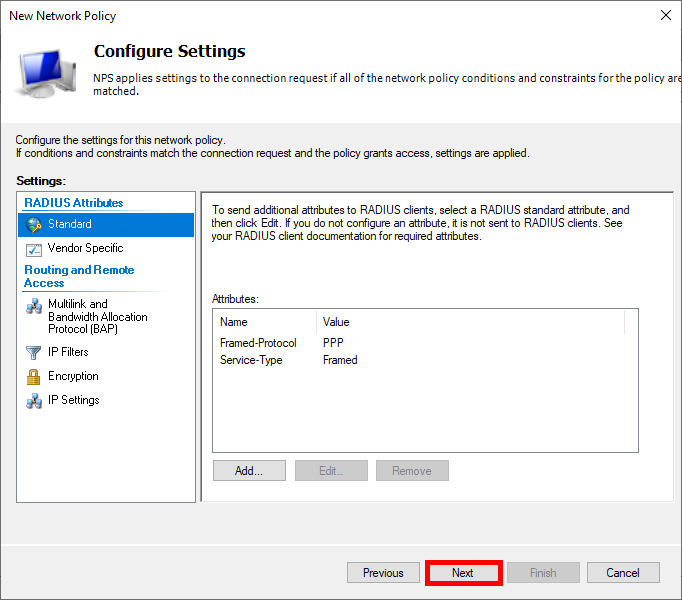
  • Click on Next again:
New Network Policy wizard in NPS – configuring policy settings and RADIUS attributes for 802.1X EAP-TLS.
Configuring Network Policy settings and RADIUS attributes in Network Policy Server (NPS) for Wi-Fi 802.1X EAP-TLS.
  • Finally, click on Finish to create the Policy:
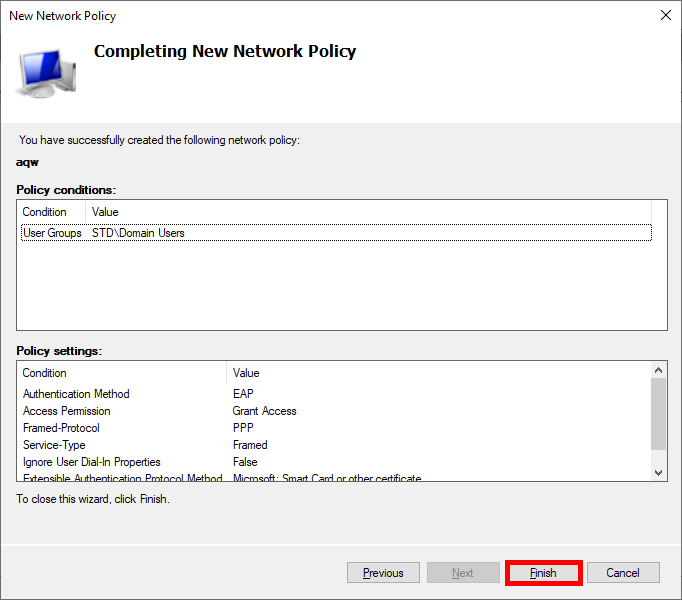
New Network Policy wizard in NPS – completing configuration of the 802.1X EAP-TLS policy.
Completing the Network Policy configuration in Network Policy Server (NPS) for Wi-Fi 802.1X EAP-TLS authentication.

UniFi Network Server

We now need to configure our UniFi Network Server to integrate the RADIUS (NPS) server.

  • Go to the Profiles menu and create a new RADIUS profile:
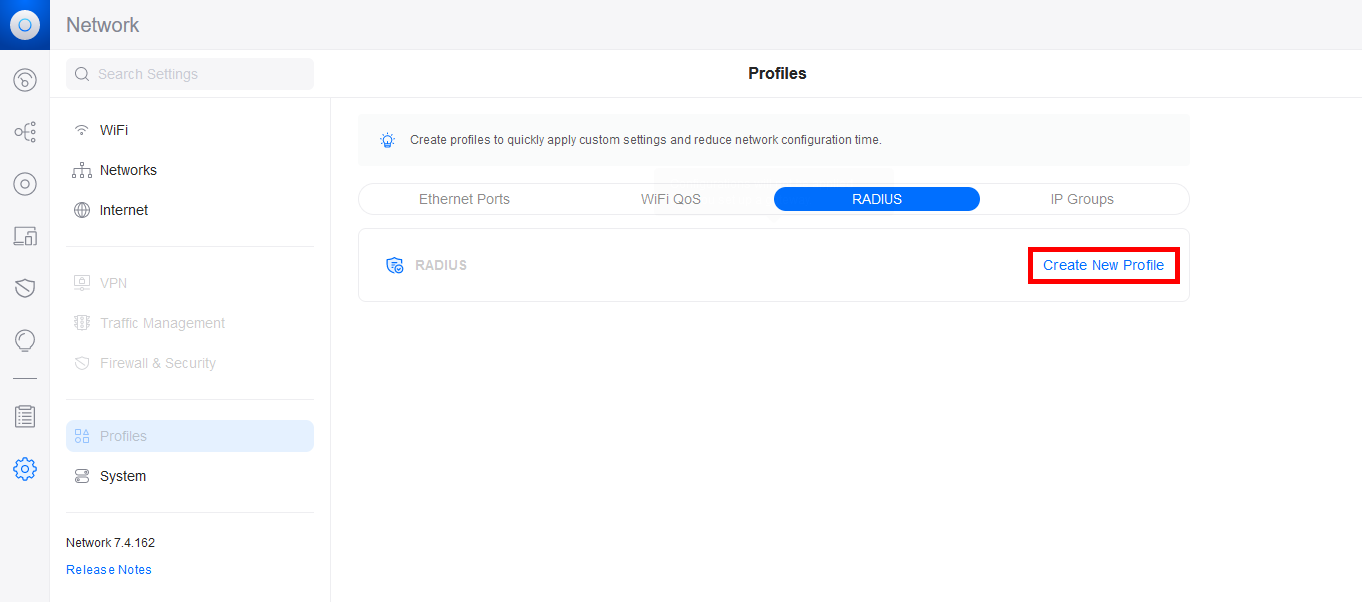
UniFi Network application – creating a new RADIUS profile for WPA2/WPA3 Enterprise EAP-TLS authentication.
Creating a new RADIUS profile in the UniFi Network application for WPA2/WPA3 Enterprise (EAP-TLS).
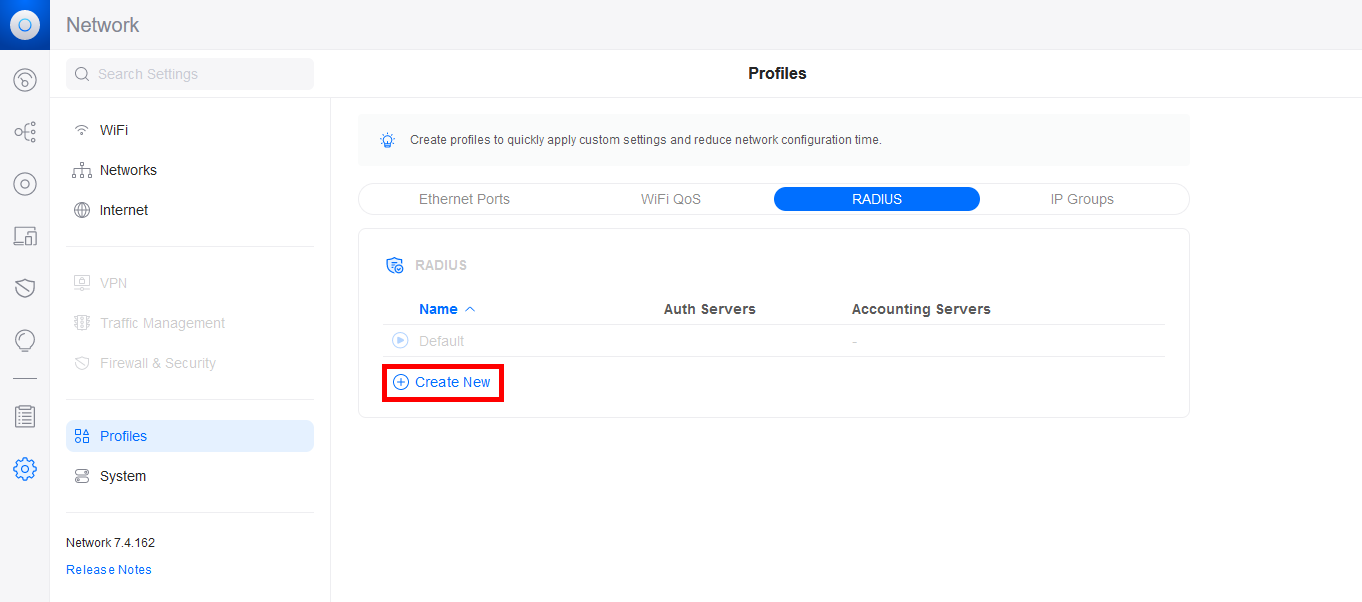
  • Click on Create New:
UniFi Network – Create New RADIUS profile for WPA2/WPA3 Enterprise EAP-TLS authentication.
Creating a new RADIUS profile in UniFi Network for WPA2/WPA3 Enterprise (EAP-TLS) authentication.
  • Give the RADIUS profile a Name and add the IP address of the NPS server for the Authentication Server and the RADIUS Accounting Server. Don't forget to add the password previously set on the NPS server, set the ports, then click on the Add buttons to validate the configuration:
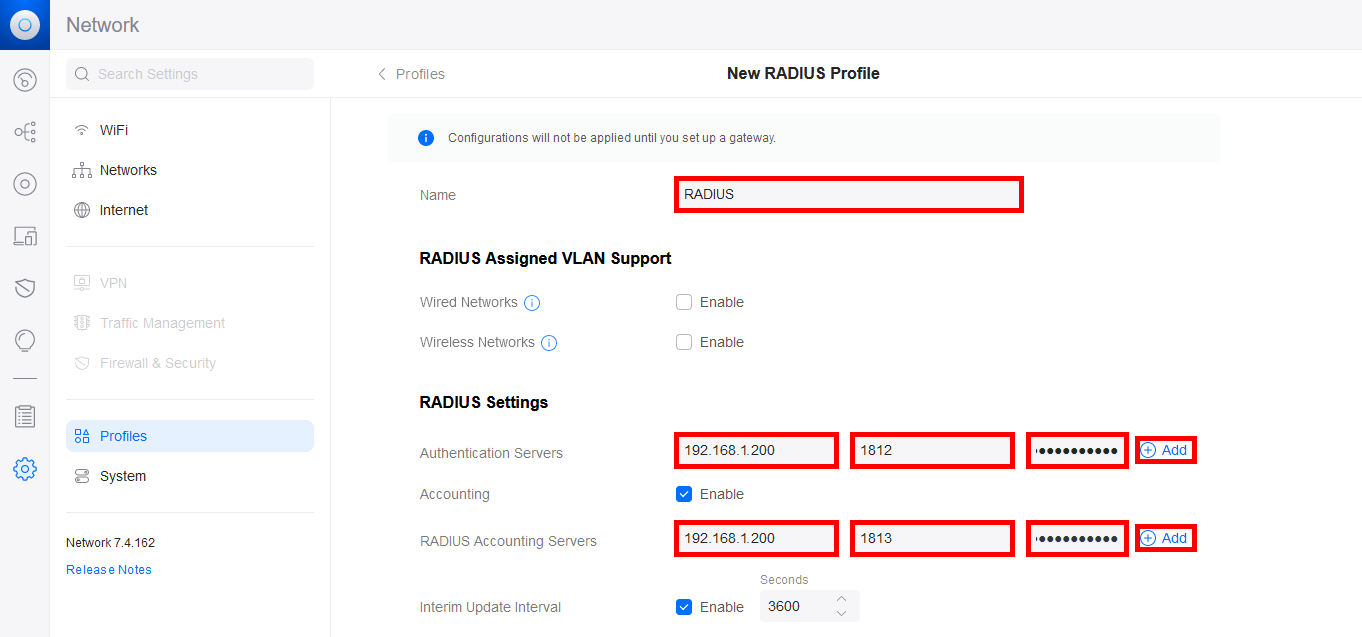
UniFi Network – configuring a new RADIUS profile with NPS authentication (1812) and accounting (1813) servers for WPA2/WPA3 Enterprise EAP-TLS.
Configuring a UniFi RADIUS profile with the NPS server for authentication (UDP 1812) and accounting (UDP 1813) in a WPA2/WPA3 Enterprise (EAP-TLS) setup.
  • Now go to the WiFi menu and add a new WiFi profile or modify an existing one:
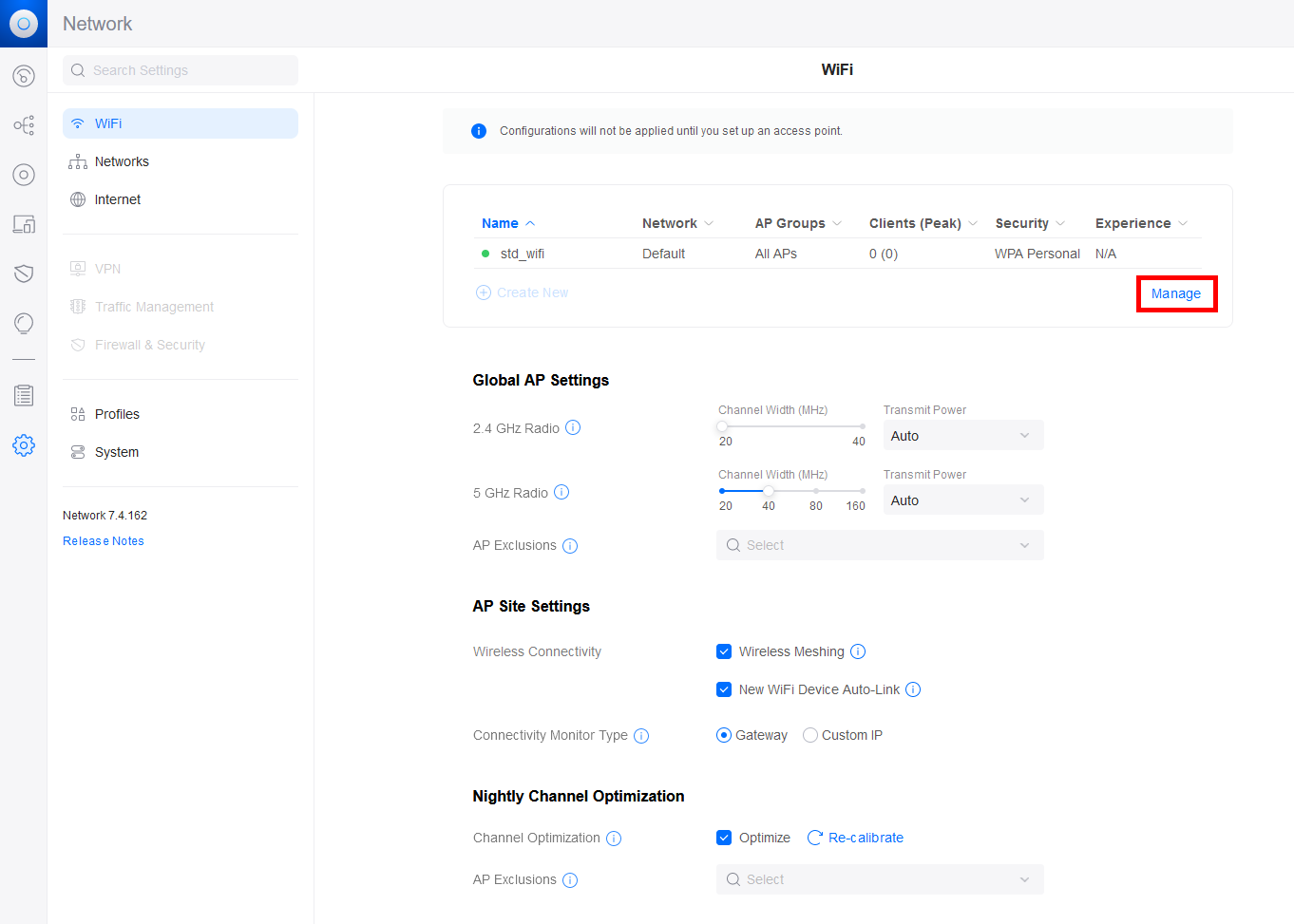
UniFi Network – managing Wi-Fi network settings before enabling WPA2/WPA3 Enterprise (EAP-TLS) security.
Managing the UniFi Wi-Fi network settings prior to enabling WPA2/WPA3 Enterprise (EAP-TLS) authentication.
  • Configure the Security Protocol and RADIUS Profile:
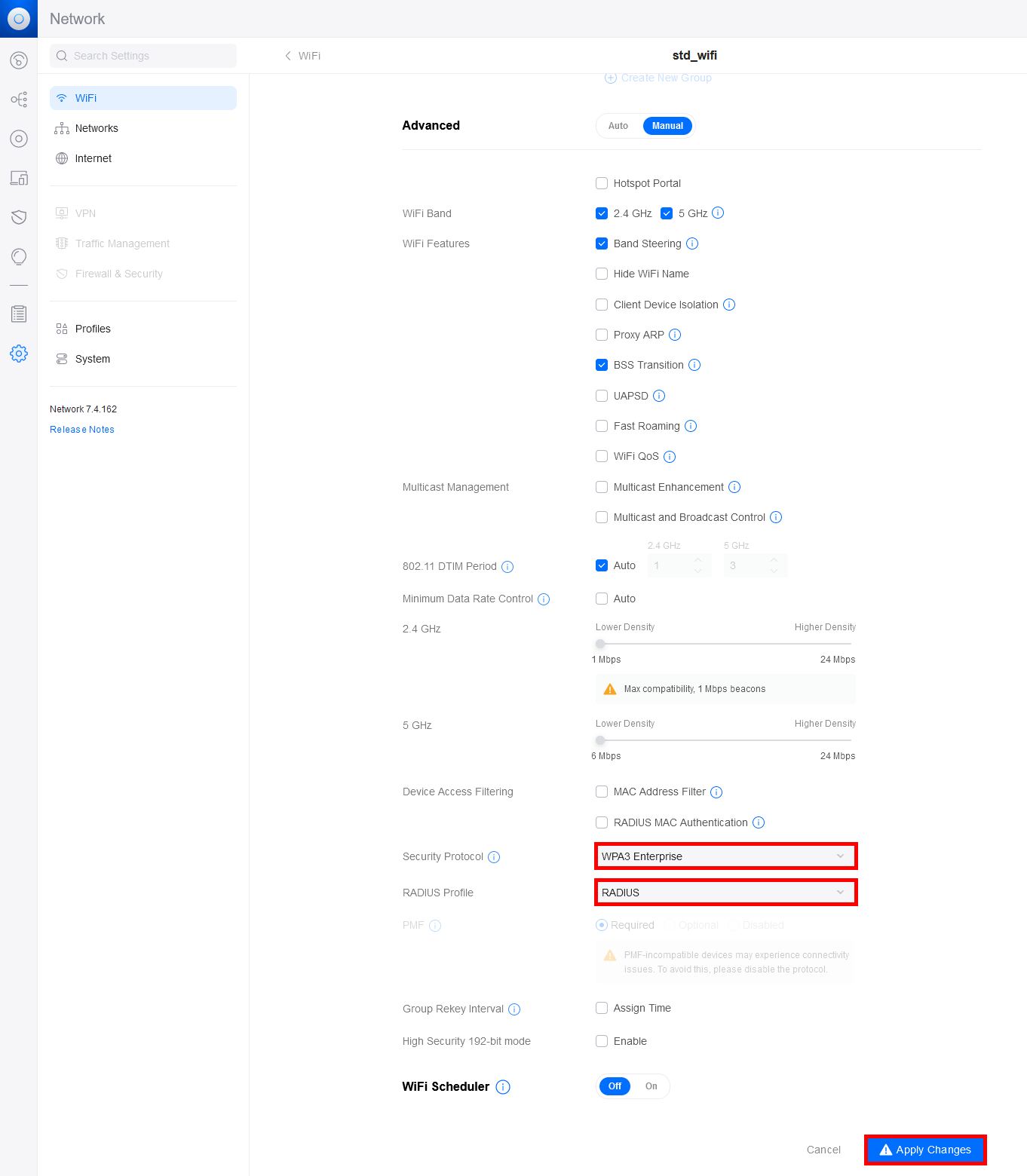
UniFi Network advanced Wi-Fi configuration enabling WPA3 Enterprise with a RADIUS profile for EAP-TLS authentication.
Enabling WPA3 Enterprise and selecting the configured RADIUS profile in UniFi for secure 802.1X EAP-TLS authentication.

Supplicant (Windows Stations)

We'll now look at how supplicants obtain the certificate they'll use for authentication. We'll look at two methods: a manual method and an automatic method via GPO.

Certificate Distribution to Supplicants

Manually via the Certificate Management Console

  • Open the Certificate Management Console for the current user on the Supplicant machine:
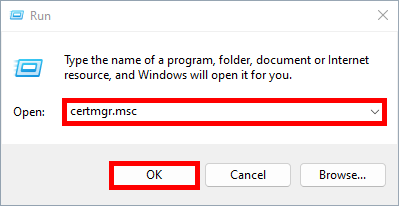
Opening the Windows Certificate Manager by running certmgr.msc from the Run dialog.
Opening the Windows Certificate Manager (Current User) using the certmgr.msc command from the Run dialog.
  • Right-click on Personal and select Request New Certificate…:
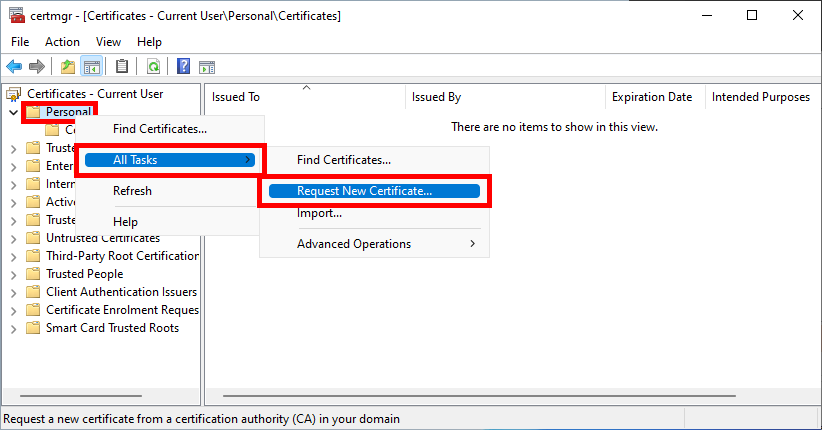
Requesting a new certificate from the Personal store in the Windows Certificate Manager (Current User).
Requesting a new certificate from the Personal store in the Windows Certificate Manager (Current User context).
  • Click Next to start the certificate enrollment process:
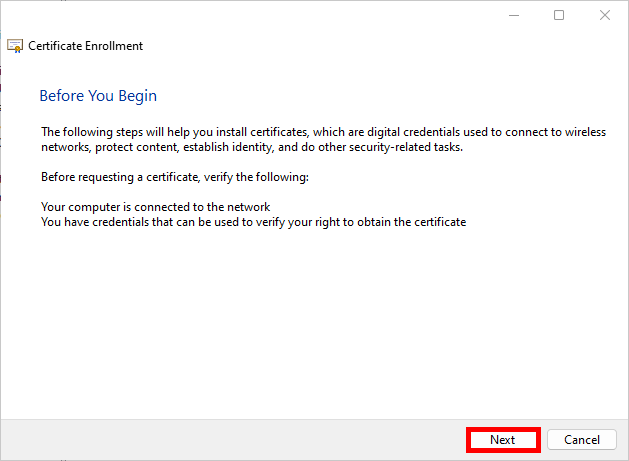
Windows Certificate Enrollment Wizard – Before You Begin screen.
Windows Certificate Enrollment Wizard – introductory screen displayed before requesting a new user certificate.
  • Select the Active Directory Enrollment Policy and click Next to continue:
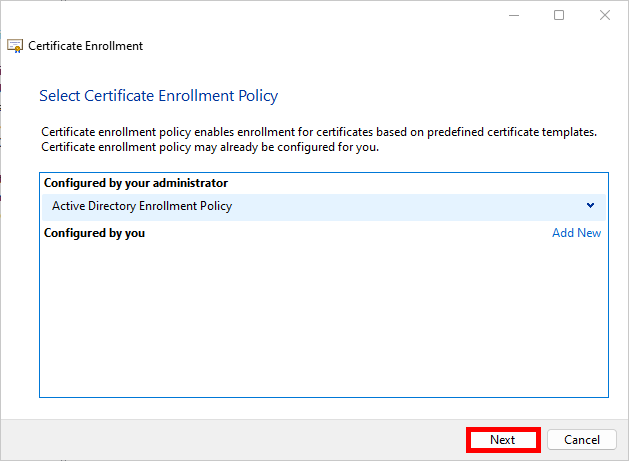
Windows Certificate Enrollment Wizard – selecting Active Directory Enrollment Policy.
Selecting the Active Directory Enrollment Policy in the Windows Certificate Enrollment Wizard before requesting a user certificate.
  • Select the EAP-TLS Policy we defined earlier and click on Enroll:
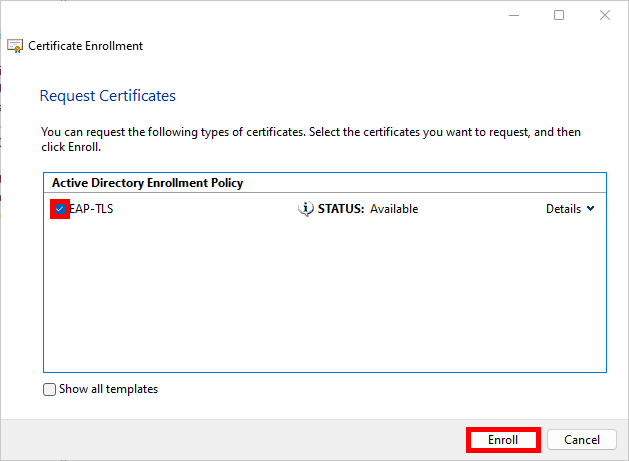
Windows Certificate Enrollment Wizard – requesting an EAP-TLS certificate from Active Directory.
Selecting and enrolling the EAP-TLS certificate template in the Windows Certificate Enrollment Wizard.
  • Simply click on Finish when the enrollment process is complete:
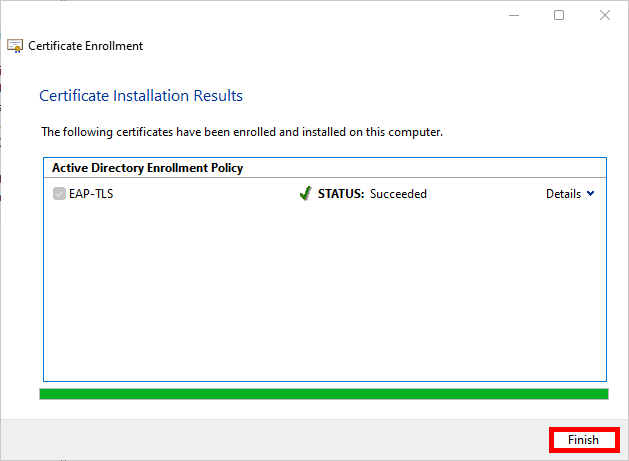
Windows Certificate Enrollment Wizard – EAP-TLS certificate installation succeeded.
Successful enrollment of the EAP-TLS certificate in the Windows Certificate Enrollment Wizard.
  • After refreshing, you should see your Client Authentication certificate in the user certificate store:
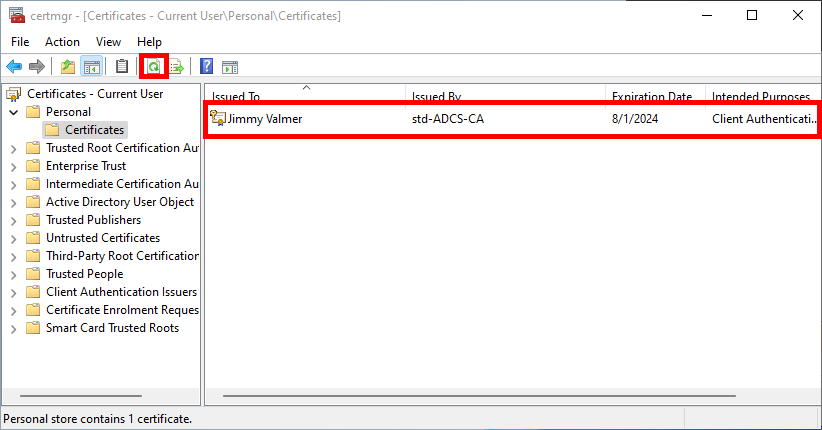
Windows Certificate Manager – EAP-TLS client certificate installed in the Personal store (Current User).
Verification that the EAP-TLS client certificate is successfully installed in the Personal > Certificates store (Current User).

Automatically via a Group Policy (GPO)

  • Go to User Configuration > Policies > Windows Settings > Security Settings > Public Key Policies and edit the Certificate Services Client - Auto-Enrollment policy:
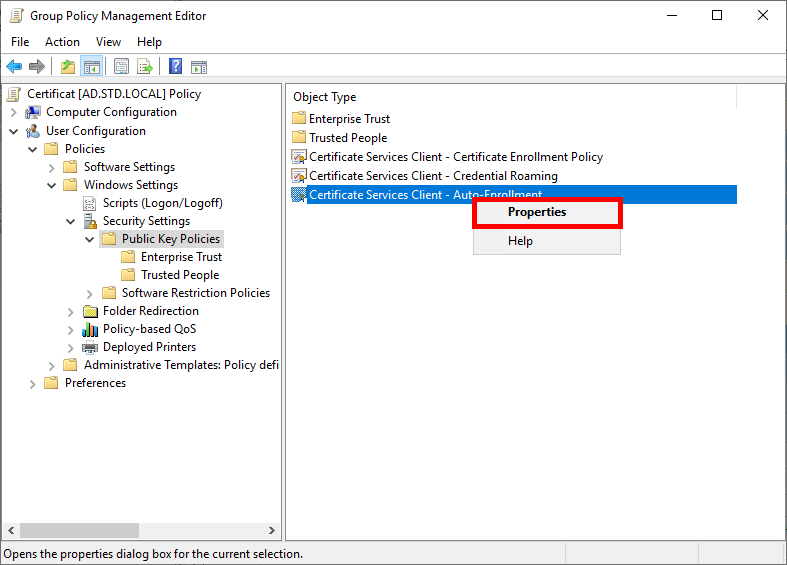
Group Policy Management Editor – accessing Certificate Services Client Auto-Enrollment properties.
Opening the Certificate Services Client – Auto-Enrollment properties in the Group Policy Management Editor to configure automatic certificate enrollment.
  • Enable the Configuration Model and check the boxes to enable automatic certificate renewal:
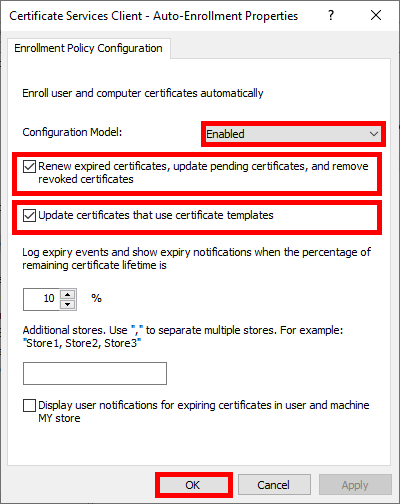
Group Policy – configuring Certificate Services Client Auto-Enrollment settings.
Enabling automatic certificate enrollment in Group Policy and configuring renewal and template update options for user and computer certificates.
  • Run gpupdate to get a certificate:
C:\> gpupdate

The supplicants should now be able to connect to WPA Enterprise WiFi Access using EAP-TLS.

References