rss logo

How to Block Applications with GPO and AppLocker on Windows 10/11

Windows Store Icon

As a system administrator, it is important to prevent users from installing or running unauthorized applications on company computers. The Microsoft Store can provide access to applications that may not be approved for corporate use, making it useful to restrict or block access in managed Windows environments.

In this guide, you will learn how to block applications using Group Policy (GPO) and built-in Windows application control features. The examples include blocking the Microsoft Store as well as restricting other applications installed on Windows 10 and Windows 11.

We will cover two methods: Software Restriction Policies (SRP), a legacy solution mainly relevant to Windows 10 environments, and AppLocker, the more modern application control solution available on Windows 10 and Windows 11.

Creating the Group Policy Object

On the Active Directory server, create a new Group Policy Object (GPO) to manage application restrictions on domain-joined Windows computers.

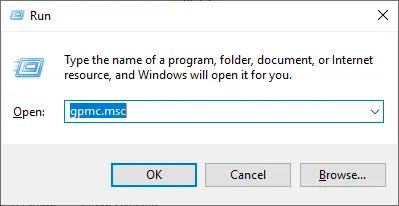
  • Open the Group Policy Management console by running gpmc.msc:
Opening the Group Policy Management Console by running gpmc.msc from the Windows Run dialog
Opening the Group Policy Management Console with gpmc.msc.
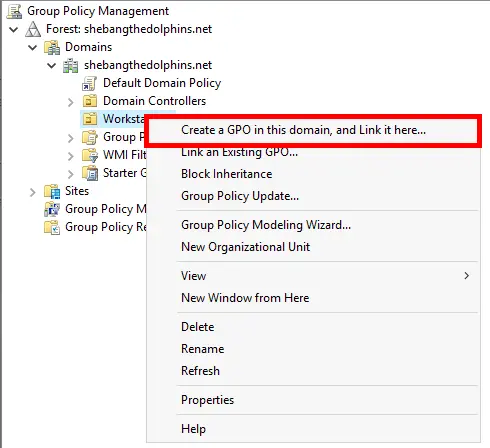
  • Right-click the Organizational Unit (OU) that contains your computer accounts, then select Create a GPO in this domain, and Link it here...:
Creating and linking a new Group Policy Object to an Organizational Unit in Group Policy Management
Creating and linking a new GPO to the selected Organizational Unit.
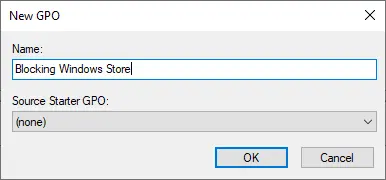
  • Enter a descriptive name for the new Group Policy Object (GPO), for example Blocking Windows Store:
Naming the new Group Policy Object Blocking Windows Store in Group Policy Management
Assigning a descriptive name to the new Group Policy Object.

Using Software Restriction Policies (SRP) – Windows 10

💡 Note: Software Restriction Policies (SRP) have been deprecated by Microsoft since Windows 10 version 1803 and should no longer be used for new deployments. Microsoft recommends using AppLocker instead. This section is therefore intended for environments that still rely on Windows 10 and legacy SRP configurations. For a more modern solution compatible with Windows 10 and Windows 11, see the AppLocker configuration below.

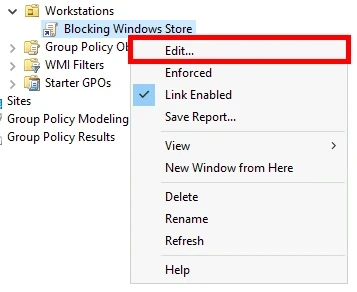
  • Right-click the previously created GPO, then select Edit...:
Editing the Blocking Windows Store Group Policy Object in Group Policy Management
Editing the previously created Group Policy Object in Group Policy Management.
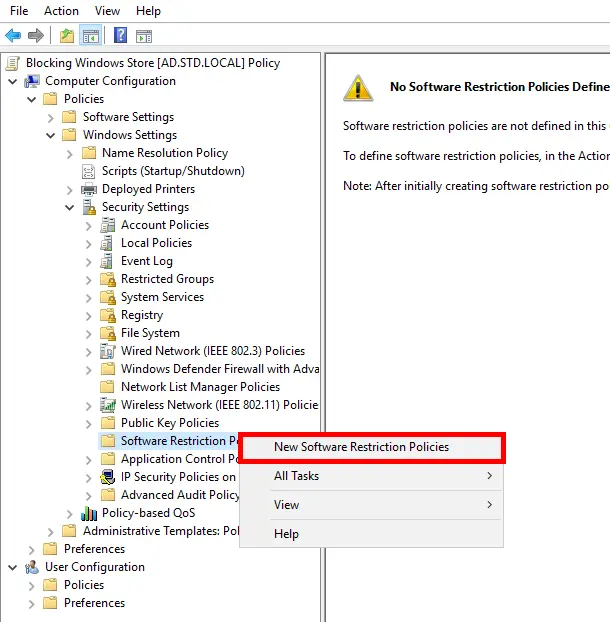
  • Navigate to Computer Configuration > Policies > Windows Settings > Security Settings > Software Restriction Policies. Right-click Software Restriction Policies, then select New Software Restriction Policies:
Creating new Software Restriction Policies in the Group Policy Management Editor
Creating a new Software Restriction Policies configuration in the Group Policy Management Editor.
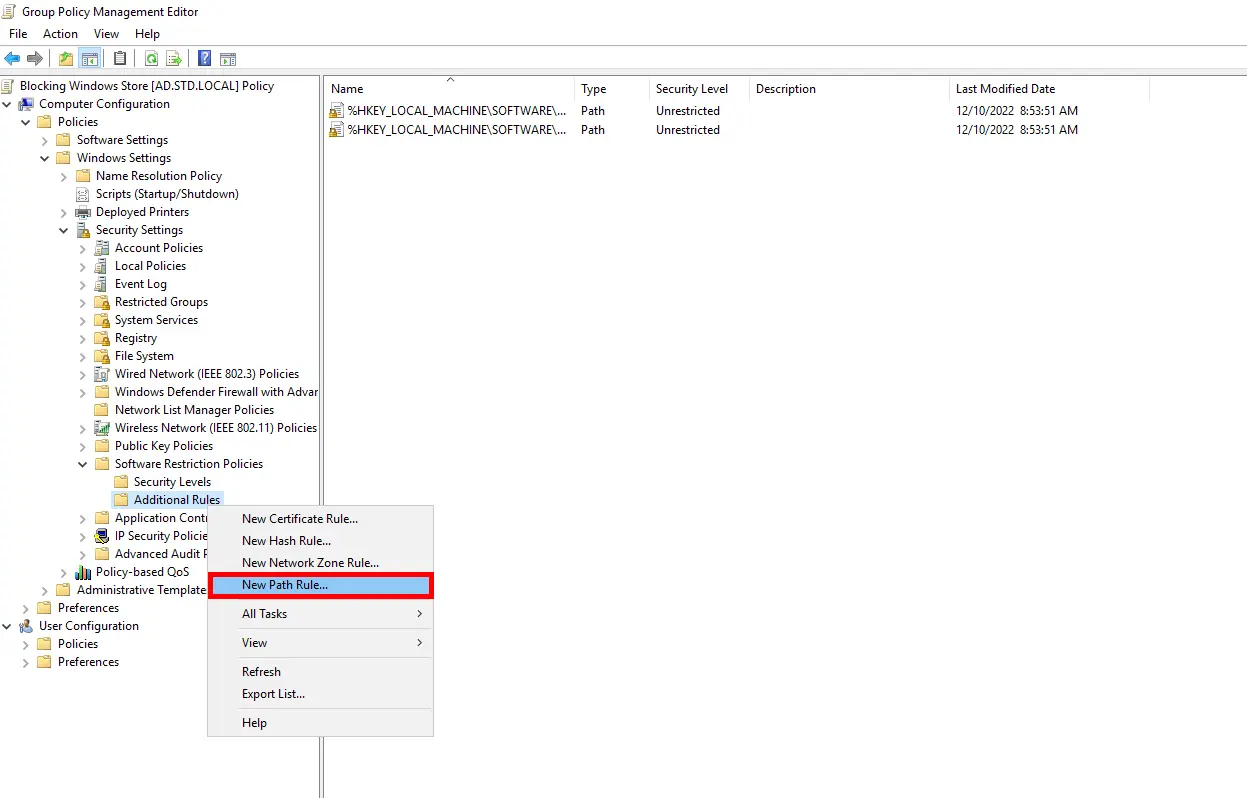
  • Go to Software Restriction Policies > Additional Rules, right-click Additional Rules, then select New Path Rule...:
Creating a new path rule under Additional Rules in Software Restriction Policies
Creating a new path rule in Software Restriction Policies.
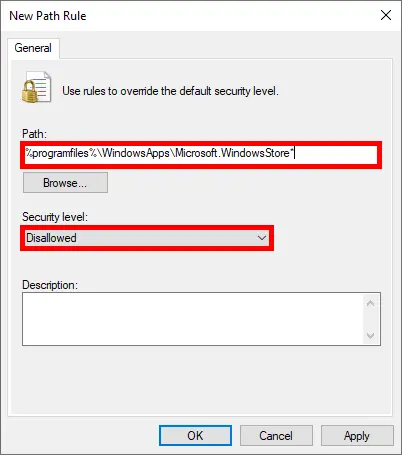
  • In the Path field, enter %programfiles%\WindowsApps\Microsoft.WindowsStore*, then set the Security Level to Disallowed:
Creating a Software Restriction Policy path rule to block Microsoft Store by setting the security level to Disallowed
Creating an SRP path rule to block Microsoft Store.

Using AppLocker (Windows 10 & 11)

Enable the Application Identity Service

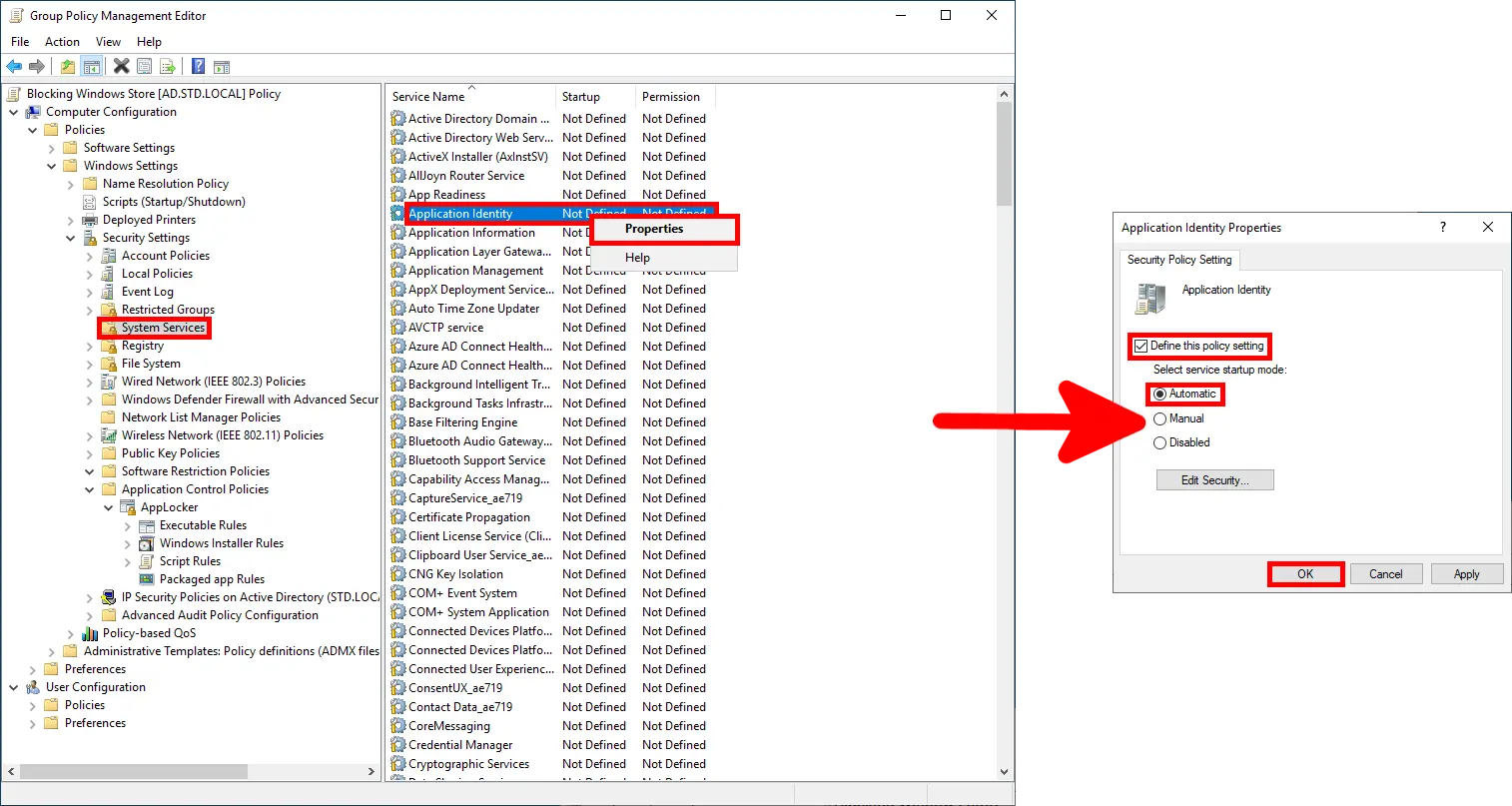
AppLocker requires the Application Identity service to be running in order to enforce application control rules. You can configure this service to start automatically through the same Group Policy Object (GPO).

  • Navigate to Computer Configuration > Policies > Windows Settings > Security Settings > System Services. Open the Application Identity service properties, enable Define this policy setting, then set the startup mode to Automatic:
Configuring the Application Identity service to start automatically in Group Policy for AppLocker
Configuring the Application Identity service to start automatically for AppLocker.

Generating the XML Rules File

To create the AppLocker rules, use a Windows 10 or Windows 11 computer. The rules will be generated locally and then exported to an XML file, which can later be imported into the Group Policy Object (GPO) on the domain controller.

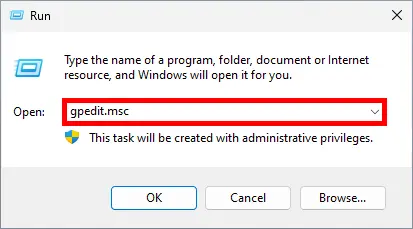
  • Open the Local Group Policy Editor by running gpedit.msc from the Windows Run dialog:
Opening the Local Group Policy Editor by running gpedit.msc from the Windows Run dialog
Opening the Local Group Policy Editor with gpedit.msc.
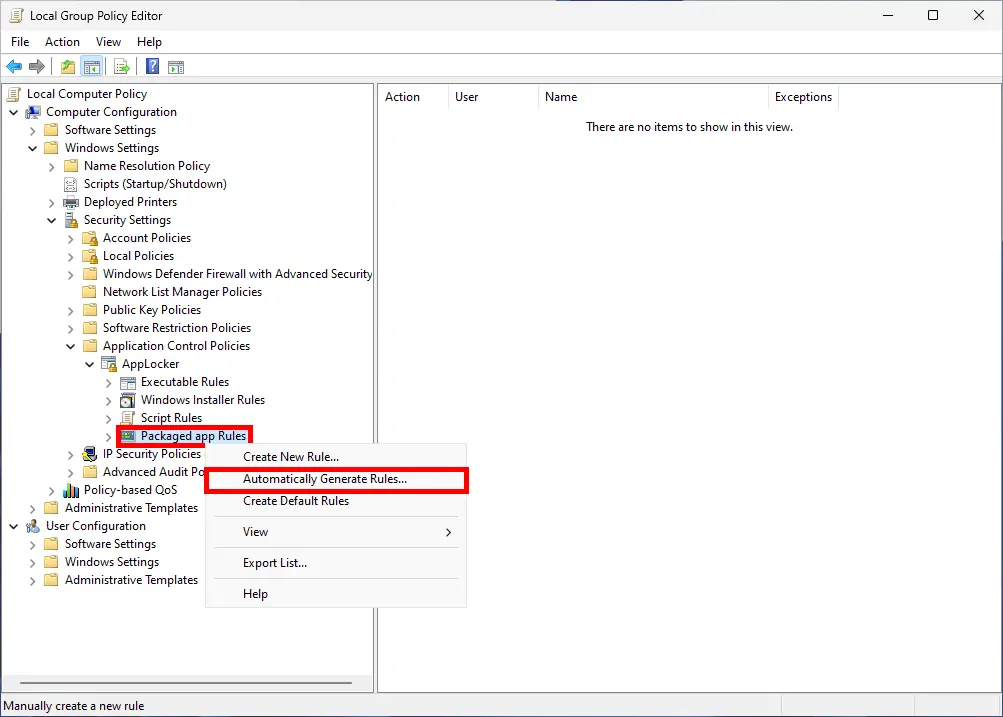
  • Navigate to Computer Configuration > Windows Settings > Security Settings > Application Control Policies > AppLocker > Packaged app Rules. Right-click Packaged app Rules, then select Automatically Generate Rules...:
Automatically generating AppLocker rules for packaged apps in the Local Group Policy Editor
Automatically generating AppLocker packaged app rules in the Local Group Policy Editor.
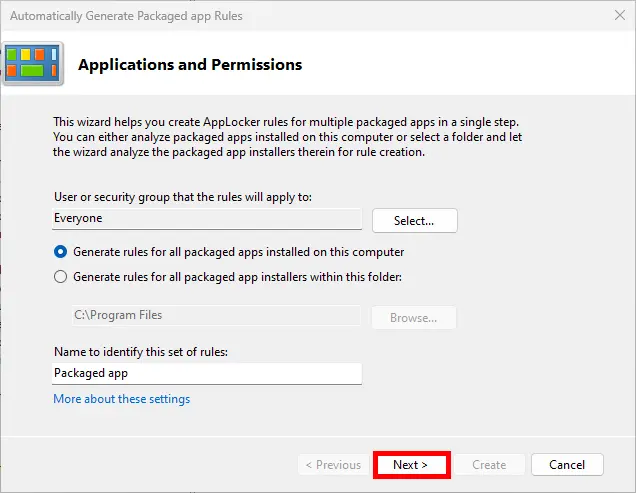
  • Leave the default options selected, then click Next:
AppLocker packaged app rules wizard showing the default options before clicking Next
Reviewing the default options in the AppLocker packaged app rules wizard.
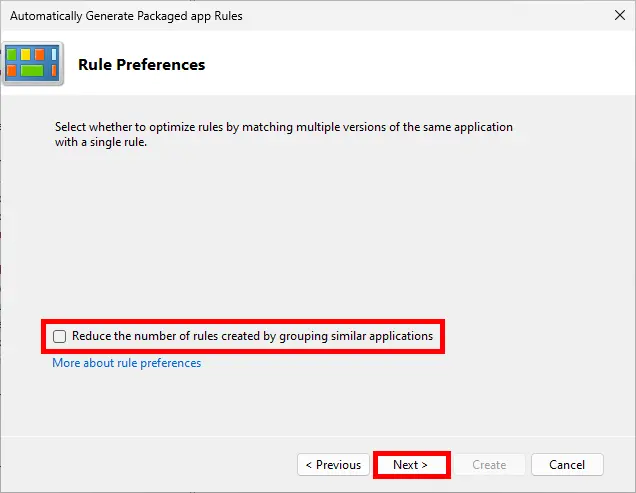
  • Uncheck Reduce the number of rules created by grouping similar applications, then click Next:
AppLocker packaged app rules wizard with the option to reduce the number of rules by grouping similar applications unchecked
Disabling rule grouping in the AppLocker packaged app rules wizard.
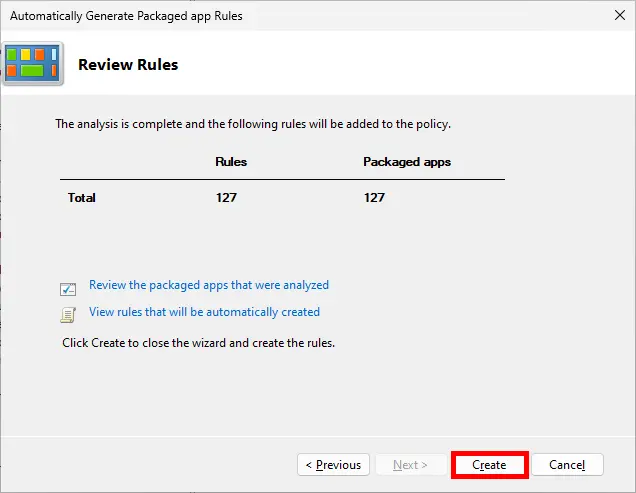
  • Once the analysis is complete, review the generated rules, then click Create to add them to the AppLocker policy:
Reviewing the automatically generated AppLocker packaged app rules before clicking Create
Reviewing and creating the automatically generated AppLocker packaged app rules.
  • After the rules are created, right-click AppLocker, select Export Policy..., save the policy as an XML file, then copy it to your Active Directory server:
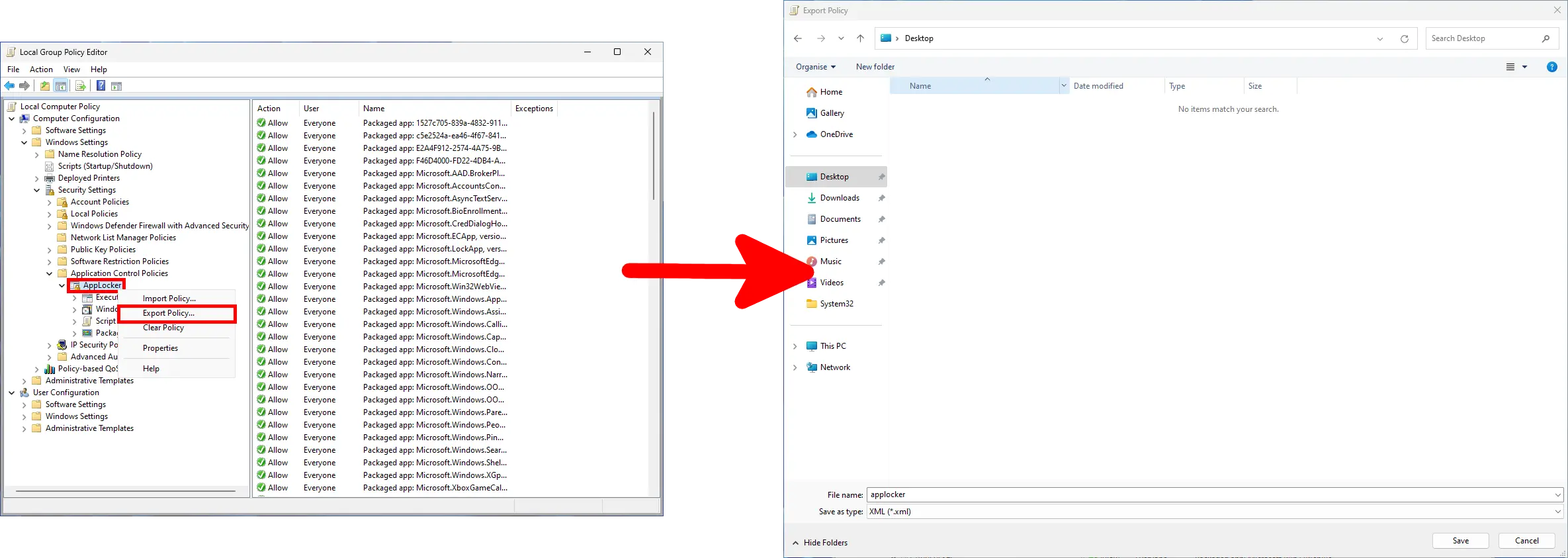
Exporting the AppLocker policy to an XML file from the Local Group Policy Editor
Exporting the AppLocker policy to an XML file for later import into the domain GPO.
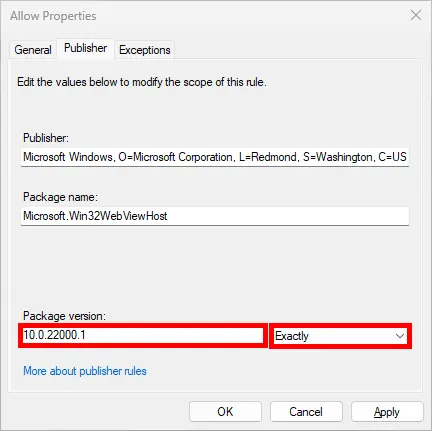
  • The raw exported AppLocker XML policy defines an exact package version for each application rule. As a result, the rule may no longer match after the application is updated:
AppLocker packaged app rule configured to match an exact application package version
Example of an AppLocker packaged app rule restricted to a specific package version.
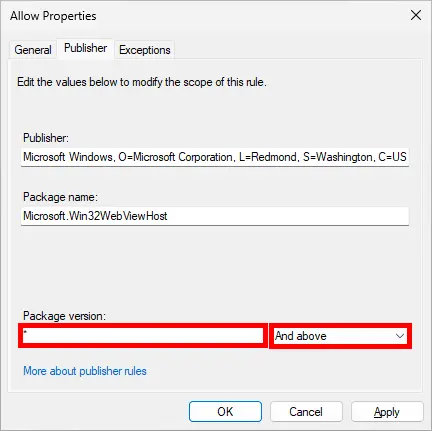
  • To ensure the rule applies to all versions of the application, remove the specific package version and select And above:
AppLocker packaged app rule configured to apply to all application package versions using And above
Configuring an AppLocker packaged app rule to apply to all package versions.
  • To avoid manually editing hundreds of AppLocker rules, use the following PowerShell command to replace the package version ranges in the exported XML policy with wildcards:
PS C:\> $(Get-Content .\AppLocker.xml -Raw -Encoding UTF8) -replace ".*BinaryVersionRange LowSection.*",'          <BinaryVersionRange LowSection="*" HighSection="*" />' | Out-File -FilePath .\AppLocker_modifie.xml

This creates a new AppLocker_modified.xml policy in which the affected rules are configured to match all application versions.

Alternatively, you can download the pre-modified AppLocker XML policy here: AppLocker.xml.

Blocking the Windows Store (and Other Windows Apps)

  • In Group Policy Management, right-click the previously created GPO, then select Edit...:
Editing the previously created Group Policy Object in Group Policy Management
Editing the Group Policy Object that will receive the AppLocker policy.
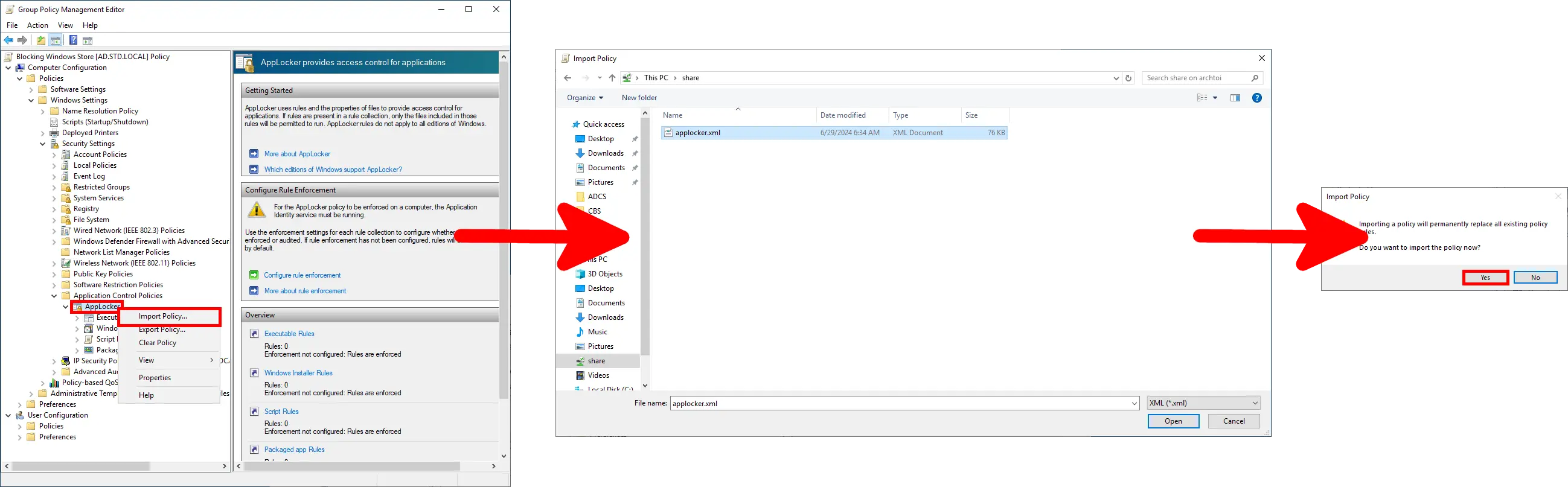
  • Navigate to Computer Configuration > Policies > Windows Settings > Security Settings > Application Control Policies. Right-click AppLocker, select Import Policy..., choose the previously created XML file, then confirm the import:
Importing an AppLocker XML policy into a Group Policy Object and confirming replacement of existing AppLocker rules
Importing the AppLocker XML policy into the Group Policy Object.
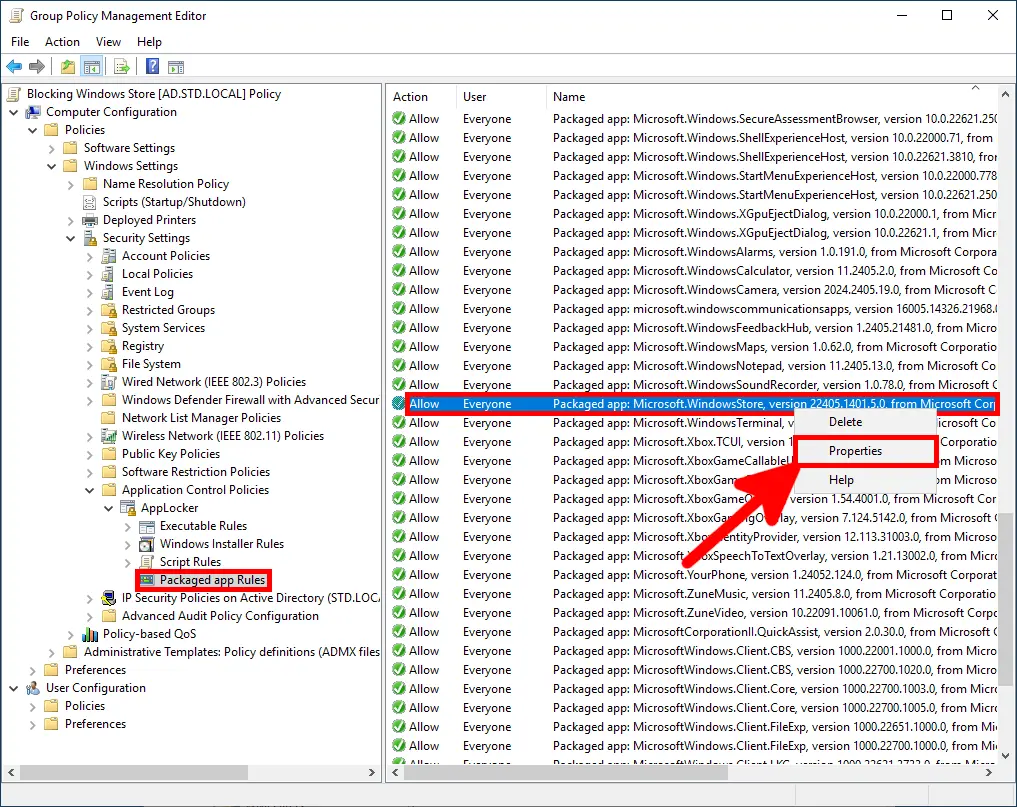
  • After importing the policy, open Packaged app Rules, locate the Microsoft.WindowsStore rule, then right-click it and select Properties. You can use the same method to restrict other packaged apps such as Xbox, Zune, or other applications included in the ruleset:
Opening the properties of the Microsoft Windows Store packaged app rule in AppLocker
Opening the Microsoft Store packaged app rule properties in AppLocker.
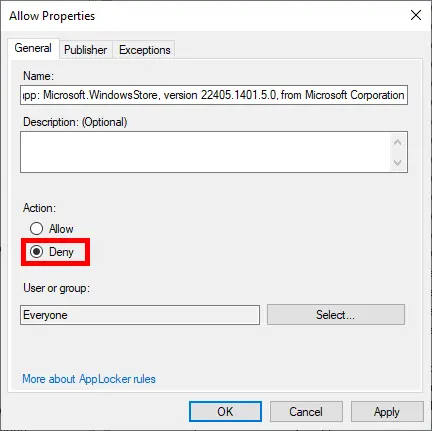
  • In the rule properties, select Deny under Action, then open the Publisher tab:
Setting the Microsoft Store AppLocker packaged app rule action to Deny
Changing the Microsoft Store AppLocker rule action from Allow to Deny.
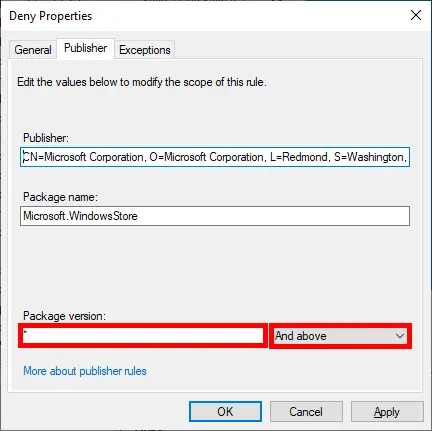
  • In the Publisher tab, clear the Package version field and select And above so the rule applies to all versions of the application. Click OK to save the changes:
Configuring the Microsoft Store AppLocker packaged app rule to apply to all package versions using And above
Configuring the Microsoft Store AppLocker rule to apply to all package versions.
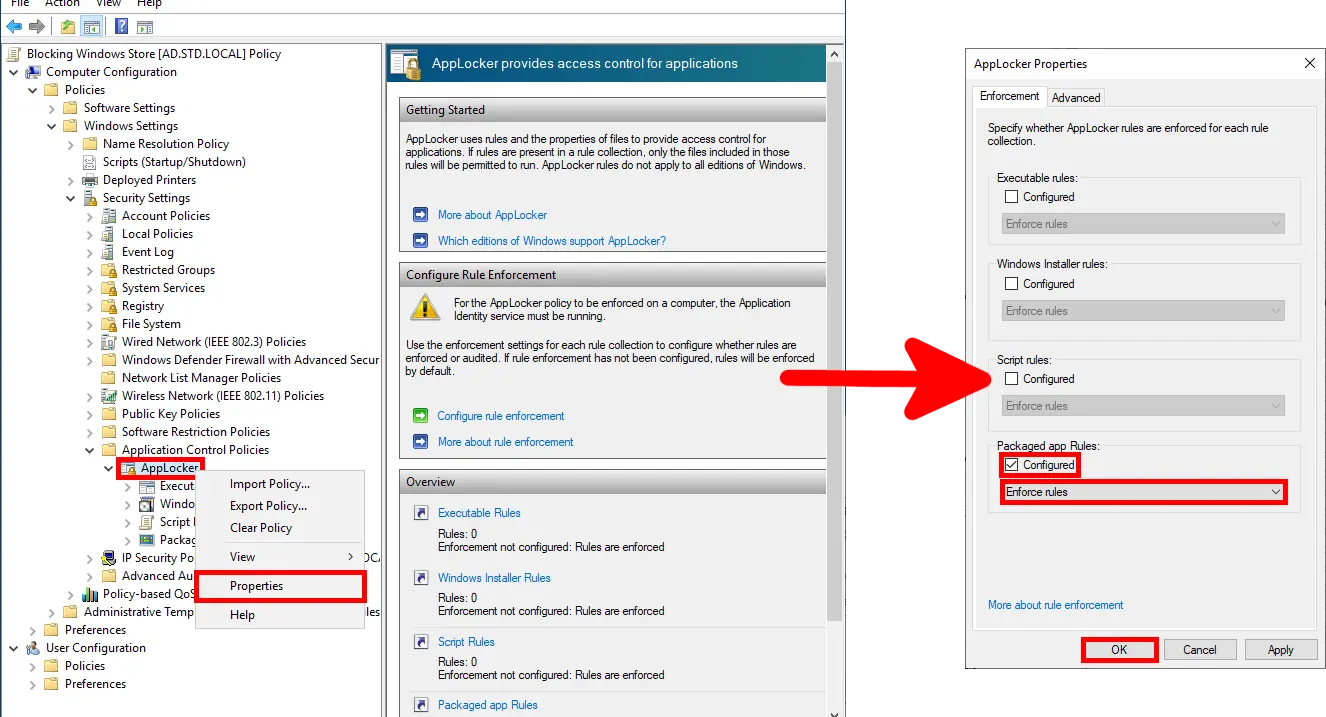
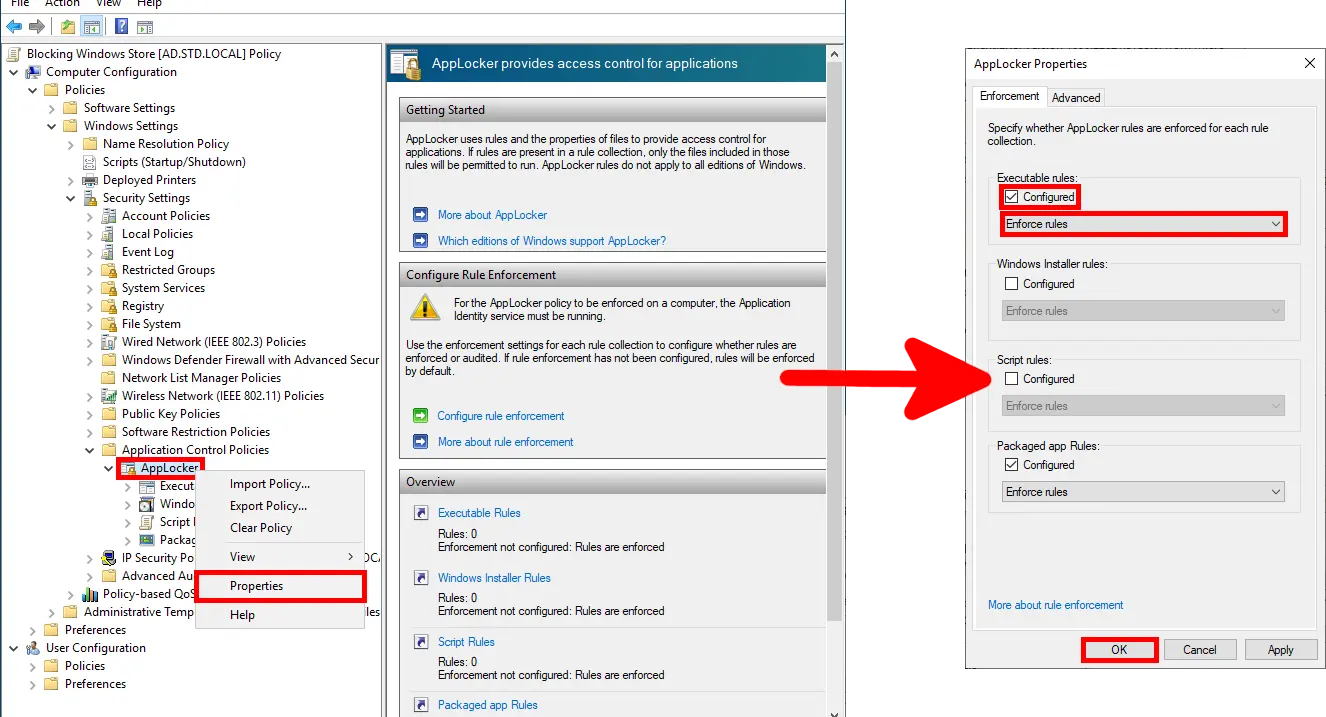
  • To enable enforcement, right-click AppLocker, select Properties, then under Packaged app Rules, check Configured and select Enforce rules. Click OK to apply the settings:
Configuring AppLocker packaged app rules to Enforce rules in Group Policy
Enabling enforcement for AppLocker packaged app rules in the GPO.

Blocking Other Applications (Non-Windows Apps)

💡 Note: If the application you want to block is not a packaged Windows app, you should still import and enable the Packaged app Rules as described earlier. Otherwise, enforcing AppLocker Executable Rules without the appropriate allow rules may prevent Windows components from running correctly, including the Start menu and applications that rely on WindowsApps.

As an alternative, you can create explicit Allow rules for trusted Microsoft-signed applications.

As an example, we'll use Google Chrome to demonstrate how to block a traditional desktop application with AppLocker.

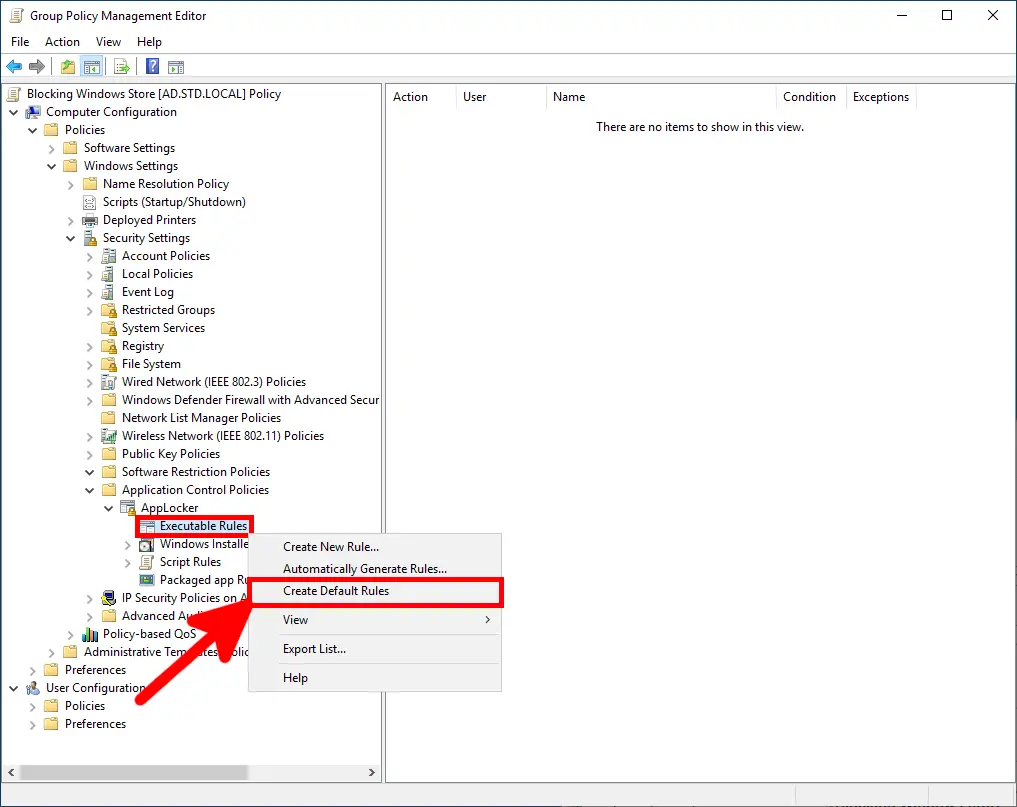
  • Under Executable Rules, select Create Default Rules to add the standard allow rules for Windows and Program Files. This helps prevent essential system applications from being unintentionally blocked:
Creating the default executable rules in AppLocker before adding a custom application blocking rule
Creating the default AppLocker executable rules before defining custom restrictions.
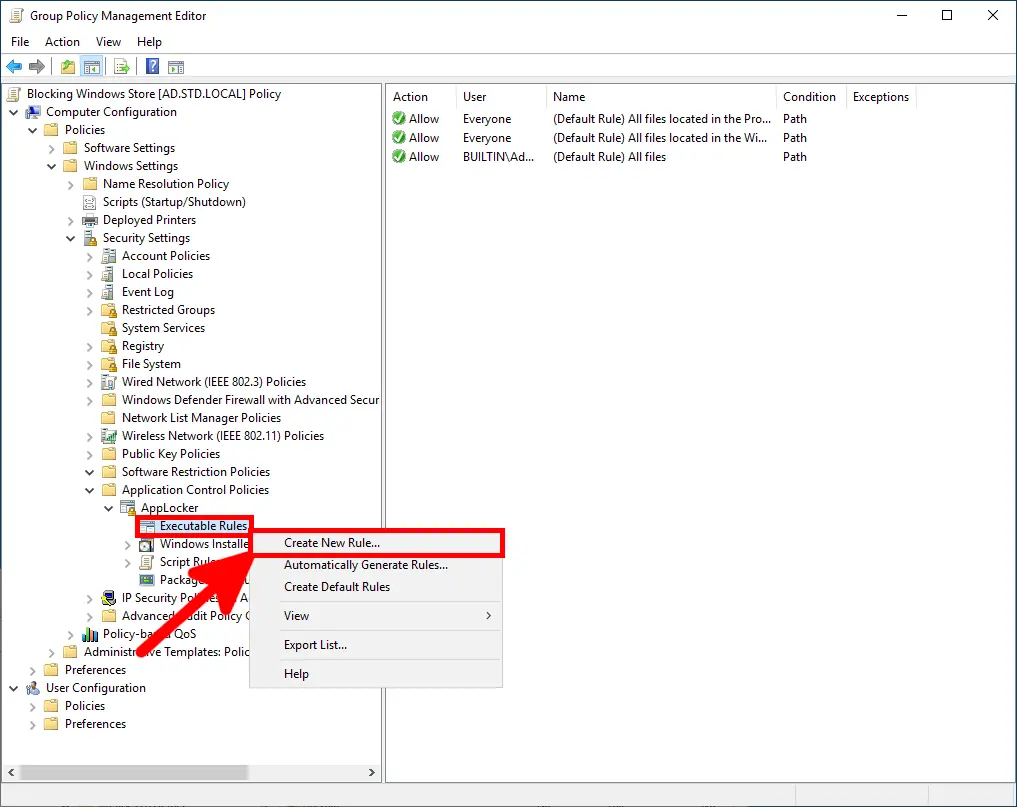
  • Under Executable Rules, select Create New Rule... to create a custom AppLocker rule for the application you want to block:
Creating a new AppLocker executable rule from the Executable Rules section in Group Policy
Creating a new custom executable rule in AppLocker.
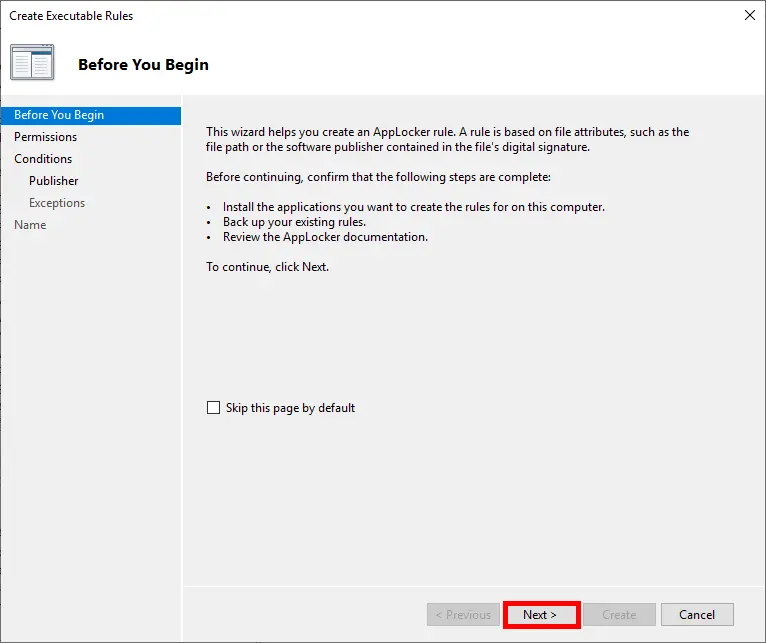
  • On the Before You Begin page, click Next to continue:
AppLocker Create Executable Rules wizard showing the Before You Begin page
Starting the AppLocker executable rule creation wizard.
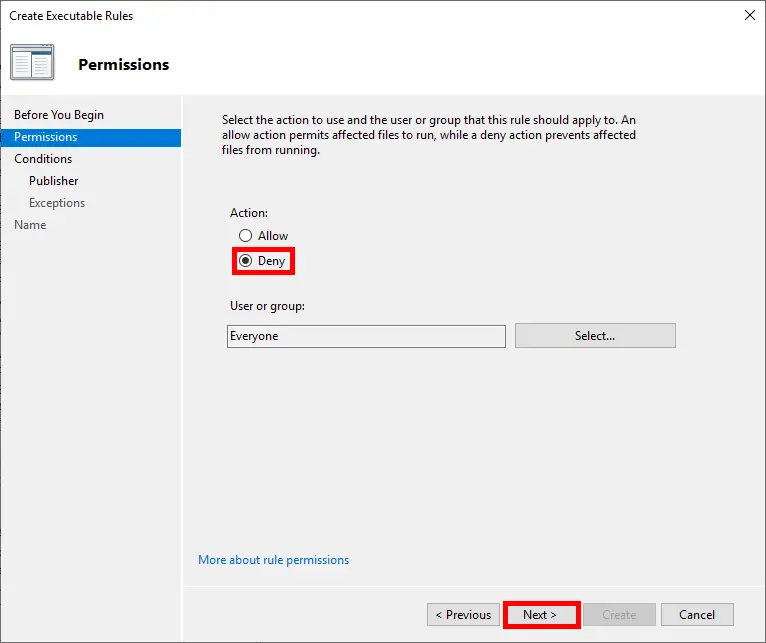
  • On the Permissions page, select Deny to block the application, then click Next:
Selecting Deny on the Permissions page of the AppLocker executable rule wizard
Setting the AppLocker executable rule action to Deny.
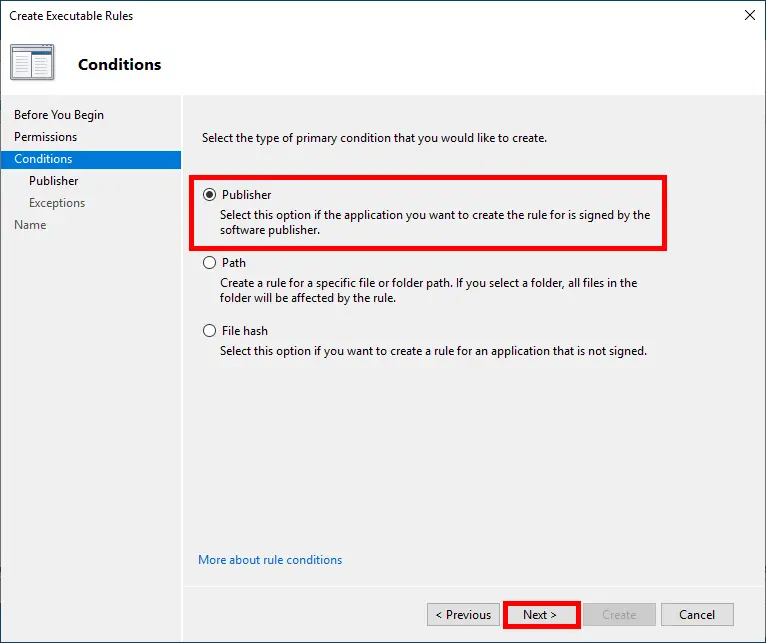
  • Choose the rule condition. Three options are available:
    – Path: easy to configure, but also easy to bypass, so it is not recommended for strong application control.
    – Hash: reliable, but harder to maintain because the rule must be updated when the application changes.
    – Publisher: the most flexible and recommended option for signed applications.
Selecting the Publisher condition in the AppLocker executable rule wizard
Selecting the Publisher condition for the AppLocker executable rule.
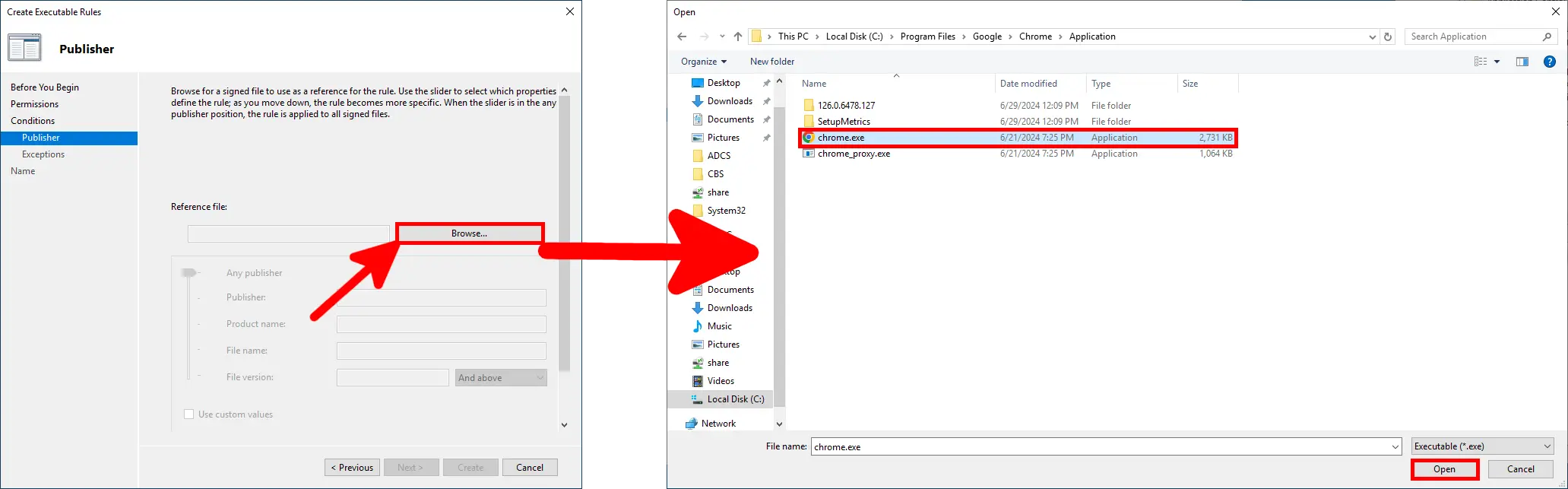
  • Click Browse, select the executable file of the application you want to block, then click Open. In this example, the selected file is chrome.exe:
Browsing for and selecting chrome.exe as the reference executable in the AppLocker Publisher rule wizard
Selecting the application executable used as the reference file for the AppLocker rule.
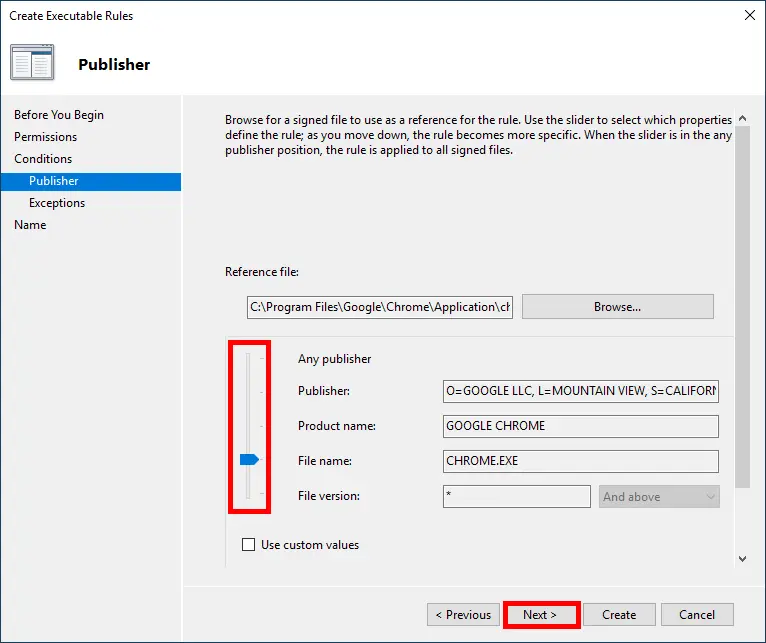
  • Adjust the slider to define how specific the Publisher rule should be. In this example, keep the rule scoped to CHROME.EXE while leaving the File version set to *, so the rule applies to all versions of Google Chrome. Then click Next:
Configuring an AppLocker Publisher rule for chrome.exe with the file version set to wildcard so all Chrome versions are matched
Configuring the AppLocker Publisher rule to match chrome.exe across all versions.
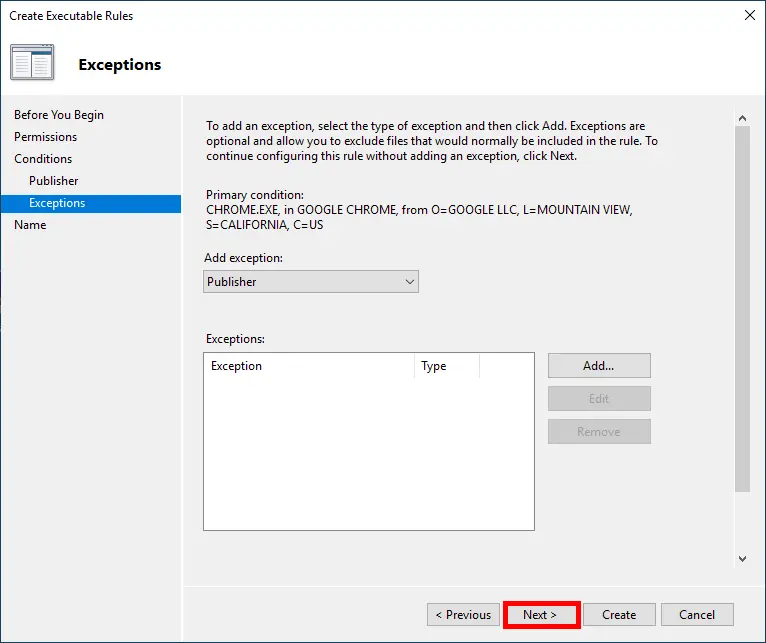
  • On the Exceptions page, leave the list empty unless you need to exclude specific files or publishers from the rule, then click Next:
AppLocker executable rule wizard showing the Exceptions page with no exceptions configured
Leaving the AppLocker rule without exceptions before continuing.
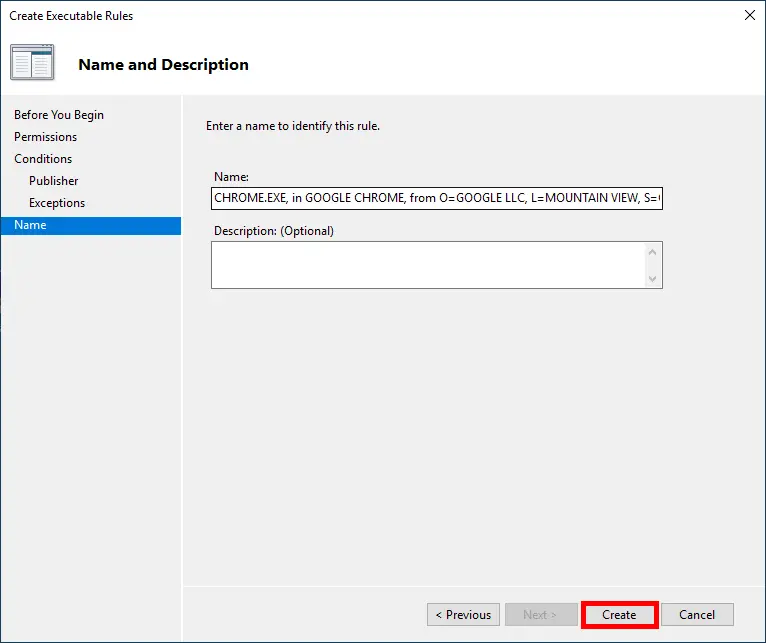
  • On the Name and Description page, review or customize the rule name, optionally add a description, then click Create:
Final AppLocker executable rule wizard page for creating a rule that blocks Google Chrome
Creating the final AppLocker executable rule used to block Google Chrome.
  • Finally, right-click AppLocker, select Properties, then under Executable Rules, check Configured and select Enforce rules. Click OK to apply the settings and enforce the blocking rule:
Configuring AppLocker Executable Rules as Configured and Enforce rules in Group Policy
Enabling enforcement for AppLocker executable rules in the GPO.

Troubleshooting: Unblocking Legitimate Applications

In some cases, legitimate applications may be blocked depending on their location or execution context — for example, when they are launched from directories outside Program Files. This section explains how to identify the blocked executable and create an appropriate allow rule.

Tracing Blocked Applications

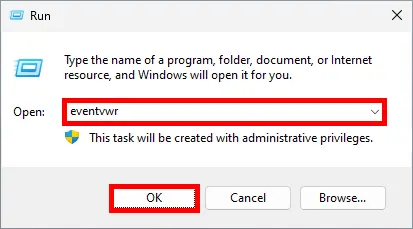
  • On the affected computer, open Windows Event Viewer by running eventvwr from the Windows Run dialog:
Opening Windows Event Viewer by running eventvwr from the Windows Run dialog to troubleshoot AppLocker
Opening Windows Event Viewer with eventvwr to investigate AppLocker events.
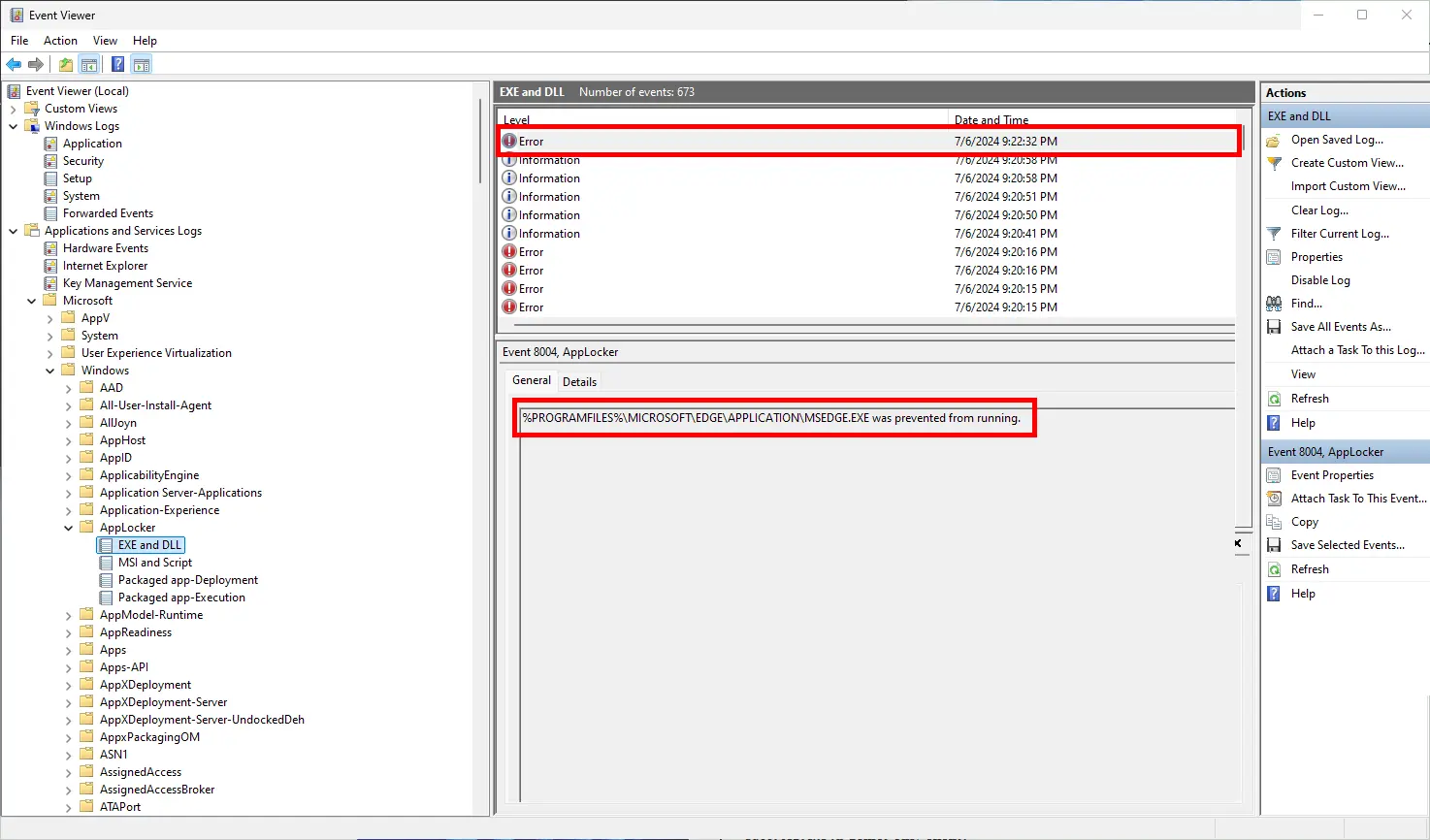
  • Navigate to Applications and Services Logs > Microsoft > Windows > AppLocker > EXE and DLL. Review the error events to identify which executable was blocked and why:
Viewing an AppLocker EXE and DLL event in Windows Event Viewer showing that an executable was prevented from running
Identifying a blocked executable in the AppLocker EXE and DLL event log.

Once the blocked executable has been identified, create an explicit Allow rule in AppLocker to permit it to run.

Allowing All Executables in a Folder

Although this approach is less restrictive and should be used with caution, you may need to allow applications stored in a specific trusted folder, for example for development tools or portable applications.

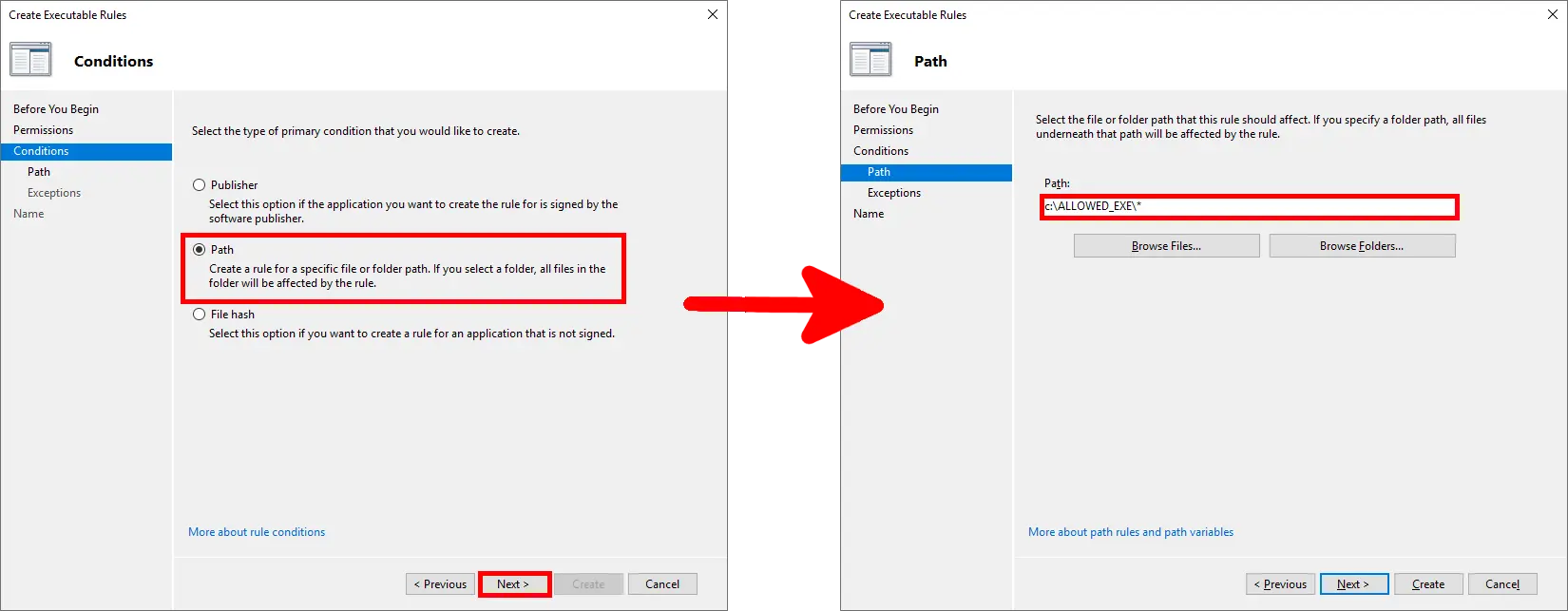
  • Create an Allow rule using the Path condition, then enter C:\ALLOWED_EXE\*. The wildcard (*) allows executable files located in this folder and its subfolders:
Creating an AppLocker Allow rule using the Path condition for C:\ALLOWED_EXE\*
Creating an AppLocker path rule to allow executable files from C:\ALLOWED_EXE\ and its subfolders.

User Experience When Microsoft Store Is Blocked

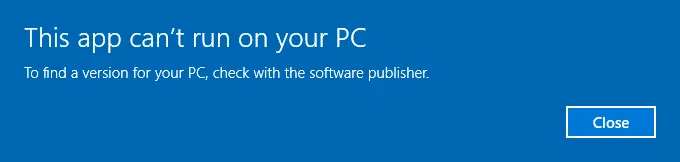
  • Once the AppLocker policy is enforced, users attempting to launch the Microsoft Store will see the following warning message:
Windows warning message stating This app can’t run on your PC when Microsoft Store is blocked by AppLocker
Warning displayed when a user tries to launch Microsoft Store while it is blocked by AppLocker.