
Windows 11 Pro: Post-Installation Guide & Customization Tips
- Last updated: Jul 15, 2026

Here we are again… A new version of Windows, and a new environment to clean up. With each new version of its operating system, Microsoft introduces its share of challenges. In this guide, I will document some useful tips to improve the Windows 11 user experience and make it more suitable for a professional environment after a fresh installation. We will see how to customize the search box, disable Bing, remove built-in apps, disable Cortana, clean up the Start Menu, and much more!
Restore the Legacy Right-Click Menu
Windows 11 introduces a redesigned right-click context menu. While it looks cleaner, several useful options are hidden behind the Show more options entry. If you prefer the classic Windows 10-style context menu, you can restore it with a simple registry command.
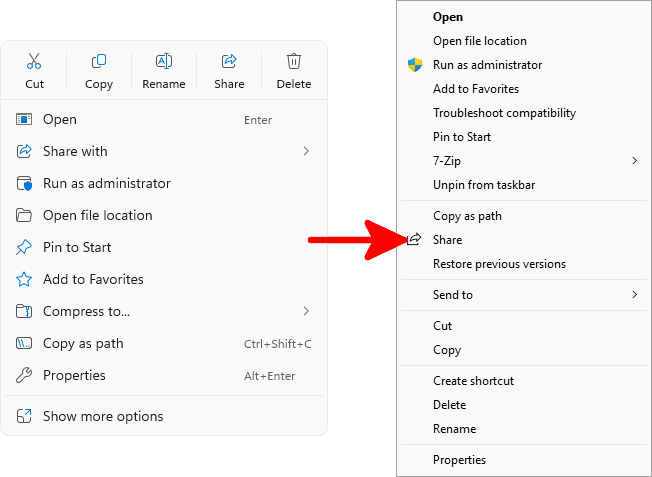
- Open Windows Terminal with the current user's permissions, then run the following command:
C:\Users\user> reg.exe add "HKCU\Software\Classes\CLSID\{86ca1aa0-34aa-4e8b-a509-50c905bae2a2}\InprocServer32" /f /veRestart your computer, or restart Windows Explorer, to apply the change. The legacy right-click menu will then be used by default.
Restore Windows Photo Viewer
With the release of Windows 10, and now Windows 11, Microsoft had the strange idea of replacing the classic Windows Photo Viewer with a new image viewer. And in my opinion, this new viewer is slower. When I say slower, I mean really slow! Even stranger, maybe because Microsoft was aware of this mistake, the old viewer is still present in the system. The good news is that we can bring it back to life with a simple registry file. I will show how to do that here.
Create the Registry File
- Create a
photoviewer.regfile, for example inC:\, and paste the following code into it:
Windows Registry Editor Version 5.00

[HKEY_CLASSES_ROOT\Applications\photoviewer.dll]

[HKEY_CLASSES_ROOT\Applications\photoviewer.dll\shell]

[HKEY_CLASSES_ROOT\Applications\photoviewer.dll\shell\open]
"MuiVerb"="@photoviewer.dll,-3043"

[HKEY_CLASSES_ROOT\Applications\photoviewer.dll\shell\open\command]
@=hex(2):25,00,53,00,79,00,73,00,74,00,65,00,6d,00,52,00,6f,00,6f,00,74,00,25,\
00,5c,00,53,00,79,00,73,00,74,00,65,00,6d,00,33,00,32,00,5c,00,72,00,75,00,\
6e,00,64,00,6c,00,6c,00,33,00,32,00,2e,00,65,00,78,00,65,00,20,00,22,00,25,\
00,50,00,72,00,6f,00,67,00,72,00,61,00,6d,00,46,00,69,00,6c,00,65,00,73,00,\
25,00,5c,00,57,00,69,00,6e,00,64,00,6f,00,77,00,73,00,20,00,50,00,68,00,6f,\
00,74,00,6f,00,20,00,56,00,69,00,65,00,77,00,65,00,72,00,5c,00,50,00,68,00,\
6f,00,74,00,6f,00,56,00,69,00,65,00,77,00,65,00,72,00,2e,00,64,00,6c,00,6c,\
00,22,00,2c,00,20,00,49,00,6d,00,61,00,67,00,65,00,56,00,69,00,65,00,77,00,\
5f,00,46,00,75,00,6c,00,6c,00,73,00,63,00,72,00,65,00,65,00,6e,00,20,00,25,\
00,31,00,00,00

[HKEY_CLASSES_ROOT\Applications\photoviewer.dll\shell\open\DropTarget]
"Clsid"="{FFE2A43C-56B9-4bf5-9A79-CC6D4285608A}"

[HKEY_CLASSES_ROOT\Applications\photoviewer.dll\shell\print]

[HKEY_CLASSES_ROOT\Applications\photoviewer.dll\shell\print\command]
@=hex(2):25,00,53,00,79,00,73,00,74,00,65,00,6d,00,52,00,6f,00,6f,00,74,00,25,\
00,5c,00,53,00,79,00,73,00,74,00,65,00,6d,00,33,00,32,00,5c,00,72,00,75,00,\
6e,00,64,00,6c,00,6c,00,33,00,32,00,2e,00,65,00,78,00,65,00,20,00,22,00,25,\
00,50,00,72,00,6f,00,67,00,72,00,61,00,6d,00,46,00,69,00,6c,00,65,00,73,00,\
25,00,5c,00,57,00,69,00,6e,00,64,00,6f,00,77,00,73,00,20,00,50,00,68,00,6f,\
00,74,00,6f,00,20,00,56,00,69,00,65,00,77,00,65,00,72,00,5c,00,50,00,68,00,\
6f,00,74,00,6f,00,56,00,69,00,65,00,77,00,65,00,72,00,2e,00,64,00,6c,00,6c,\
00,22,00,2c,00,20,00,49,00,6d,00,61,00,67,00,65,00,56,00,69,00,65,00,77,00,\
5f,00,46,00,75,00,6c,00,6c,00,73,00,63,00,72,00,65,00,65,00,6e,00,20,00,25,\
00,31,00,00,00

[HKEY_CLASSES_ROOT\Applications\photoviewer.dll\shell\print\DropTarget]
"Clsid"="{60fd46de-f830-4894-a628-6fa81bc0190d}"- Open Windows Terminal with administrator permissions and import the registry file with the following command. This example assumes that the
.regfile is located inC:\:
C:\> reg import c:\photoviewer.regAssociate Image Files with Windows Photo Viewer
- Right-click an image file type that you want to associate with Windows Photo Viewer, then select Open with > Choose another app. And select Windows Photo Viewer:
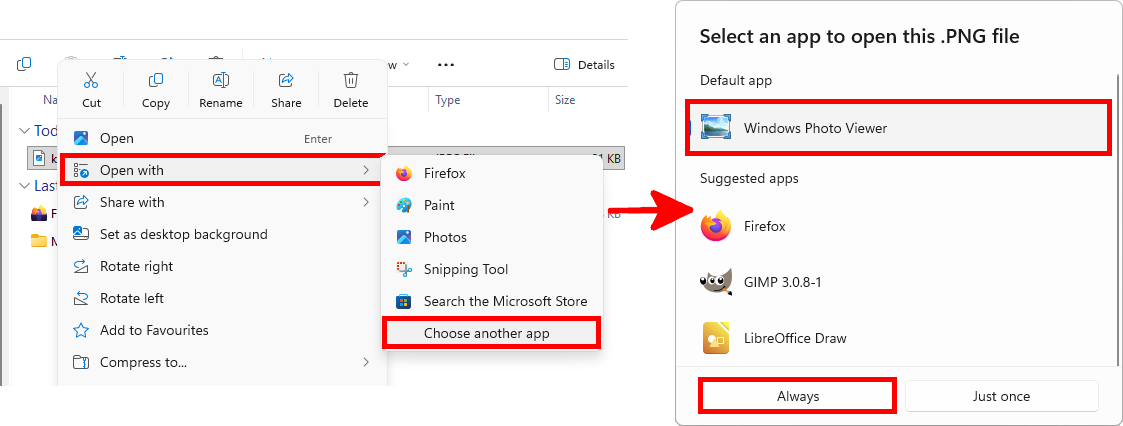
Search Box Configuration
In this section, we'll look at how to remove Bing Search and reduce the size of the search icon in the taskbar.
Bing Search Bar
- Open a terminal with current user rights and type:
C:\Users\user> reg add HKCU\Software\Microsoft\Windows\CurrentVersion\Search\ /f /v BingSearchEnabled /t REG_DWORD /d 0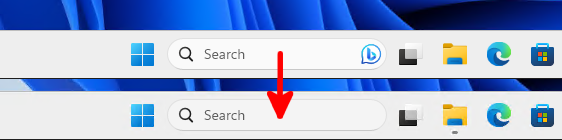
Search Bar Mode
- Start a terminal with current user rights and enter the following command:
C:\Users\user> reg add HKCU\Software\Microsoft\Windows\CurrentVersion\Search\ /f /v SearchboxTaskbarMode /t REG_DWORD /d 1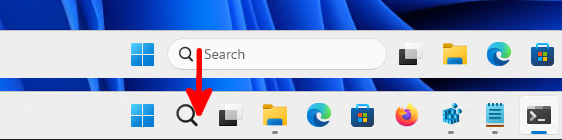
Disable Cortana and Copilot
In this section, we will disable some Microsoft features that are not always useful in a professional environment, such as Cortana and Windows Copilot.
Disable Cortana
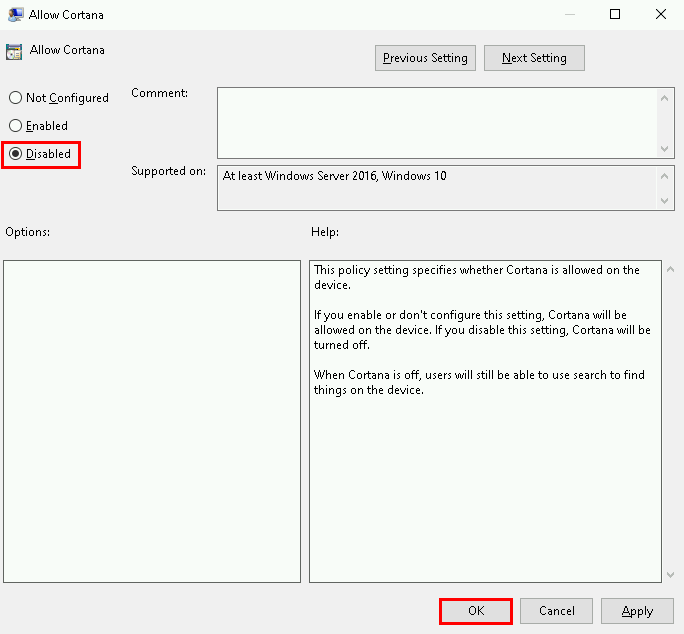
- In the Group Policy Editor, go to Computer Configuration > Administrative Templates > Windows Components > Search and set the "Allow Cortana" policy to Disabled:
Disable Windows Copilot
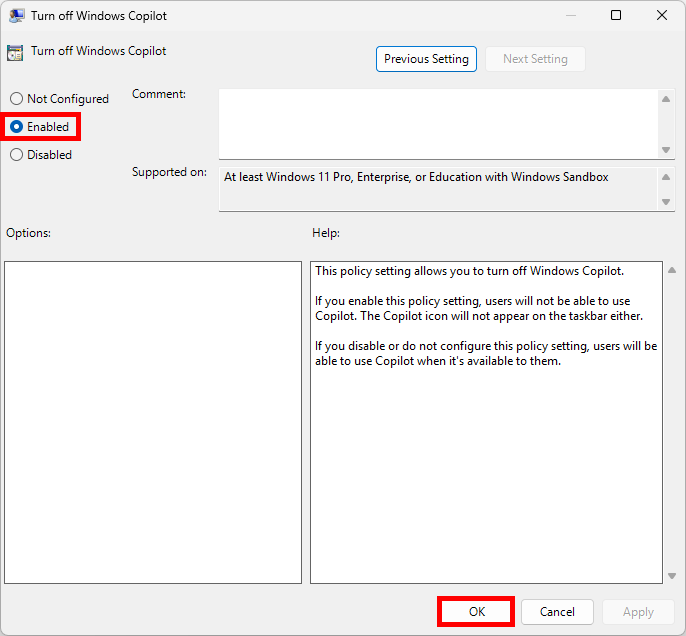
- In the Group Policy Editor, go to User Configuration > Administrative Templates > Windows Components > Windows Copilot and set the "Turn off Windows Copilot" policy to Enabled:
Clean Up the Taskbar
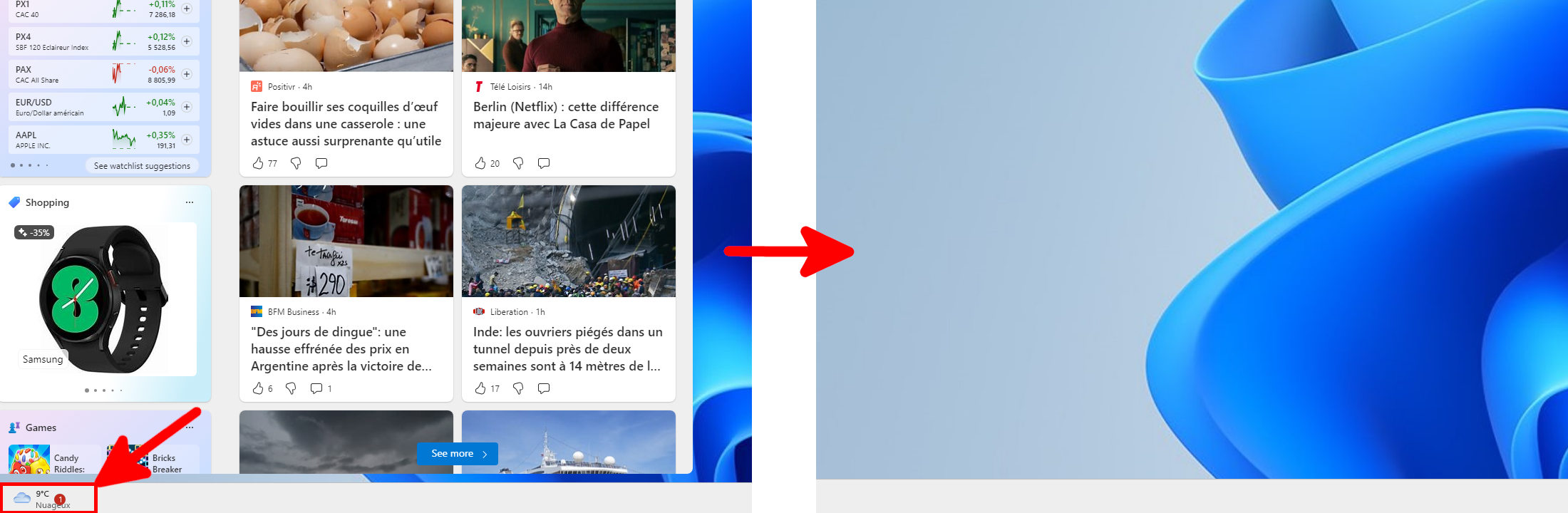
- In the Group Policy Editor, go to Computer Configuration > Administrative Templates > Windows Components > Widgets > Allow widgets and set it to Disabled:
Remove Windows Built-in Apps
- Create the file
c:\remove_app.ps1:
Get-AppxPackage -AllUsers | ? { $_.Name -match "windowsalarms" } | Remove-AppxPackage -AllUsers
Get-AppxPackage -AllUsers | ? { $_.Name -match "windowscommunicationsapps" } | Remove-AppxPackage -AllUsers
Get-AppxPackage -AllUsers | ? { $_.Name -match "windowscamera" } | Remove-AppxPackage -AllUsers
#Get-AppxPackage -AllUsers | ? { $_.Name -match "windowsCalculator" } | Remove-AppxPackage -AllUsers
Get-AppxPackage -AllUsers | ? { $_.Name -match "officehub" } | Remove-AppxPackage -AllUsers
Get-AppxPackage -AllUsers | ? { $_.Name -match "getstarted" } | Remove-AppxPackage -AllUsers
Get-AppxPackage -AllUsers | ? { $_.Name -match "zunemusic" } | Remove-AppxPackage -AllUsers
Get-AppxPackage -AllUsers | ? { $_.Name -match "windowsmaps" } | Remove-AppxPackage -AllUsers
Get-AppxPackage -AllUsers | ? { $_.Name -match "solitairecollection" } | Remove-AppxPackage -AllUsers
Get-AppxPackage -AllUsers | ? { $_.Name -match "zunevideo" } | Remove-AppxPackage -AllUsers
Get-AppxPackage -AllUsers | ? { $_.Name -match "bingnews" } | Remove-AppxPackage -AllUsers
Get-AppxPackage -AllUsers | ? { $_.Name -match "Microsoft.People" } | Remove-AppxPackage -AllUsers
#Get-AppxPackage -AllUsers | ? { $_.Name -match "photos" } | Add-AppxPackage -AllUsers
#Get-AppxPackage -AllUsers | ? { $_.Name -match "windowsstore" } | Remove-AppxPackage -AllUsers
Get-AppxPackage -AllUsers | ? { $_.Name -match "soundrecorder" } | Remove-AppxPackage -AllUsers
Get-AppxPackage -AllUsers | ? { $_.Name -match "bingweather" } | Remove-AppxPackage -AllUsers
Get-AppxPackage -AllUsers | ? { $_.Name -match "Microsoft.MicrosoftOfficeHub" } | Remove-AppxPackage -AllUsers
Get-AppxPackage -AllUsers | ? { $_.Name -match "Microsoft.WindowsFeedbackHub" } | Remove-AppxPackage -AllUsers
Get-AppxPackage -AllUsers | ? { $_.Name -match "YourPhone" } | Remove-AppxPackage -AllUsers
Get-AppxPackage -AllUsers | ? { $_.Name -match "Microsoft.XboxGamingOverlay" } | Remove-AppxPackage -AllUsers
Get-AppxPackage -AllUsers | ? { $_.Name -match "gethelp" } | Remove-AppxPackage -AllUsers
Get-AppxPackage -AllUsers *WINDOWSMAPS* | Remove-AppxPackage -AllUsers
Get-AppxPackage -AllUsers *MICROSOFT.BINGNEWS* | Remove-AppxPackage -AllUsers
Get-AppxPackage -AllUsers *MICROSOFTCORPORATIONII.QUICKASSIST* | Remove-AppxPackage -AllUsers
Get-AppxPackage -AllUsers *MICROSOFT.GETSTARTED* | Remove-AppxPackage -AllUsers
Get-AppxPackage -AllUsers *MICROSOFT.ZUNEVIDEO* | Remove-AppxPackage -AllUsers
Get-AppxPackage -AllUsers *MICROSOFT.WINDOWSFEEDBACKHUB* | Remove-AppxPackage -AllUsers
Get-AppxPackage -AllUsers *MICROSOFT.ZUNEMUSIC* | Remove-AppxPackage -AllUsers
Get-AppxPackage -AllUsers *RIVETNETWORKS.KILLERCONTROLCENTER* | Remove-AppxPackage -AllUsers
Get-AppxPackage -AllUsers *MICROSOFT.TODOS* | Remove-AppxPackage -AllUsers
Get-AppxPackage -AllUsers *CLIPCHAMP.CLIPCHAMP* | Remove-AppxPackage -AllUsers
Get-AppxPackage -AllUsers *MICROSOFT.WIDGETSPLATFORMRUNTIME* | Remove-AppxPackage -AllUsers
Get-AppxPackage -AllUsers *MICROSOFT.MICROSOFTSOLITAIRECOLLECTION* | Remove-AppxPackage -AllUsers
Get-AppxPackage -AllUsers *MICROSOFT.GETHELP* | Remove-AppxPackage -AllUsers
Get-AppxPackage -AllUsers *MICROSOFT.BINGWEATHER* | Remove-AppxPackage -AllUsers
#XBOX
Get-AppxPackage -AllUsers | ? { $_.Name -match "Microsoft.Xbox.TCUI" } | Remove-AppxPackage -AllUsers
Get-AppxPackage -AllUsers | ? { $_.Name -match "Microsoft.XboxGameOverlay" } | Remove-AppxPackage -AllUsers
Get-AppxPackage -AllUsers | ? { $_.Name -match "Microsoft.XboxIdentityProvider" } | Remove-AppxPackage -AllUsers
Get-AppxPackage -AllUsers | ? { $_.Name -match "Microsoft.XboxSpeechToTextOverlay" } | Remove-AppxPackage -AllUsers
Get-AppxPackage -AllUsers | ? { $_.Name -match "xbox" } | Remove-AppxPackage -AllUsers
Get-AppxPackage -AllUsers *Microsoft.GamingApp* | Remove-AppxPackage -AllUsers- Run the PowerShell script from the command line as Administrator:
C:\Windows\system32> powershell.exe -ExecutionPolicy Bypass -File c:\remove_app.ps1Remove All Xbox Built-in Apps
Windows 11 includes numerous built-in Xbox apps. Here's how to remove them.
- Run this command from the PowerShell command line as Administrator:
PS C:\Windows\system32> foreach ($app in $(Get-AppxPackage -AllUsers | ? { $_.Name -match "xbox" })) { $app | Remove-AppxPackage -AllUsers }Clean Up the Start Menu
Even with the Pro version, the Windows 11 Start Menu is often cluttered with commercial applications, games, and unnecessary items. We'll look at how to clean up the Start menu with a script that can be deployed in an Active Directory environment.
- From a fresh installation of Windows 11, manually remove unwanted applications from the Start Menu:
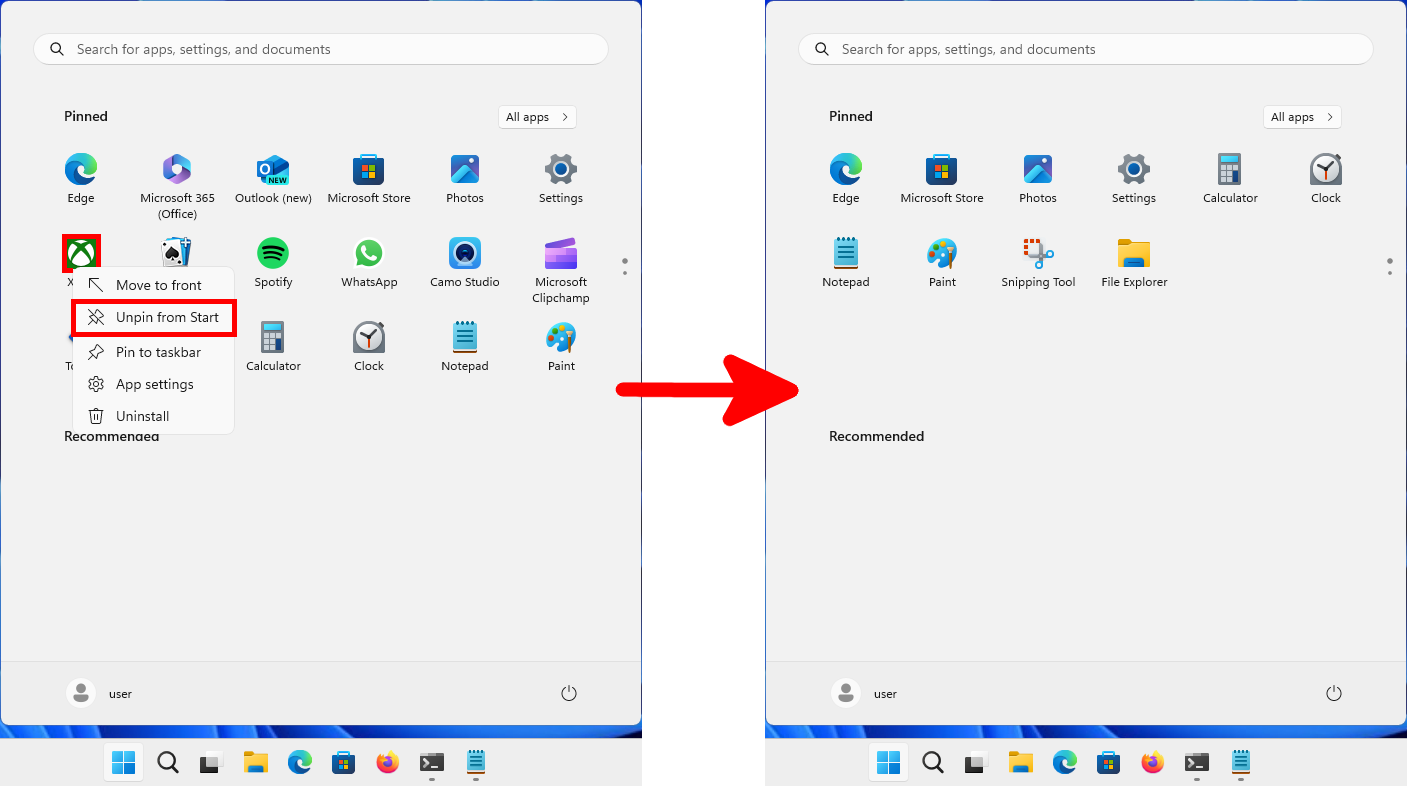
After cleaning it up, copy the file “c:\Users\YOUR_USERNAME\AppData\Local\Packages\Microsoft.Windows.StartMenuExperienceHost_cw5n1h2txyewy\LocalState\start2.bin” to a shared folder (in this example, \\SHARE\), then make the file available to the Windows 11 computers in your Active Directory domain.
- For the example, we'll use this PowerShell command (with current user rights):
C:\Users\user> Copy-Item -Path \\SHARE\start2.bin -Destination c:\Users\$env:USERNAME\AppData\Local\Packages\Microsoft.Windows.StartMenuExperienceHost_cw5n1h2txyewy\LocalState\start2.bin