
How to set up a RAID1 on a UEFI boot with mdadm
- Last updated: Nov 26, 2024

Today, UEFI is the new standard for booting operating systems, and is the successor to the aging BIOS. In IT, constant evolution and change are the order of the day, causing cold sweats, wet moustaches and headaches. For example, setting up a software RAID1 with UEFI on a GNU/Linux system requires a great deal of configuration compared with what was necessary with BIOS. And that's exactly what we're going to look at in this article.
- For reminder some UEFI properties:
- Secure Boot: includes a security feature known as Secure Boot
- GUI: UEFI firmware often comes with a graphical user interface
- GPT: fully supports the new GUID Partition Table (GPT) partitioning scheme
- Faster Boot Times: UEFI generally offers faster boot times
Debian installation
Partitioning the Disks
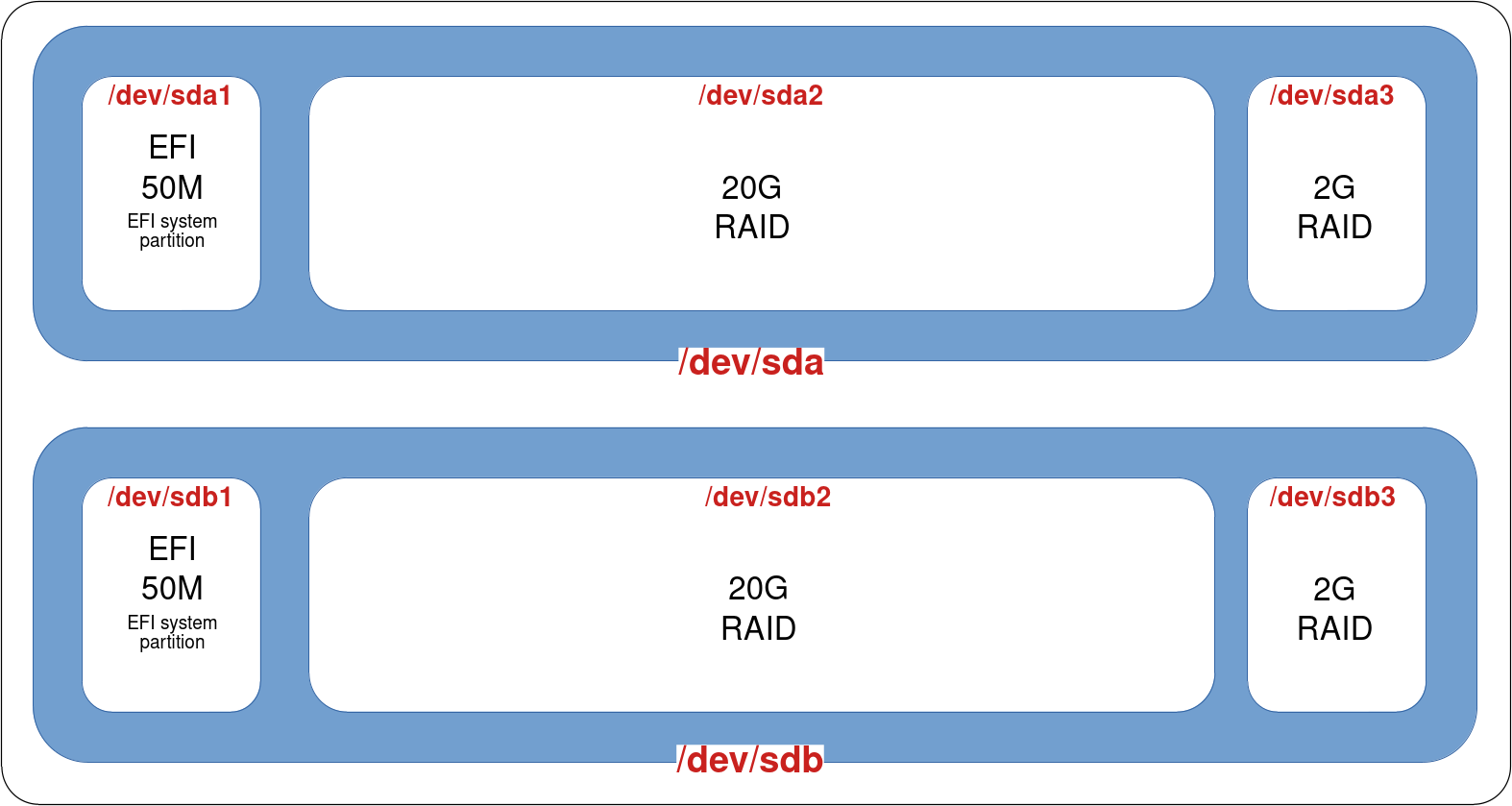
We will start from a fresh installation of the Debian system with RAID enabled. The RAID partitions should be assigned to every partition except the EFI partitions (which we'll configure manually later).
- During the installation, configure your two disks as follows:
- Partition 1 (EFI): EFI 50MB
- Partition 2 (OS): RAID
- Partition 3 (swap): RAID
- Next, select Configure Software RAID:
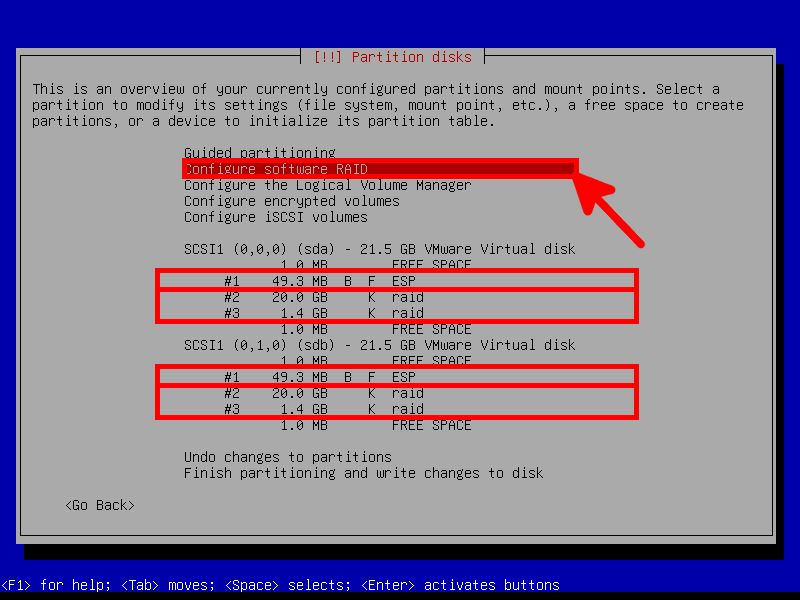
- At this point the disks should look as follows:
Create the mdadm RAID
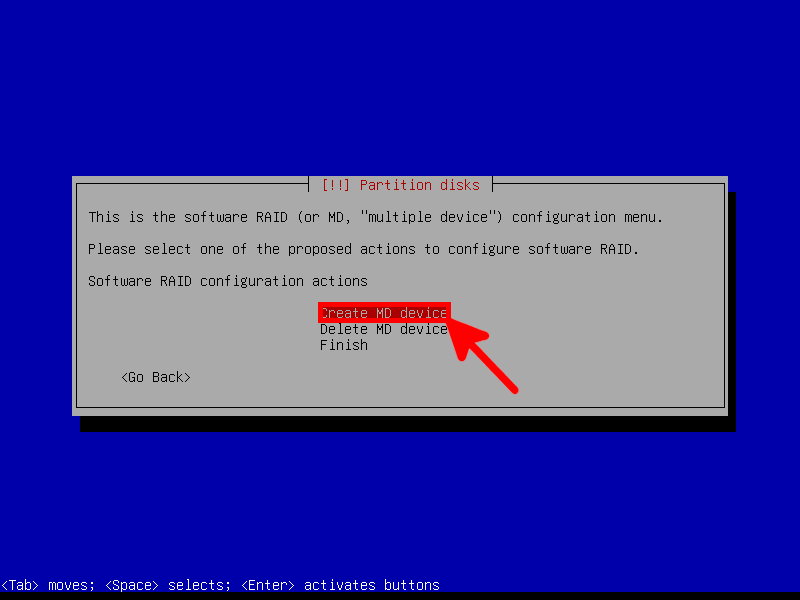
- Begin by selecting Create MD device:
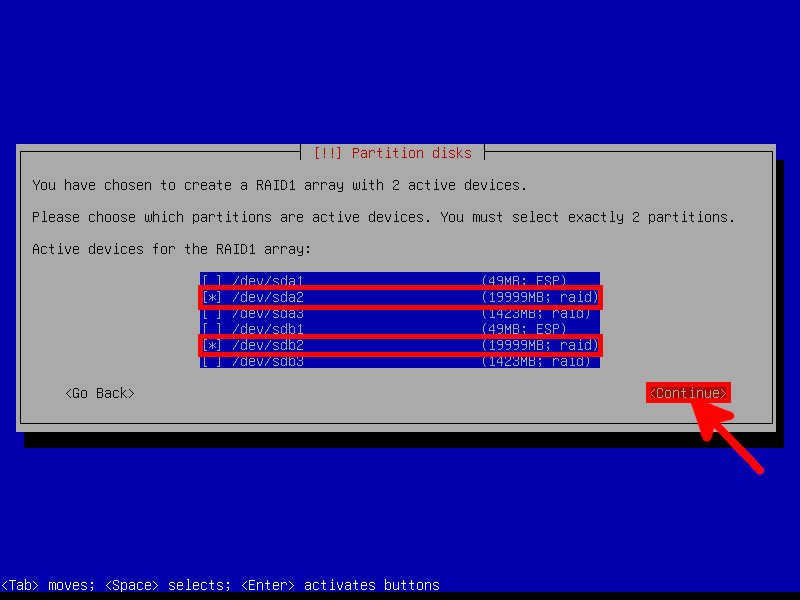
- Then, choose the two 20GB partitions:
- Repeat the operation for the 2GB partitions:
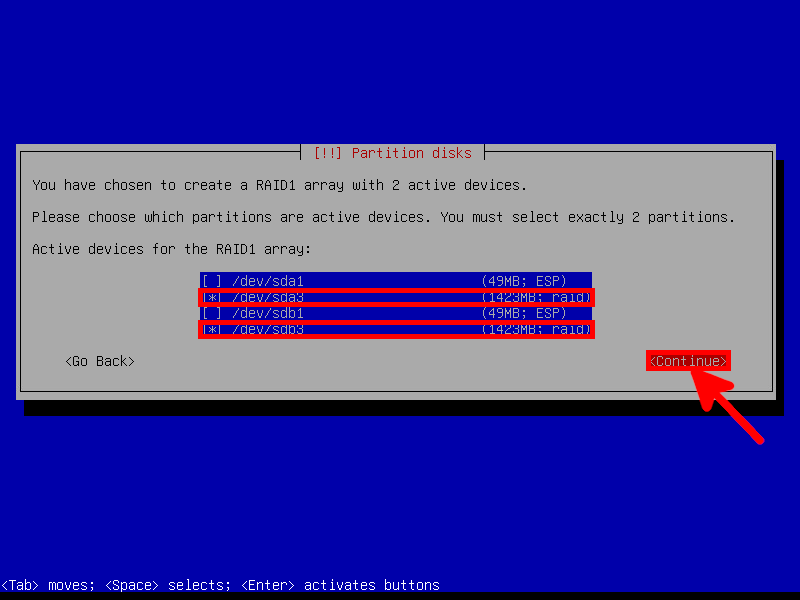
- Assign the
/(root) partition to the 20GB RAID1 device and theswappartition to the 2GB RAID1 device:
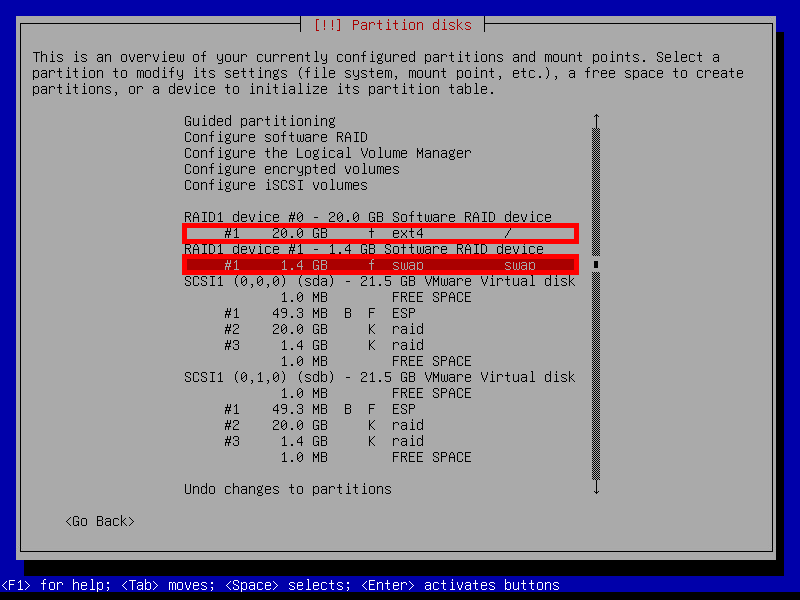
- At the end of the installation, our system should be partitioned as follows:
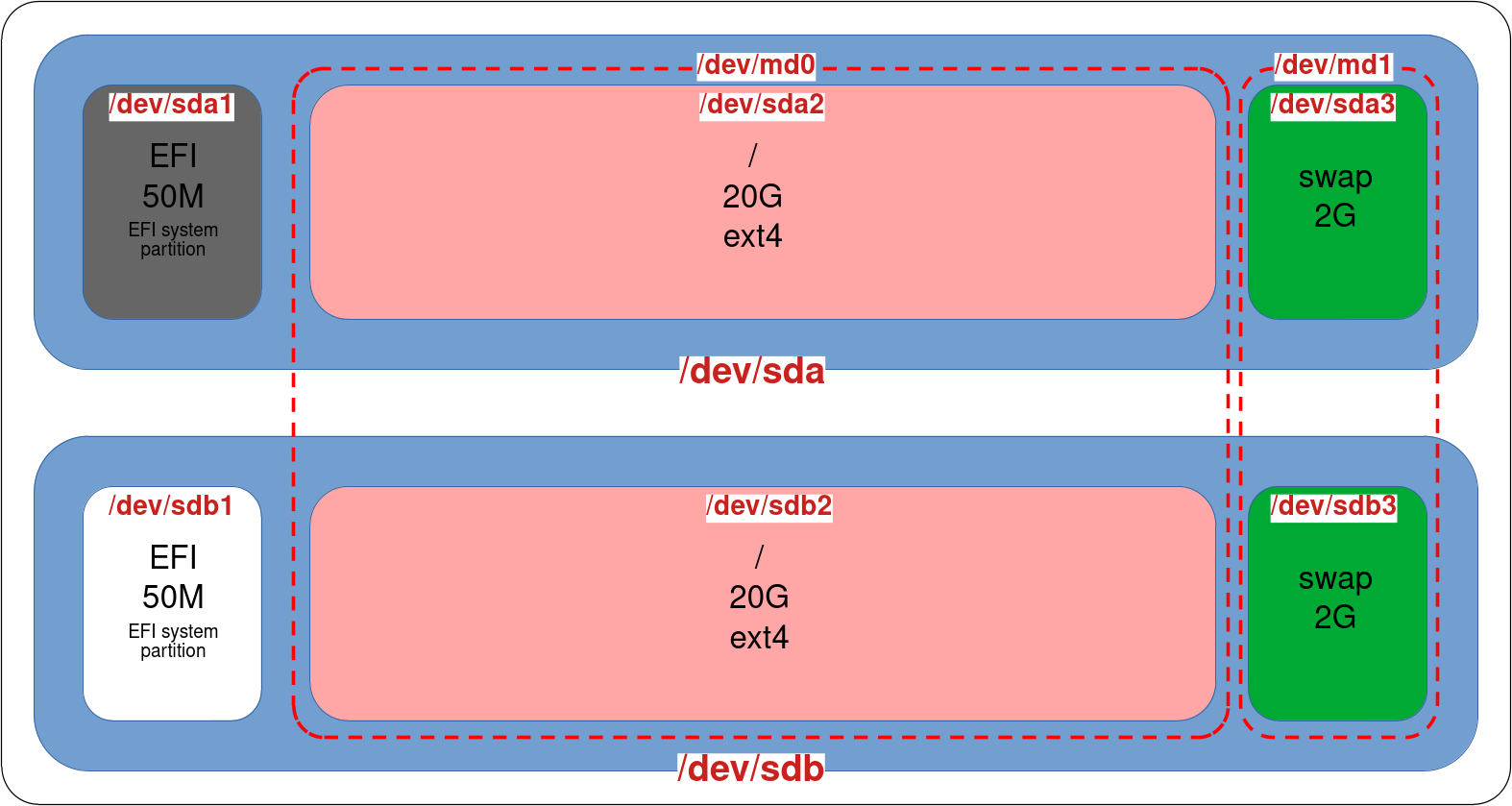
Post-Installation
Now our system can boot successfully, but it's not redundant because our sdb drive doesn't have its EFI partition correclty set, so let's move on to the post-installation steps.
- First, let's determine the location of the
/boot/efipartition:
root@host:~# mount | grep '/boot/efi'
/dev/sda1 on /boot/efi type vfat (rw,relatime,fmask=0077,dmask=0077,codepage=437,iocharset=ascii,shortname=mixed,utf8,errors=remount-ro)- Next, copy the
/boot/efipartition to/dev/sdb1:
root@host:~# dd if=/dev/sda1 of=/dev/sdb1- Use
efibootmgrto list EFI boot entries:
root@host:~# efibootmgr -v | grep -i debian
Boot0004* debian HD(1,GPT,f7fb28ea-172c-4583-baf9-f973e675a849,0x800,0x17800)/File(\EFI\debian\shimx64.efi)- If there's only one entry, add a second one for
sdb:
root@host:~# efibootmgr --create --disk /dev/sdb --part 1 --label "debian2" --loader "\EFI\debian\shimx64.efi"
BootCurrent: 0004
BootOrder: 0006,0004,0000,0001,0002,0003,0005
Boot0000* EFI Virtual disk (0.0)
Boot0001* EFI VMware Virtual IDE CDROM Drive (IDE 0:0)
Boot0002* EFI Network
Boot0003* EFI Internal Shell (Unsupported option)
Boot0004* debian
Boot0005* EFI Virtual disk (1.0)
Boot0006* debian2- Verify that the partition IDs match the boot IDs:
root@host:~# ls -l /dev/disk/by-partuuid/
total 0
lrwxrwxrwx 1 root root 10 Nov  7 21:07 4e50a3f1-fdb6-44c3-9c8e-e4b16f582d4e -> ../../sdb2
lrwxrwxrwx 1 root root 10 Nov  7 21:07 955255b5-cc20-40cc-a084-2b372e7d7675 -> ../../sda3
lrwxrwxrwx 1 root root 10 Nov  7 21:07 b893954d-b857-4a33-9b1f-d886da46b4bf -> ../../sdb3
lrwxrwxrwx 1 root root 10 Nov  7 21:07 b9d9b6db-3721-4a0c-aee8-a7283ecf39ce -> ../../sda2
lrwxrwxrwx 1 root root 10 Nov  7 21:09 eb36f2b9-c679-4f18-b076-e868a50f5a4c -> ../../sdb1
lrwxrwxrwx 1 root root 10 Nov  7 21:07 f7fb28ea-172c-4583-baf9-f973e675a849 -> ../../sda1
root@host:~# efibootmgr -v
BootCurrent: 0004
BootOrder: 0006,0004,0000,0001,0002,0003,0005
Boot0000* EFI Virtual disk (0.0) PciRoot(0x0)/Pci(0x15,0x0)/Pci(0x0,0x0)/SCSI(0,0)
Boot0001* EFI VMware Virtual IDE CDROM Drive (IDE 0:0) PciRoot(0x0)/Pci(0x7,0x1)/Ata(0,0,0)
Boot0002* EFI Network PciRoot(0x0)/Pci(0x16,0x0)/Pci(0x0,0x0)/MAC(005056802b14,1)
Boot0003* EFI Internal Shell (Unsupported option) MemoryMapped(11,0xeb59018,0xf07e017)/FvFile(c57ad6b7-0515-40a8-9d21-551652854e37)
Boot0004* debian HD(1,GPT,f7fb28ea-172c-4583-baf9-f973e675a849,0x800,0x17800)/File(\EFI\debian\shimx64.efi)
Boot0005* EFI Virtual disk (1.0) PciRoot(0x0)/Pci(0x15,0x0)/Pci(0x0,0x0)/SCSI(1,0)
Boot0006* debian2 HD(1,GPT,eb36f2b9-c679-4f18-b076-e868a50f5a4c,0x800,0x17800)/File(\EFI\debian\shimx64.efi)- If necessary, you can remove an entry (for example if the IDs didn't match previously), example here with boot number
0006:
root@host:~# efibootmgr -B -b 0006- If necessary, you can add an entry (for example if the IDs didn't match previously):
root@host:~# efibootmgr --create --disk /dev/sdb --part 1 --label "debian2" --loader "\EFI\debian\shimx64.efi"- Now, our RAID1 configuration with mdadm should look like this:
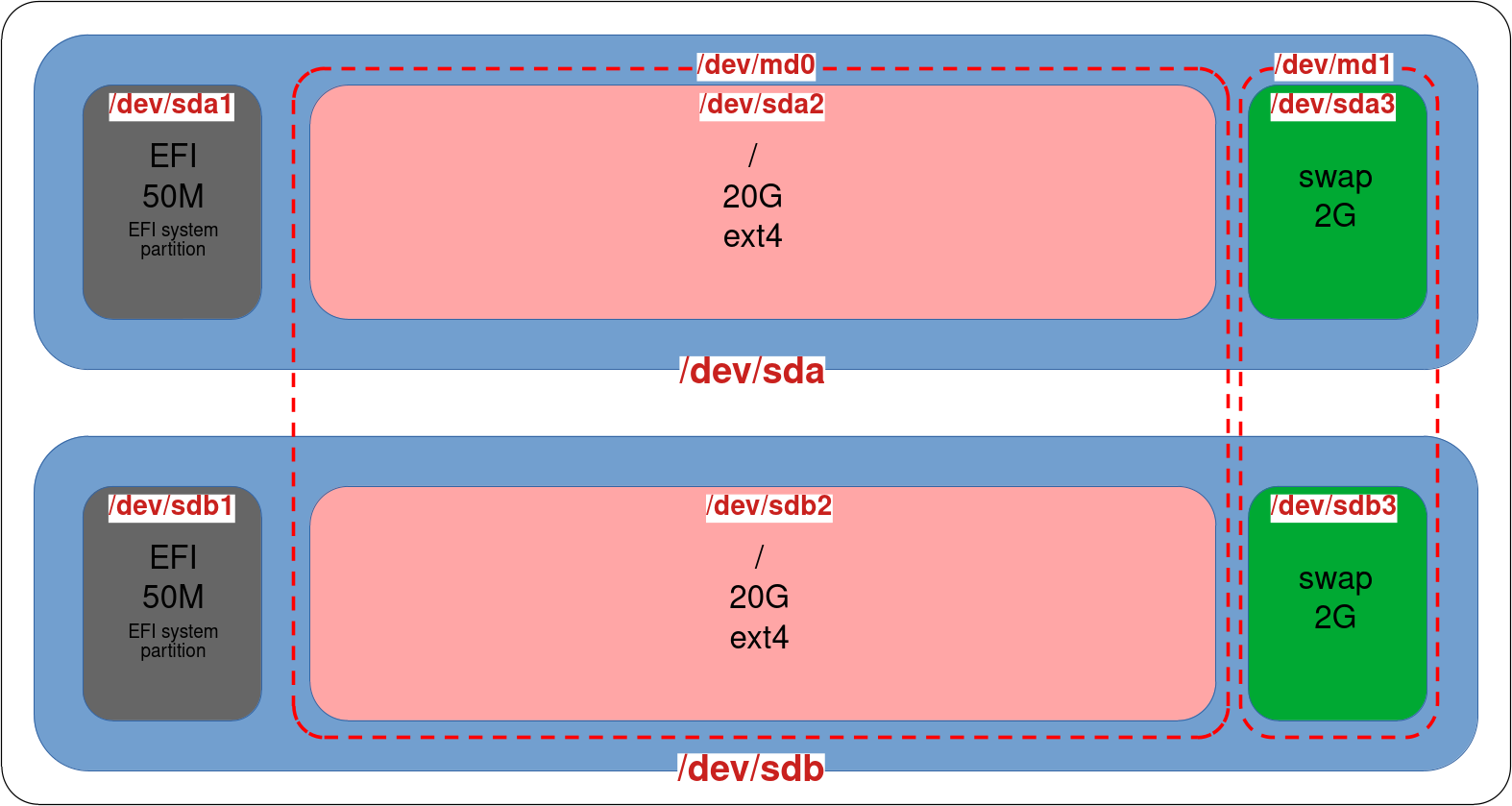
Our system is now redundant, and even if a disk fails, it should still be able to boot. However, our EFI partitions are not synchronized yet; that is what we will see below.
Enabling mdadm RAID for EFI Partitions
- First create new
mdadmRAID1 for/boot/efipartitions withoutsda1(we need to keep data in it). (Note:metadata 1.0is required for EFI to boot):
root@host:~# mdadm --create /dev/md100 --level 1 --raid-disks 2 --metadata 1.0 /dev/sdb1 missing
mdadm: partition table exists on /dev/sdb1
Continue creating array? yes
mdadm: array /dev/md100 started.- Format the newly created RAID partition in FAT32:
root@host:~# mkfs.fat -F32 /dev/md100- Copy the contents of
/dev/sda1partition to the mdadm RAID:
root@host:~# mkdir /tmp/RAID; mount /dev/md100 /tmp/RAID
root@host:~# apt update && apt install rsync
root@host:~# rsync -av --progress /boot/efi/ /tmp/RAID/- Now, add
/dev/sda1to the mdadm RAID:
root@host:~# umount /dev/sda1
root@host:~# mdadm --manage /dev/md100 --add /dev/sda1
mdadm: added /dev/sda1- Edit the
/etc/fstabfile and replace the UUID associated with/boot/efiwith a new one (usingblkid /dev/md100) or directly with/dev/md100:
UUID=0848963c-06bb-4f8b-9531-7a8bd2dee947 /               ext4    errors=remount-ro 0       1
# /boot/efi was on /dev/sda1 during installation
#OLD : UUID=D849-15E6  /boot/efi       vfat    umask=0077      0       1
/dev/md100  /boot/efi       vfat    umask=0077      0       1
# swap was on /dev/md102 during installation
UUID=8225ac96-677e-4fae-8f6b-28eac6c15a74 none swap sw 0 0- Add the
/dev/md100configuration to themdadm.conffile:
root@host:~# mdadm --detail --scan | grep 100 >> /etc/mdadm/mdadm.conf- Update the
initramfsimage (boot image):
root@host:~# update-initramfs -u
update-initramfs: Generating /boot/initrd.img-6.1.0-18-amd64- Check
mdadmraid status:
root@host:~# cat /proc/mdstat
md100 : active raid1 sda1[2] sdb1[0]
      48064 blocks super 1.0 [2/2] [UU]

md0 : active raid1 sdb2[1] sda2[0]
      18537472 blocks super 1.2 [2/2] [UU]

md1 : active (auto-read-only) raid1 sda3[0] sdb3[1]
      2363392 blocks super 1.2 [2/2] [UU]
      	resync=PENDING

unused devices: <none>- Done! We now have a fully redundant system with a UEFI RAID1:
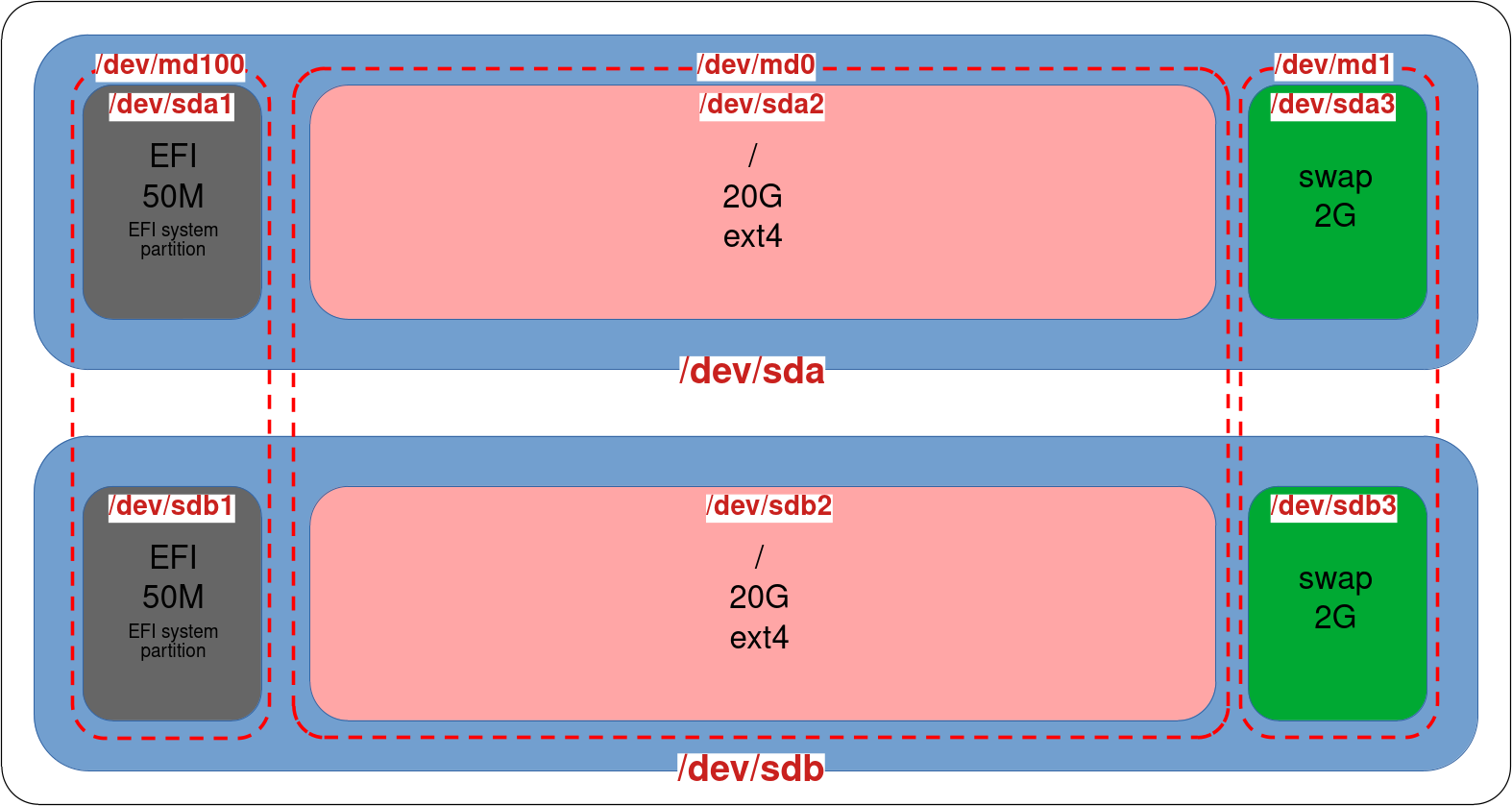
Manage pre-boot writing to the EFI partition
As explained in this excellent article: https://outflux.net/blog/, it can happen that the UEFI writes (a BootOptionCache.dat file) inside the ESP partition (for example, during a firmware upgrade), which means writing before the mdadm RAID is assembled and causes the EFI partition's RAID to be corrupted. To deal with this, I'm going to use his solution, which is to run an ESP RAID resynchronization every time the system starts.
- Modify the
/etc/fstabfile to disable automount of/dev/md100:
UUID=0848963c-06bb-4f8b-9531-7a8bd2dee947 /               ext4    errors=remount-ro 0       1
/dev/md100  /boot/efi       vfat    umask=0077,noauto,defaults      0       0
# swap was on /dev/md102 during installation
UUID=8225ac96-677e-4fae-8f6b-28eac6c15a74 none swap sw 0 0- Modify the
/etc/mdadm/mdadm.conffile and disable automatic assembly for the EFI partition:
#OLD ENTRY: ARRAY /dev/md100 meta=1.0 name=debian:100 UUID=11111111-2222-3333-4444-555555555555
ARRAY <ignore> meta=1.0 name=debian:100 UUID=11111111-2222-3333-4444-555555555555- Create a file
/etc/systemd/system/mdadm_esp.service:
[Unit]
Description=Resync /boot/efi RAID
DefaultDependencies=no
After=local-fs.target

[Service]
Type=oneshot
ExecStart=/sbin/mdadm -A /dev/md100 --uuid=11111111-2222-3333-4444-555555555555 --update=resync
ExecStart=/bin/mount /boot/efi
RemainAfterExit=yes

[Install]
WantedBy=sysinit.target- Enable the
mdadm_espservice:
root@host:~# systemctl enable mdadm_esp.service- Update
initramfs:
root@host:~# update-initramfs -u